

Set up WorkOS AuthKit for Cuttlely
This guide walks through connecting a Cuttlely install to WorkOS AuthKit, step by step. It matches the identity code in packages/server/src/identity/ and render.yaml. Every environment variable and route named here exists in that code.
The WorkOS dashboard changes often. Menu names, tab names, field labels, and screenshots below were checked against the dashboard in October 2026 but may have moved or been renamed since. If a label does not match, look for the closest equivalent on the same screen.
No secret values appear in this guide. Never paste an API key, a cookie password, or a break-glass password into git, a pull request, a chat, a ticket, or a shell command that lands in history.
Contents
Section titled “Contents”- What you are setting up
- WorkOS account, team, project, and environments
- Where the settings live in the WorkOS dashboard
- Redirect values to enter in WorkOS
- Authentication methods and sign-up
- Environment variables in Cuttlely
- First sign-in and adding users
- Break-glass local admin
- Troubleshooting
- Security notes
- What this install does
1. What you are setting up
Section titled “1. What you are setting up”- AuthKit is WorkOS’s hosted sign-in page. Cuttlely never sees a WorkOS password. It sends the browser to AuthKit, AuthKit sends the browser back with a one-time code, and Cuttlely exchanges that code for a user and a sealed session.
- Cuttlely’s routes (all under
/api/v1):
| Route | What it does |
|---|---|
GET /api/v1/auth/login |
Redirects (302) to the AuthKit authorization URL, built with WORKOS_CLIENT_ID and WORKOS_REDIRECT_URI. This is the URL that starts AuthKit. |
GET /api/v1/auth/callback |
AuthKit returns here with ?code=. Cuttlely exchanges the code, links or bootstraps the user, sets the sealed wos-session cookie, and redirects to /. |
POST /api/v1/auth/refreshToken |
Refreshes the sealed session. The UI calls it. |
POST /api/v1/auth/resolve |
Tells the UI where to go first. With WorkOS configured it answers /signin. |
POST /api/v1/account/logout |
Clears the cookie and returns the AuthKit logout URL. After logout AuthKit sends the browser to the origin of WORKOS_REDIRECT_URI plus /signin. |
POST /api/v1/auth/login |
Break-glass password sign-in for the one local Super User. Only when CUTTLELY_LOCAL_ADMIN=true (section 8). |
POST /api/v1/account/register |
Break-glass first-user setup form. Only when CUTTLELY_LOCAL_ADMIN=true, the user table is empty, and the request comes from loopback or carries the one-time code from the setup link in the server log. |
- WorkOS counts as configured only when both
WORKOS_API_KEYandWORKOS_CLIENT_IDare set. When either is missing, AuthKit is off. Cuttlely can still run as one built-in Super User. That path is section 8. A missing WorkOS configuration does not turn it on. - Teams, roles, permissions, and API keys stay in Cuttlely’s database. WorkOS only proves who the person is. Cuttlely decides what they can do.
2. WorkOS account, team, project, and environments
Section titled “2. WorkOS account, team, project, and environments”The WorkOS screenshots in this guide come from a real account, so its own names and secrets are blurred: the team and project names, the application name, the Client ID, keys, the hosted AuthKit address, and the install’s hostname. Your own team, project, and application names and your hostname appear in those places.
2.1 Create or sign in to a WorkOS account
Section titled “2.1 Create or sign in to a WorkOS account”-
Go to https://dashboard.workos.com/ and sign up or sign in.
-
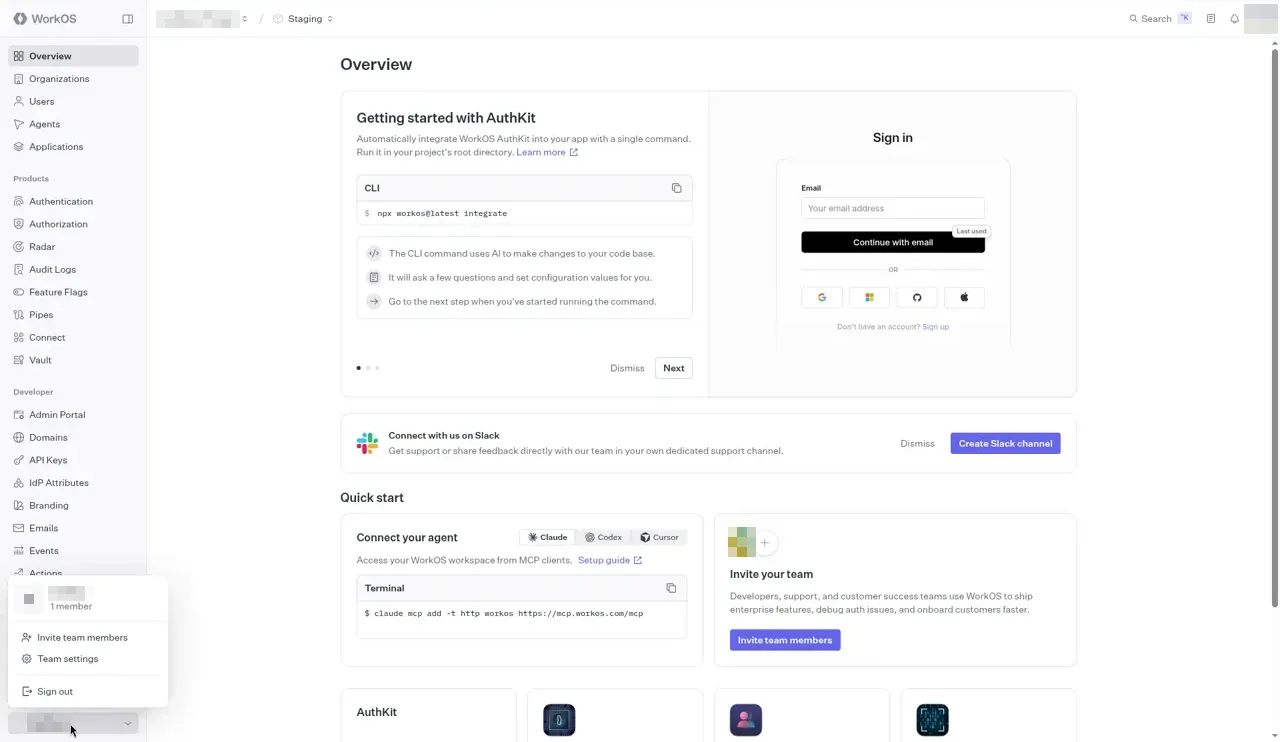
Use a WorkOS team that belongs to you or to the Cuttlely project, not a team owned by your employer. A WorkOS team is the billing and membership boundary. Keys, users, and audit logs in an employer team are visible to that employer’s admins, and leaving the job can cut off your access to production sign-in. If you are already a member of an employer team, create a new team from the team switcher (the team name at the bottom of the left sidebar) and give it a clear name such as “Cuttlely”.
-
Invite any co-admins to that team only. Give the smallest dashboard role that works.
2.2 Project and application
Section titled “2.2 Project and application”Inside the team, WorkOS groups settings by project and then by application. Use one application for one Cuttlely install (for example one Render web service). If WorkOS created a default project and application for you, you can use those.
2.3 Staging and Production environments
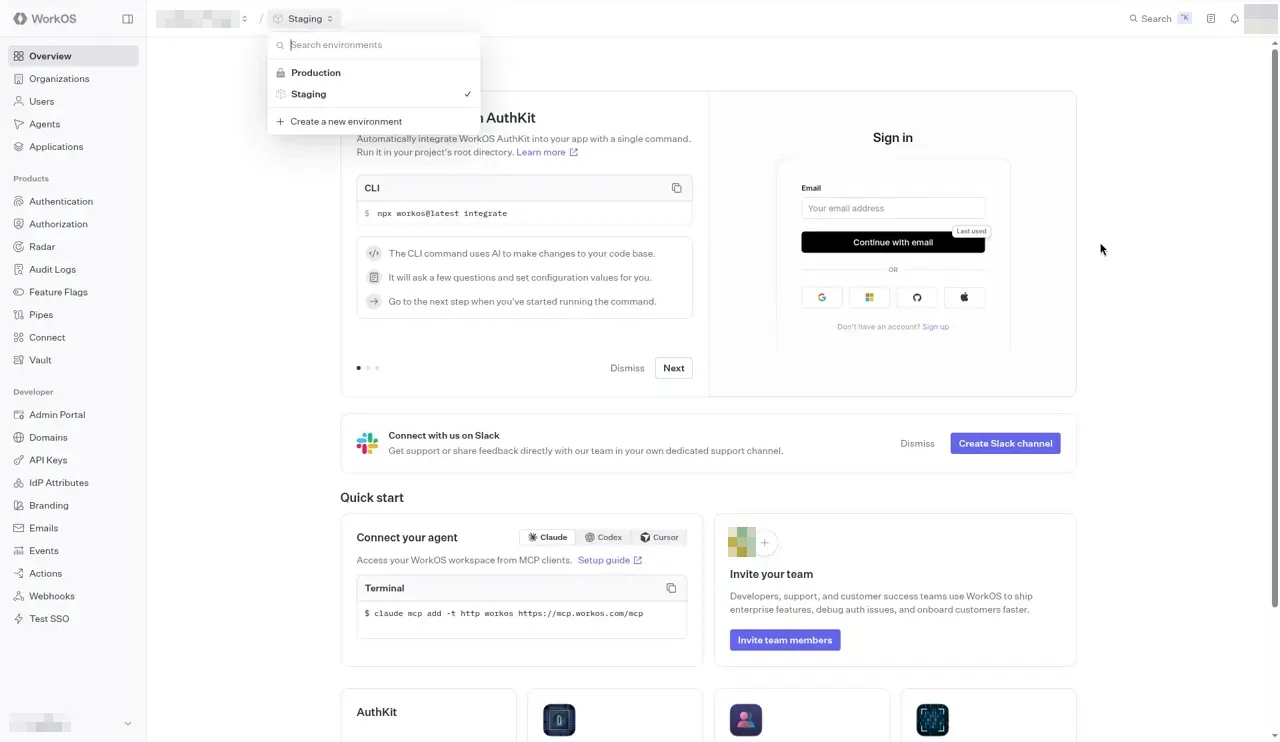
Section titled “2.3 Staging and Production environments”Each WorkOS project has two environments. The environment switcher is the environment name (for example Staging) next to the project name at the top of the dashboard. Click it to switch:
| Environment | API key prefix | Use it for |
|---|---|---|
| Staging | sk_test_ |
Local development, http://127.0.0.1:43117, and trying the Render deploy before real users. Staging allows http:// redirect URIs. |
| Production | sk_live_ |
Real users. Production redirect URIs must use https://. A local http:// callback cannot be registered there. |
Each environment has its own API key, Client ID, redirect settings, auth-method settings, and user directory. Nothing is shared between them.
When to move to Production. Move once the Render deploy works end to end on Staging (sign-in, sign-out, a second user linking) and before anyone outside your own testing depends on it. Plan the switch before the first real Super User signs in, because:
- WorkOS user IDs differ between Staging and Production. Cuttlely stores the WorkOS user ID on the Cuttlely user row (
externalId) on first sign-in. If a user first signed in through Staging and you then point Cuttlely at Production, that user’s next sign-in fails with “This email is already linked to a different sign-in.” (section 9 explains the fix). - Production may need billing or domain verification in WorkOS before it accepts real sign-ins. Check the dashboard for any setup checklist.
To switch: repeat sections 3 to 5 in the Production environment, then replace WORKOS_API_KEY and WORKOS_CLIENT_ID on the server with the Production values and redeploy. WORKOS_REDIRECT_URI and WORKOS_COOKIE_PASSWORD can stay the same if the public URL does not change. Expect everyone to sign in again: existing sessions were issued by the Staging environment.
3. Where the settings live in the WorkOS dashboard
Section titled “3. Where the settings live in the WorkOS dashboard”Make sure the environment switcher at the top shows the environment you mean (Staging or Production) before you change anything. The left sidebar has three groups: the top group (Overview, Organizations, Users, Agents, Applications), Products (Authentication and more), and Developer (API Keys and more).
3.1 Applications
Section titled “3.1 Applications”Click Applications in the left sidebar. The list shows each application with its Client ID and creation date. WorkOS creates one default application per environment; use it, or use Create application for a separate install.
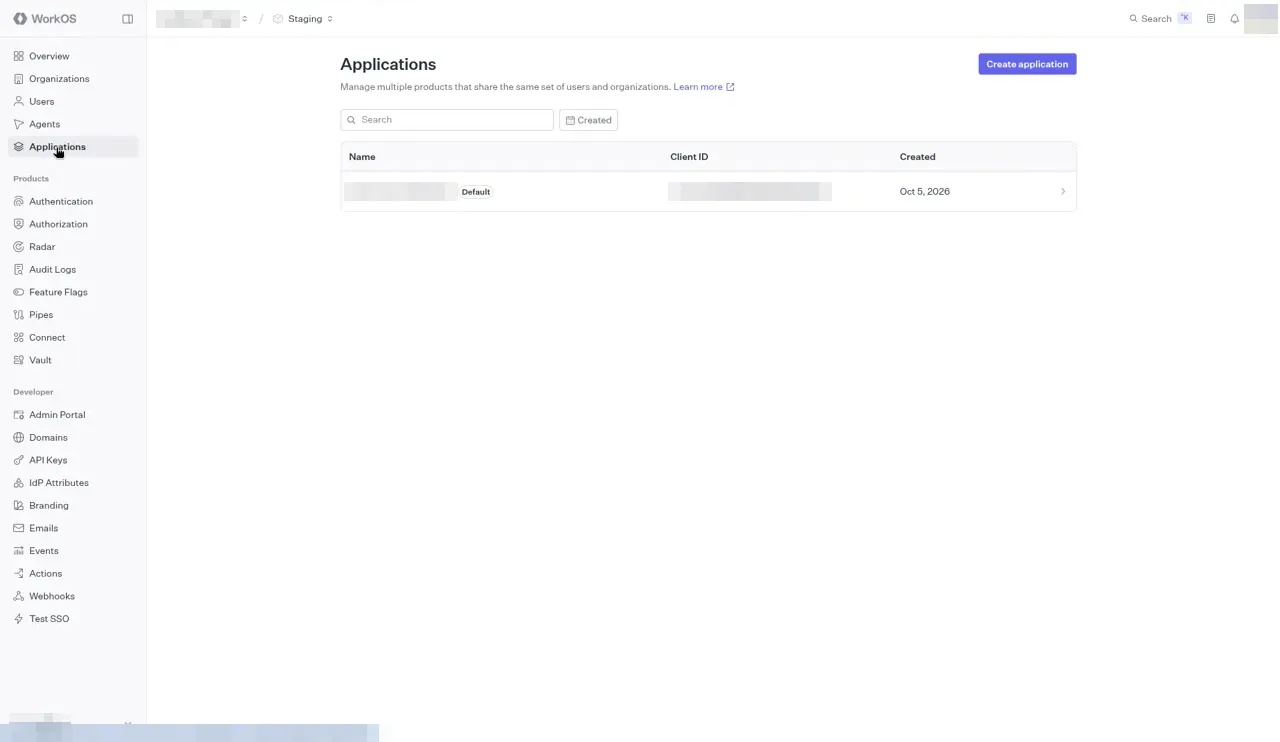
Click the application to open it. It has four tabs: Details, Redirects, Sessions, and API keys.
-
Details tab. The Client ID (starts with
client_) is the grey chip under the application name. The Environment variables box below shows the same Client ID asWORKOS_CLIENT_IDand a maskedWORKOS_API_KEY.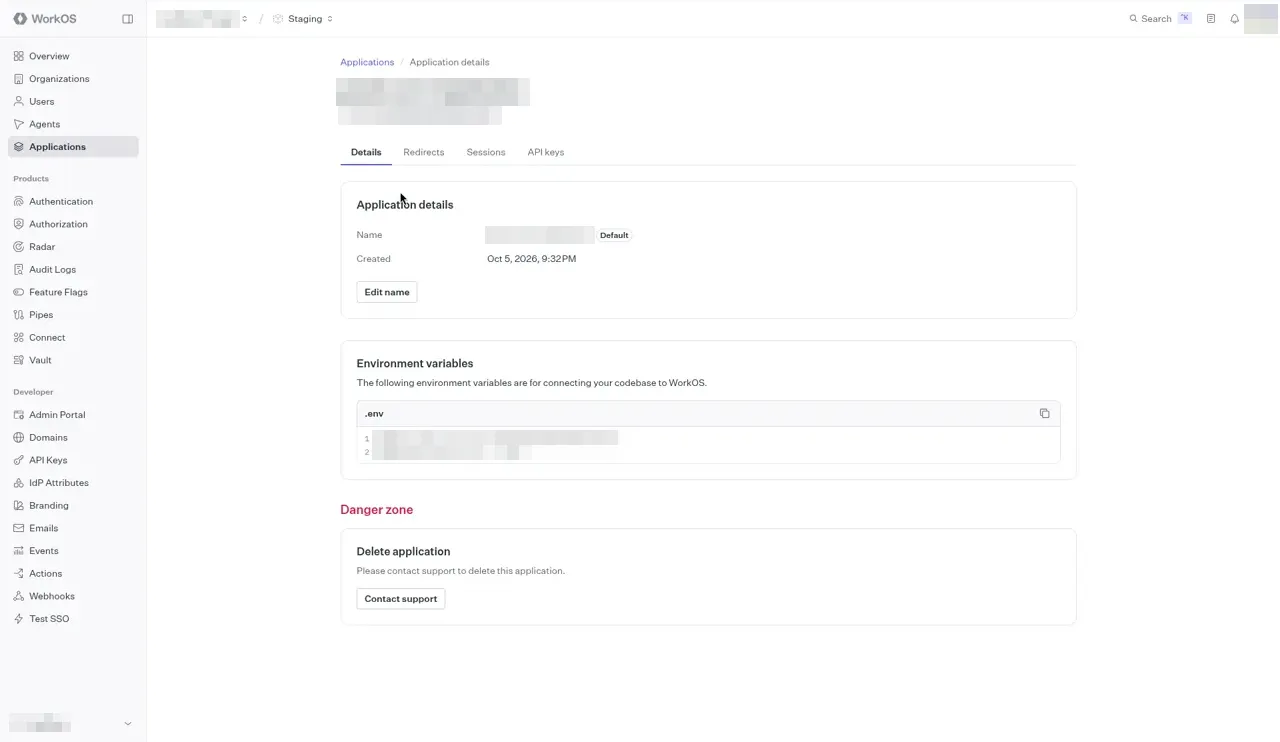
-
Redirects tab. This is where the URLs in section 4 go. Each row has an edit icon at the right. The rows are:
- Redirect URIs. Where AuthKit sends the browser after sign-in. When there is more than one, the row shows the first and “+1 more”.
- App homepage URL. Where WorkOS links back to your app, for example from hosted pages.
- Initiate login URI. The URL AuthKit sends a browser to when sign-in did not start at Cuttlely, for example from a password-reset or invitation email, or a bookmarked AuthKit page.
- Sign-out URIs. Where AuthKit sends the browser after logout. WorkOS shows an error on logout if none is set.
- Sign-up URL, User invitation URL, and Password reset URL. Cuttlely does not need these. Leave them as Not set.
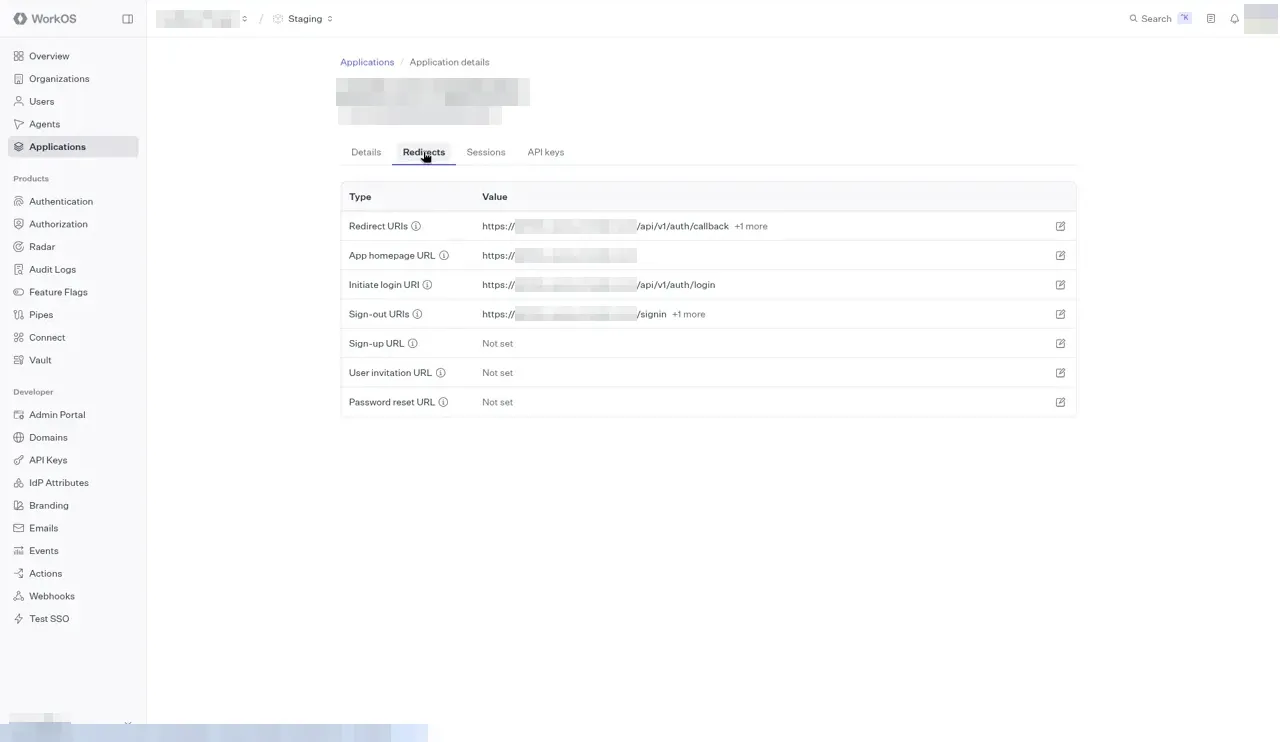
Your service’s hostname goes where the screenshot is blurred, for example
https://your-service.onrender.com/api/v1/auth/callback.
3.2 API Keys
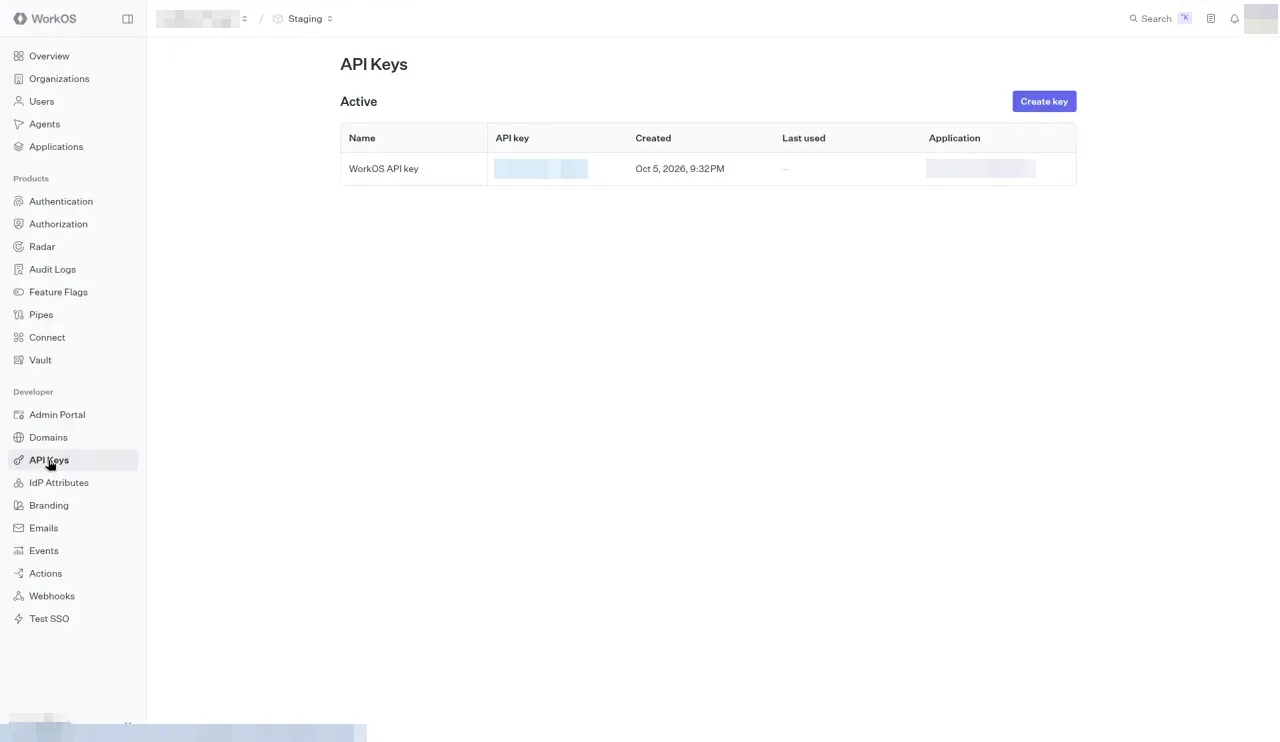
Section titled “3.2 API Keys”Click API Keys under Developer in the left sidebar. The Active table lists the environment’s secret keys with Name, API key (masked), Created, Last used, and Application. Create key is at the top right; the eye icon on a key reveals it. Copy a key straight into the server’s environment settings. Do not save it in a file in the repo.
3.3 Authentication
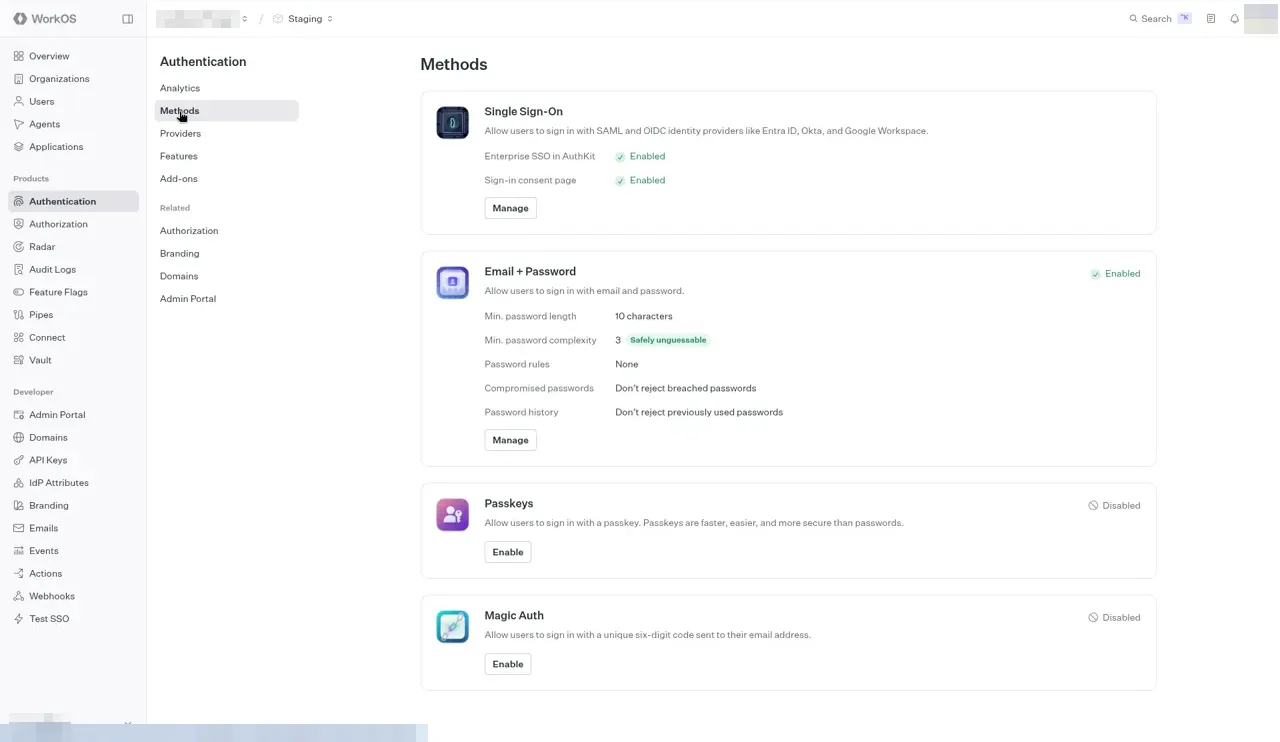
Section titled “3.3 Authentication”Click Authentication under Products in the left sidebar. It opens on Analytics. The settings in section 5 are on the other pages of its menu:
- Methods: Single Sign-On, Email + Password, Passkeys, and Magic Auth, each with its own Manage or Enable button.
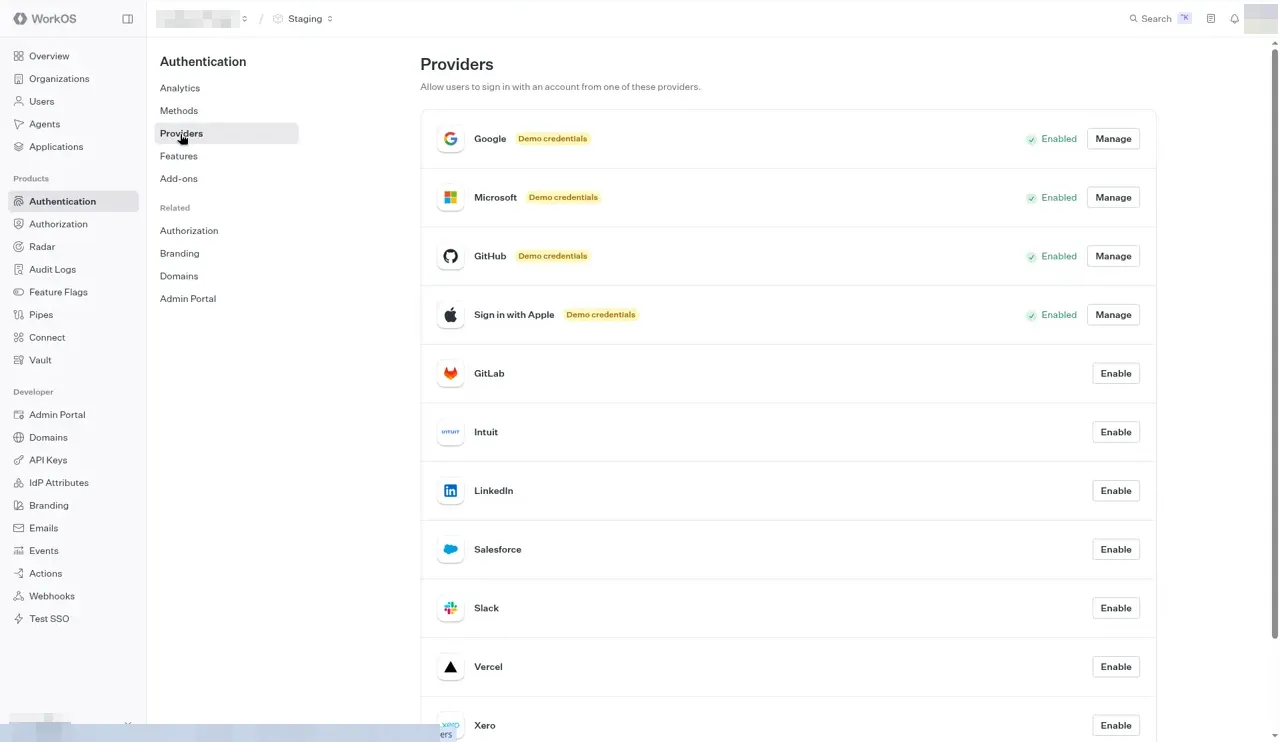
- Providers: social sign-in such as Google, Microsoft, GitHub, and Sign in with Apple.
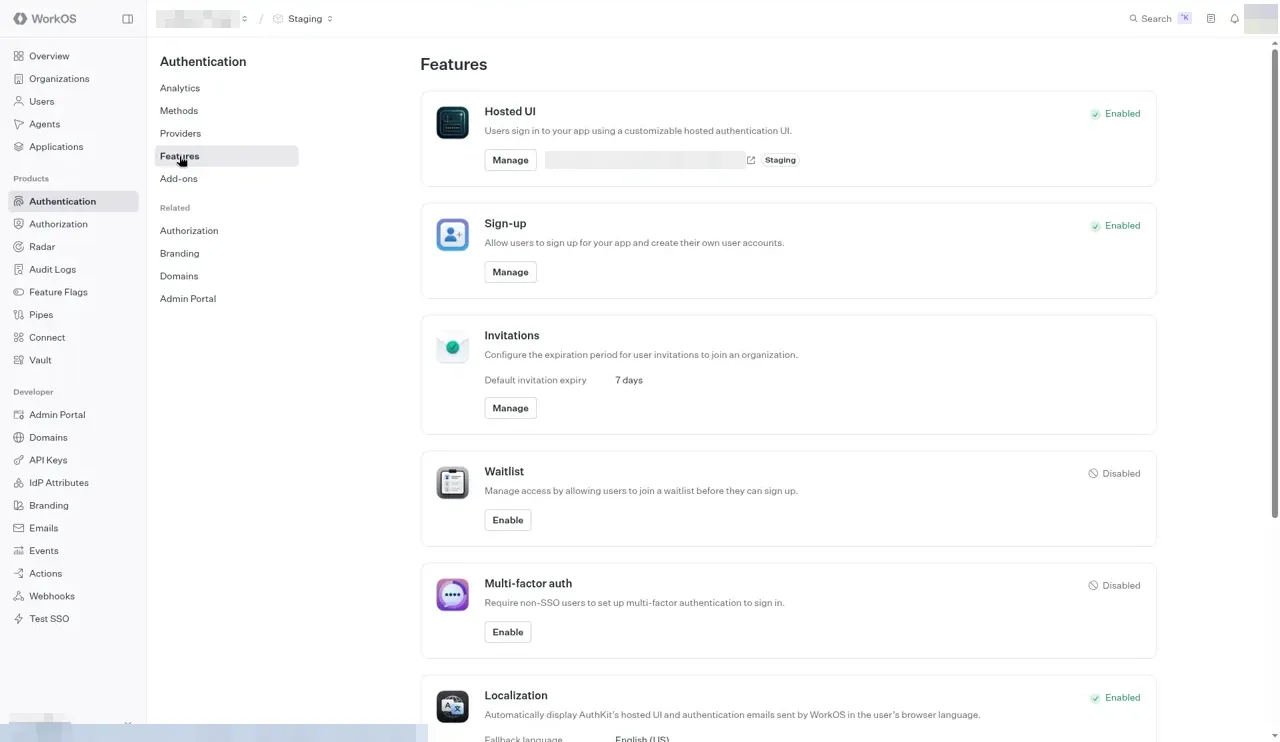
- Features: Hosted UI (the AuthKit page), Sign-up, Invitations, Waitlist, Multi-factor auth, and more.
3.4 Users
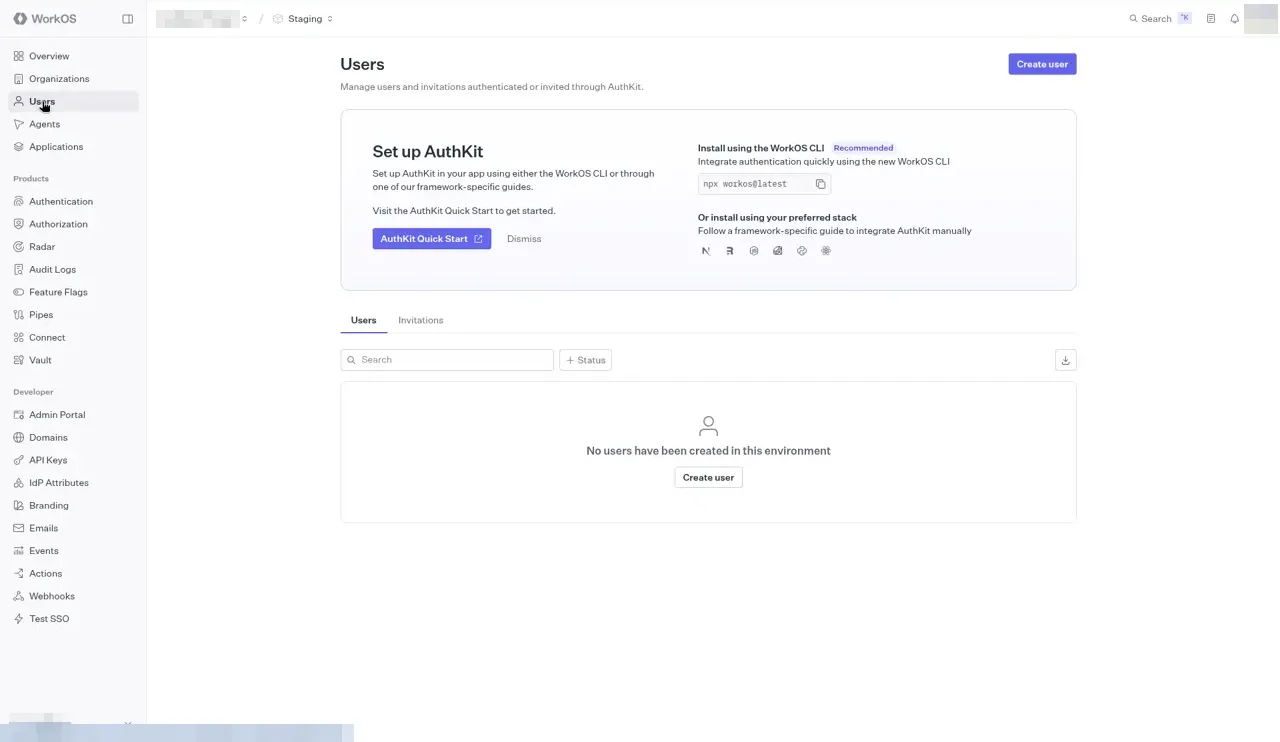
Section titled “3.4 Users”Click Users in the left sidebar. This is the WorkOS user directory for the environment, with Users and Invitations tabs. Create user at the top right adds a person by hand.
4. Redirect values to enter in WorkOS
Section titled “4. Redirect values to enter in WorkOS”4.1 Render
Section titled “4.1 Render”The web service in render.yaml is named cuttlely. Render assigns the public origin after you apply the Blueprint. Use that origin everywhere this section shows https://your-service.onrender.com.
| WorkOS field | Value | Why |
|---|---|---|
| Redirect URI (default) | https://your-service.onrender.com/api/v1/auth/callback |
The callback route. Must equal WORKOS_REDIRECT_URI character for character. |
| Redirect URI (Staging only) | http://127.0.0.1:43117/api/v1/auth/callback |
Local development (the start script’s default port is 43117). Production does not accept http://. |
| Sign-out URI | https://your-service.onrender.com/signin |
Cuttlely sends returnTo = the origin of WORKOS_REDIRECT_URI plus /signin. It must be on this list. |
| Sign-out URI (Staging only) | http://127.0.0.1:43117/signin |
Local sign-out. |
| App homepage URL | https://your-service.onrender.com |
The app root. |
| Initiate login URI | https://your-service.onrender.com/api/v1/auth/login |
Recommended. This is the route that actually starts AuthKit. See the trade-off below. |
Initiate login URI: /api/v1/auth/login. Keep this on the AuthKit route, not on /signin. WorkOS documents that password-reset and invitation context survives the bounce only when the Initiate login URI starts an AuthKit sign-in. /signin now shows Sign in with WorkOS, which goes to GET /api/v1/auth/login. A password form is on that page only when CUTTLELY_LOCAL_ADMIN=true. People who follow an AuthKit email should still land on /api/v1/auth/login directly.
4.2 Any other host
Section titled “4.2 Any other host”Replace <your-origin> with the scheme, host, and port people type in the browser, with no trailing slash (for example https://cuttlely.example.com).
| WorkOS field | Value |
|---|---|
| Redirect URI | <your-origin>/api/v1/auth/callback |
| Sign-out URI | <your-origin>/signin |
| App homepage URL | <your-origin> |
| Initiate login URI | <your-origin>/api/v1/auth/login |
Rules that come from the code:
WORKOS_REDIRECT_URIis sent to WorkOS unchanged. It must match a registered Redirect URI exactly: scheme, host, port, path, and trailing slash.http://127.0.0.1:43117/...andhttp://localhost:43117/...are different URIs.- The sign-out return URL is always
new URL(WORKOS_REDIRECT_URI).origin + "/signin". You cannot configure it separately. - Whether the session cookie gets the
Secureflag follows the scheme ofWORKOS_REDIRECT_URI:https://sets it,http://does not. Usehttps://for anything reachable from another machine. - Open Cuttlely in the browser on the same host as the redirect URI. Cookies are per host, so signing in through
127.0.0.1and then browsinglocalhostlooks signed out.
5. Authentication methods and sign-up
Section titled “5. Authentication methods and sign-up”In the WorkOS dashboard, click Authentication under Products for the environment (section 3.3):
-
Pick the methods on the Methods page, and social sign-in on the Providers page. Email and password, Google OAuth, Microsoft OAuth, Magic Auth (email code), and others are available. Cuttlely does not care which method a person uses. It only reads the verified email and the WorkOS user ID. Enable only what you need. In Staging, providers can run on WorkOS’s shared test credentials, marked Demo credentials. For social providers in Production, WorkOS asks for your own OAuth client credentials from the provider.
-
Keep email verification on. Cuttlely refuses any sign-in whose email WorkOS does not report as verified (“Email is not verified.”). If verification is off for email and password, those users can never get in. The Methods and Features pages do not show a separate email verification switch; if your dashboard has one, it is behind the Manage button on Email + Password or Sign-up.
-
Turn off public sign-up if your plan offers it. On the Features page, the Sign-up card (“Allow users to sign up for your app and create their own user accounts”) shows Enabled or Disabled and has a Manage button. Turning it off means only users you create on the WorkOS Users page (or invite) can sign in to AuthKit at all.
-
If sign-up must stay on, Cuttlely is still closed by default: once any Cuttlely user exists, a verified email with no matching Cuttlely user is refused with “No account exists for this email.” On an empty database, only
CUTTLELY_BOOTSTRAP_EMAILcan create the first account. An open AuthKit sign-up therefore creates WorkOS users who cannot use Cuttlely, which clutters the WorkOS directory but does not grant access.
Recommended setup: public sign-up off, CUTTLELY_BOOTSTRAP_EMAIL set to your own email, and every other person added in Cuttlely (section 7) and, if sign-up is off, also created in WorkOS Users.
6. Environment variables in Cuttlely
Section titled “6. Environment variables in Cuttlely”| Variable | Required | Value |
|---|---|---|
WORKOS_API_KEY |
Yes, for AuthKit | The environment’s secret API key (sk_test_... in Staging, sk_live_... in Production). From API Keys in the sidebar. |
WORKOS_CLIENT_ID |
Yes, for AuthKit | The application’s Client ID (client_...), from the Details tab. Same environment as the API key. |
WORKOS_REDIRECT_URI |
Yes, for AuthKit | The callback URL, for example https://your-service.onrender.com/api/v1/auth/callback. Must match a registered Redirect URI exactly. If it is unset, GET /api/v1/auth/login shows “Sign-in is unavailable.” (503). |
WORKOS_COOKIE_PASSWORD |
Yes, for AuthKit | At least 32 characters. Generate it with openssl rand -base64 32 (44 characters). It encrypts (seals) the wos-session cookie. Use the same value on every instance and keep it across deploys, or everyone is signed out. It is not the credential encryption key (FLOWISE_SECRETKEY_OVERWRITE); never reuse one for the other. |
CUTTLELY_BOOTSTRAP_EMAIL |
Yes, for the first sign-in | The one email allowed to become Super User when the database has no users. Compared case-insensitively against the verified AuthKit email. If it is unset, first-user setup is refused. |
TRUST_PROXY |
Set when behind a proxy | Unset or blank trusts no proxies, so X-Forwarded-For is ignored (D51). render.yaml sets 1 because Render has one proxy hop. Behind nginx or a load balancer, set the number of proxy hops in front of the process. true trusts every proxy and is rarely right. Other Express trust proxy values (for example an address list) are passed through. |
CUTTLELY_LOCAL_ADMIN |
No. Break-glass only | true turns on the local password sign-in for the one Super User (section 8). Leave it unset on Render in normal operation. |
6.1 On Render
Section titled “6.1 On Render”render.yaml declares WORKOS_API_KEY, WORKOS_CLIENT_ID, WORKOS_REDIRECT_URI, WORKOS_COOKIE_PASSWORD, and CUTTLELY_BOOTSTRAP_EMAIL with sync: false and no value, and sets TRUST_PROXY to 1. It does not declare CUTTLELY_LOCAL_ADMIN.
- First Blueprint create: Render prompts for every
sync: falsevariable. Paste each value into the prompt. - After create, or to change a value: Render Dashboard > your web service > Environment. Add or edit the variable, then pick the save option that also deploys, so the running process picks up the change.
- A later Blueprint sync does not overwrite
sync: falsevalues you entered in the Dashboard.
6.2 Locally
Section titled “6.2 Locally”The server reads packages/server/.env at startup (packages/server/src/commands/base.ts, with override: true, so values in that file win over the same variables exported in your shell). packages/server/.env is gitignored; keep it that way and keep it readable only by you (chmod 600).
# packages/server/.env (example shape, no real values)WORKOS_API_KEY=<staging API key>WORKOS_CLIENT_ID=<staging client id>WORKOS_REDIRECT_URI=http://127.0.0.1:43117/api/v1/auth/callbackWORKOS_COOKIE_PASSWORD=<output of: openssl rand -base64 32>CUTTLELY_BOOTSTRAP_EMAIL=<your email>Then start Cuttlely as usual (bash scripts/start-cuttlely.sh or pnpm start:harness) and open http://127.0.0.1:43117 (use 127.0.0.1, matching the redirect URI). Leave TRUST_PROXY unset unless a proxy sits in front of the process.
7. First sign-in and adding users
Section titled “7. First sign-in and adding users”7.1 First sign-in on an empty database
Section titled “7.1 First sign-in on an empty database”- Deploy with the variables from section 6, including
CUTTLELY_BOOTSTRAP_EMAIL. - Open
<your-origin>/signin. Use Sign in with WorkOS. That button goes toGET /api/v1/auth/login(on Render,https://your-service.onrender.com/api/v1/auth/login, using the origin Render assigned). The password form is not on this page unlessCUTTLELY_LOCAL_ADMIN=true. - Sign in on AuthKit with the bootstrap email (verify the email if AuthKit asks).
- AuthKit returns to
/api/v1/auth/callback. Because the database has no users and the verified email matchesCUTTLELY_BOOTSTRAP_EMAIL, Cuttlely creates the Super User (organization owner) with that email, links it to the WorkOS user, sets the session cookie, and redirects to/. - From now on,
CUTTLELY_BOOTSTRAP_EMAILhas no effect while any user exists. You can leave it set.
If the email does not match, or the variable is unset, the callback returns a 403 page (“First-user setup is not available.”) and logs the reason (section 9).
7.2 Adding more people
Section titled “7.2 Adding more people”Linking works by email: when a verified AuthKit user signs in and has no linked Cuttlely user yet, Cuttlely looks for exactly one active Cuttlely user with the same email (case-insensitive) that is not linked to anyone, links it by storing the WorkOS user ID, and signs the person in. Later sign-ins match on that stored ID.
- In WorkOS Users, create the person (or invite them), unless public sign-up is on.
- In Cuttlely, as the Super User, open Users and choose Add User. Enter a name and an email, then a team and a role. Leave the password out. Cuttlely stores the user as
activewith no local password. - Send them
<your-origin>/signin. They use Sign in with WorkOS. The first verified sign-in links the account.
An older database may still have an invited row from before this change. That person can use the same WorkOS button. The callback marks the row active. Do not invent a password for them. unverified, deleted, and disable still cannot sign in.
7.3 What stays in Cuttlely
Section titled “7.3 What stays in Cuttlely”Teams (workspaces), roles, permissions, the active team, and API keys live in Cuttlely’s database. WorkOS organizations, roles, and permissions are not read. Removing someone’s access is a Cuttlely change (deactivate or remove the user); deleting them in WorkOS stops them from signing in but leaves their Cuttlely row.
8. Break-glass local admin
Section titled “8. Break-glass local admin”This is also the solo install when AuthKit is not configured. Leave WORKOS_API_KEY and WORKOS_CLIENT_ID unset, set CUTTLELY_LOCAL_ADMIN=true, and create the one Super User on an empty database. /signin then shows the password form and hides Sign in with WorkOS. That is one organization owner, with no hosted identity provider. The flag does not turn on by itself when WorkOS is missing. CUTTLELY_BOOTSTRAP_EMAIL is not this path. It applies only to the first verified AuthKit user.
The same flag is the break-glass for an install that already uses AuthKit: offline recovery, smoke tests, and getting back in when WorkOS is down or misconfigured. It exists only for the one Super User. Do not leave it on a public deploy.
-
Set a password on the Super User. From the repo root. On Render, use the service Shell when the plan offers one. The image working directory is
/usr/src/cuttlely.Terminal window pnpm user --email you@example.comThe password is read from a masked prompt (nothing is echoed) or, when stdin is not a terminal, from stdin (for example
pnpm user --email you@example.com < /path/to/a/chmod-600-file). It is never taken from a command-line argument. It must be 8 to 128 characters with a lowercase letter, an uppercase letter, a digit, and a special character. It is stored as a salted scrypt hash (scrypt$...); no other hash format is accepted.- With
CUTTLELY_LOCAL_ADMINunset,pnpm user --emailcan only reset the existing Super User’s password (recovery). It refuses anyone else and refuses to create users. - With
CUTTLELY_LOCAL_ADMIN=trueand an empty user table, the same command creates the Super User. pnpm userwith no arguments lists the user emails and a count.
- With
-
Turn on the flag with
CUTTLELY_LOCAL_ADMIN=true(inpackages/server/.envlocally, or on the Render Environment page in an emergency) and restart. -
Sign in on
/signinwith the Super User’s email and password. Only that email works; every other email gets “Invalid email or password.” even with the flag on. -
Limits. Ten failed attempts from one IP address, or against one account email, within 15 minutes block that IP or that account for the rest of the window (“Too many sign-in attempts. Try again later.”, HTTP 429). A successful sign-in does not clear the window. This also means anyone can lock the Super User out of break-glass for 15 minutes by guessing; that is expected.
-
Session. The break-glass cookie
cuttlely-local-sessionlasts 12 hours idle and 7 days at most. Only a SHA-256 of the token is stored. -
Turn the flag off afterward on a public AuthKit deploy, and restart. With the flag off,
POST /api/v1/auth/loginandPOST /api/v1/account/registeranswer 404, and an existing break-glass cookie stops working. A solo install that has no AuthKit keeps the flag on, because that password form is the only sign-in.
Never leave CUTTLELY_LOCAL_ADMIN=true on a public deploy. It puts a password form for the most privileged account on the internet.
9. Troubleshooting
Section titled “9. Troubleshooting”Where to look. On Render: your web service Logs tab. Locally: the terminal running the start script, and LOG_PATH if set (the Blueprint sets /var/cuttlely/logs). On the WorkOS side: the dashboard’s Events or Logs pages for the environment, which show failed authorizations and the reason.
| Symptom | Cause and fix |
|---|---|
AuthKit shows a redirect_uri error, or “invalid redirect URI” |
WORKOS_REDIRECT_URI does not exactly match a Redirect URI in the same environment’s Redirects tab. Compare scheme, host, port, path, and trailing slash. Check the environment switcher: Staging and Production have separate lists. |
/api/v1/auth/login shows “Sign-in is unavailable.” (503) |
WORKOS_REDIRECT_URI is unset, or WorkOS could not build the URL. |
/api/v1/auth/login does not go to AuthKit (404 or an older page) |
WorkOS is not configured: WORKOS_API_KEY or WORKOS_CLIENT_ID is missing, so the route falls through to the older routes. With CUTTLELY_LOCAL_ADMIN=true and WorkOS unset, it answers 404 on purpose. |
| Callback shows “Sign-in is unavailable.” (503) | WORKOS_COOKIE_PASSWORD is missing or shorter than 32 characters, or WorkOS was unreachable (network error, timeout, HTTP 408, 429, or 5xx). Regenerate the password with openssl rand -base64 32, set it, and redeploy. |
| Callback returns 400 “No code provided” | Something opened /api/v1/auth/callback without AuthKit’s code. Start at /api/v1/auth/login. Codes are valid for 10 minutes and once. |
| 403 “First-user setup is not available.” | The database has no users and the bootstrap was refused. The log line says which: CUTTLELY_BOOTSTRAP_EMAIL is unset. Refusing to bootstrap the first user. or Verified email did not match CUTTLELY_BOOTSTRAP_EMAIL. Refusing to bootstrap. Set the variable to the exact email you sign in with and redeploy. |
Back on /signin with “Email is not verified.” |
WorkOS reports the email unverified. Turn on email verification and finish it in AuthKit. |
| “No account exists for this email.” | Users exist and none has this email. Add the user in Cuttlely (section 7.2). |
| “This account is not active.” | The Cuttlely user is not active, often because it was added without a password in phase 1 (section 7.2), or it was deactivated. |
| “This email matches more than one account.” | Two unlinked Cuttlely users share the email. Remove the duplicate. |
| “This email is already linked to a different sign-in.” | The Cuttlely user is linked to another WorkOS user ID: the WorkOS user was deleted and re-created, or Cuttlely moved between Staging and Production. Back up the database, then clear that user’s externalId column (set it to NULL) on the user table; the next verified sign-in links the new ID. |
| “Too many sign-in attempts. Try again later.” (429) | Break-glass lockout (section 8). Wait 15 minutes from the earliest of the last ten failures. A restart does not clear it; the failures are stored in the database. |
| Signed in, then immediately signed out, or signed out after each deploy | WORKOS_COOKIE_PASSWORD differs between instances or changed. Use one stable value. Also check you browse the same host as the redirect URI. |
Cookie not kept on plain http:// from another machine |
Fine locally; elsewhere use https://. The Secure flag follows the redirect URI’s scheme. |
| Behind a proxy: every request looks like it comes from the proxy, rate limits hit everyone, or the break-glass register form works through the proxy | TRUST_PROXY is unset, so Cuttlely sees the proxy’s address (with a proxy on the same host, that is 127.0.0.1). Set TRUST_PROXY to the hop count. On Render it must stay 1. |
Behind a proxy: X-Forwarded-For is spoofable |
TRUST_PROXY is larger than the real hop count, or true. Set the exact count. |
| Logout shows a WorkOS error page | No Sign-out URI is registered, or <origin of WORKOS_REDIRECT_URI>/signin is not on the list. |
10. Security notes
Section titled “10. Security notes”- No secrets in git or chat. API keys, the cookie password, and break-glass passwords go only into the Render Environment page or a
chmod 600packages/server/.env.pnpm verifyincludes a secrets scan, but it does not know WorkOS key formats; do not rely on it. - Rotate the API key in API Keys if it may have leaked, when someone with access leaves, and on a schedule. Create the new key, update
WORKOS_API_KEY, redeploy, confirm sign-in, then revoke the old key. Sessions keep working because they are sealed with the cookie password, not the API key. - Rotating the cookie password signs everyone out. Do it if the value leaked.
- Cookie flags.
wos-session(AuthKit) andcuttlely-local-session(break-glass) are bothHttpOnly,SameSite=Lax,Path=/, andSecurewheneverWORKOS_REDIRECT_URIishttps://. The two are never mixed: an AuthKit sign-in clears the break-glass cookie and the reverse. State-changing requests that rely on these cookies, including logout, must carry thex-request-from: internalheader, which the Cuttlely UI sends. - Least privilege in WorkOS. Keep dashboard membership small, and keep the Cuttlely team separate from any employer team.
- Break-glass stays off on a public AuthKit deploy. A solo install with no AuthKit keeps the flag on, because that password form is the only sign-in.
11. What this install does
Section titled “11. What this install does”/signinshows Sign in with WorkOS whenGET /api/v1/auth/signin-optionsreports AuthKit. The button goes toGET /api/v1/auth/login. Share that login URL. Cuttlely does not send an invite.- The password button is Sign in with password when WorkOS is on, and Sign in when it is the only way in. It appears only when
CUTTLELY_LOCAL_ADMIN=true. - Add User takes a name and an email. It does not ask for a password.
- With AuthKit unset and the local-admin flag off, sign-in answers 404.
- Other single sign-on providers, Stripe billing, invite mail, datasets, and evaluations are not part of this install. The routes in this guide are the sign-in contract.