

Version history
Cuttlely keeps every saved version of a flow. You can see what changed in each save, compare an old version with the flow as it is now, see who made each change, and put an old version back.
History covers every canvas: chatflows, agentflows, harnesses, and ETL pipelines. It is on by default. It needs no setup and no network. Versions are kept in a Git repo on the server, next to the rest of Cuttlely’s data. The owner can also keep a copy in GitHub, and use it to move a flow from Dev to Prod. Credentials are kept by name only, and password and other known secret fields are never written to history. Secret-looking text you type into a prompt or another text field, such as an API key or a Bearer token, is hidden from history. Keep keys in credentials anyway.
Install first: Docker, From source, or Render. What a harness is: Harnesses. Pipelines: ETL. The routes, settings, and file format are in the reference pages: History API, Drafts API, History settings, and Version files.
The lifecycle at a glance
Section titled “The lifecycle at a glance”Each step links to its section below.
- Edit a draft. The canvas saves to a draft, and Live keeps serving until you publish. See Drafts and Publish.
- Check before you publish. On a chatflow or an agentflow, the Publish dialog can ask recent questions again on Live and on your draft, side by side. See Check recent questions before you publish.
- Publish. Your draft goes Live, and history marks the version Published. See Drafts and Publish.
- Look back. Every version says what changed and who changed it. See Open version history, See what changed, Compare with now and Who changed it.
- Undo. Open an old version as your draft, or roll Live back in one step. See Restore a version.
- Keep a copy in GitHub (optional). Any time in Version History, once you have flows worth keeping. See Keep a copy in GitHub.
- Move a flow from Dev to Prod (optional). Prod reviews, checks and promotes what Dev published, with its own credentials. See Move a flow from Dev to Prod.
Open version history
Section titled “Open version history”Open a saved flow. Under its name, the canvas header says who saved it last, for example Last edited by Rosa Diaz, 5 minutes ago. Hold the pointer over that line for the exact time.
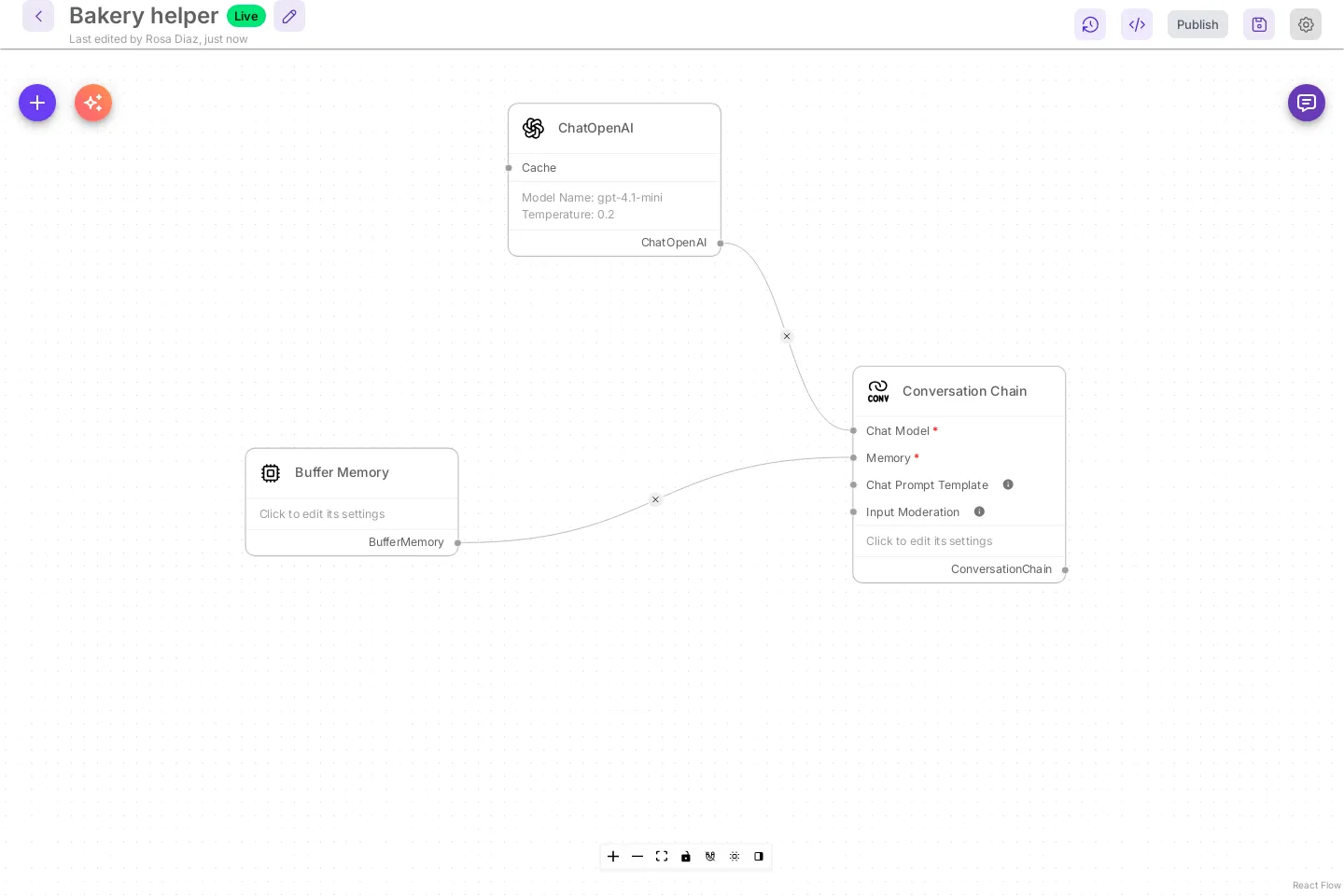
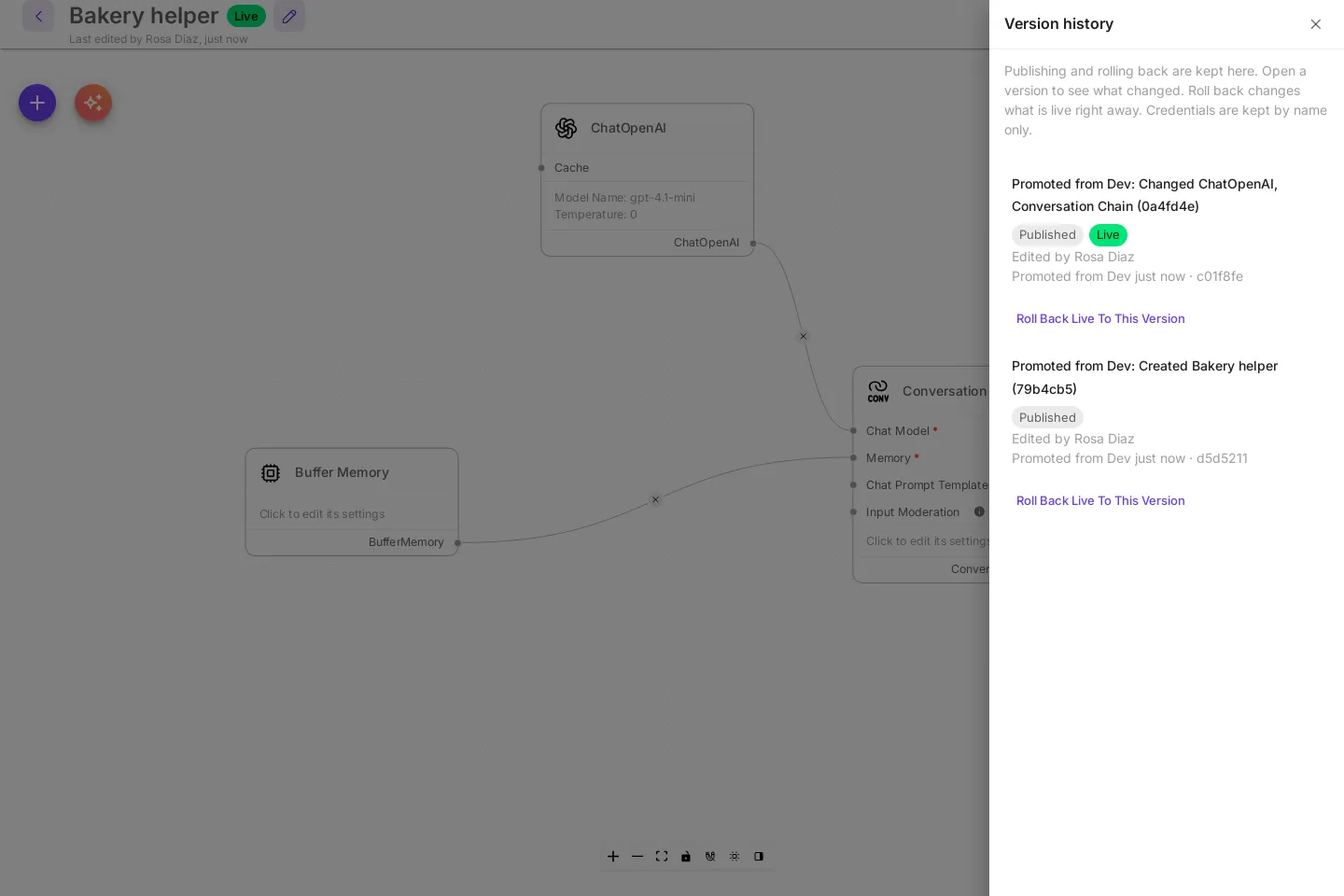
Select Version history, the clock icon at the top right of the canvas. The panel lists the flow’s versions, newest first. Live marks the version people are served now, and Published marks each version that was put Live. On a flow with drafts off or Publish instantly on, Current marks the version the flow is on now.
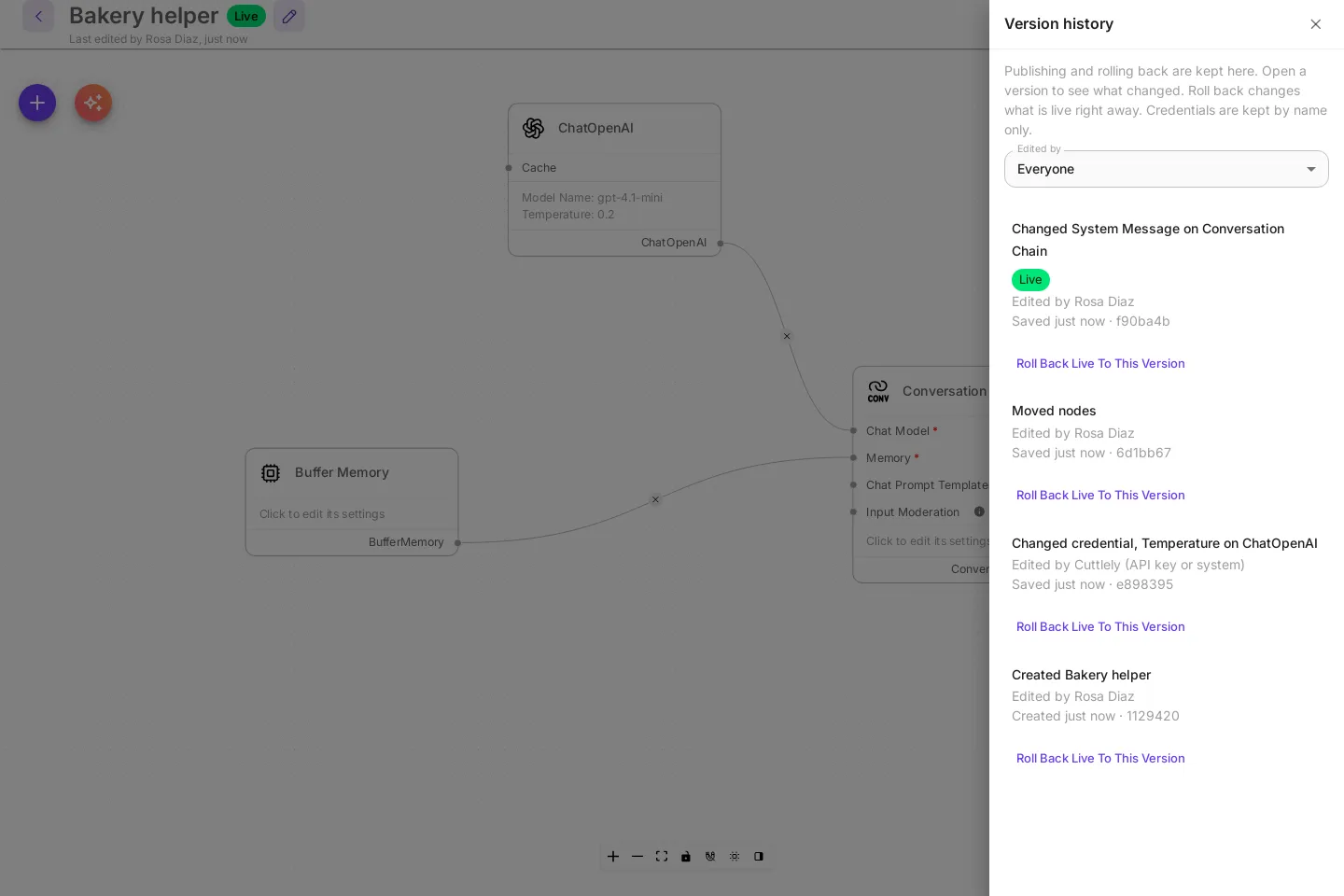
Each row has:
- A name that says what changed, written by Cuttlely from the change itself:
Changed System Message on Conversation Chain,Moved nodes,Changed credential, Temperature on ChatOpenAI,Created Bakery helper. Field names are the labels you see on the node. - Edited by and the person who saved it.
- What happened (
Created,Saved,Restored,Published,Rolled back,Promoted from Dev, orDeleted), the time, and a short version id.
A save that changes nothing adds no version. Unsaved changes on the canvas are not in history. The panel says so while the canvas has unsaved changes: You have unsaved changes. They show up here after you save.
The history button shows only on a flow that has been saved, and only when history is on for the server.
See what changed
Section titled “See what changed”Select a version in the panel. It opens as a read-only canvas at /versions/:flowId/:versionId. You can pan and zoom. You cannot edit it.
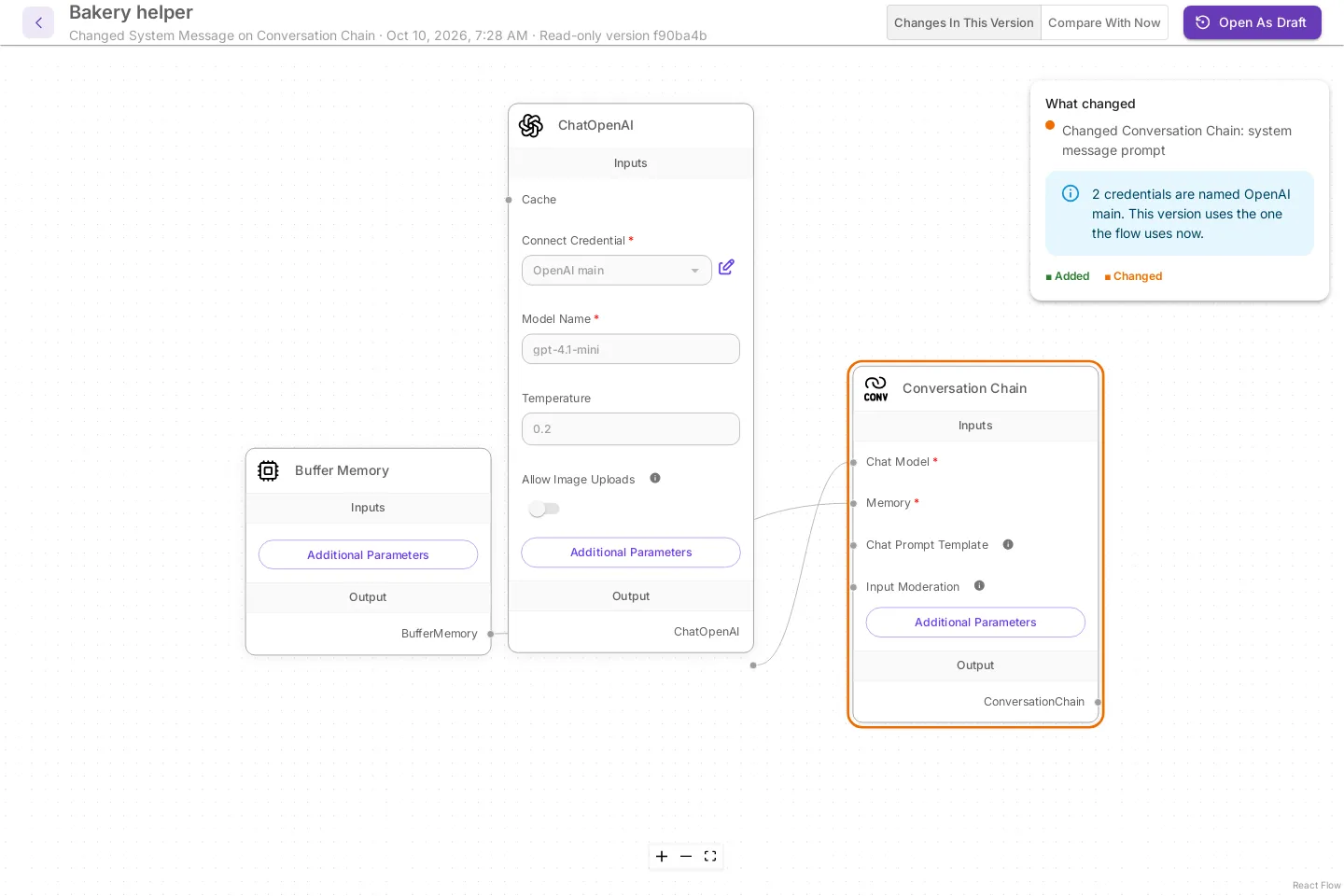
Changes In This Version is selected first. The What changed box lists what this save changed compared with the version before it. On the canvas, an added node has a green outline and a changed node has an orange one. A field change names the field, such as Changed Conversation Chain: system message prompt. A moved node is listed as moved, and a change in connections is listed as Rewired connections.
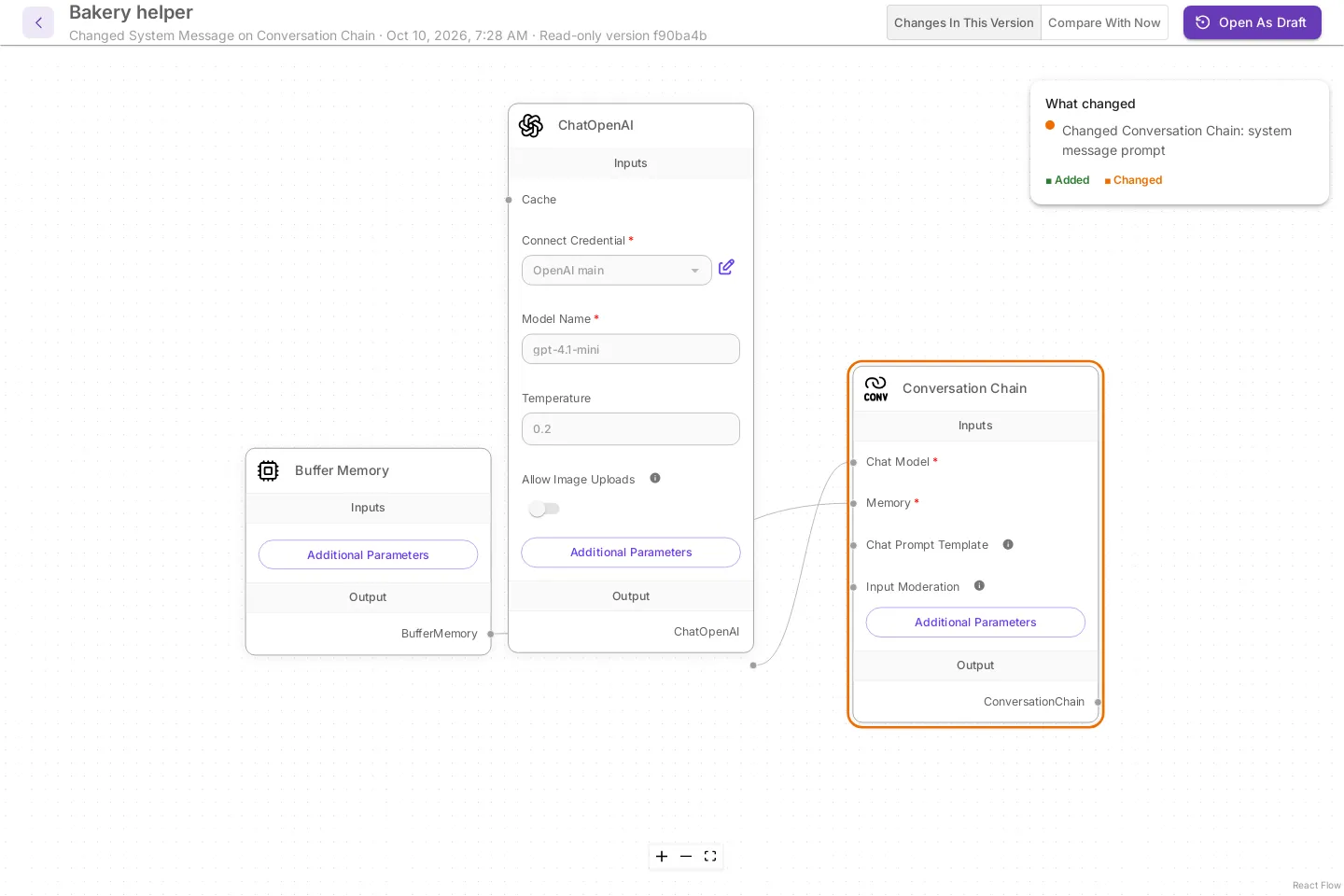
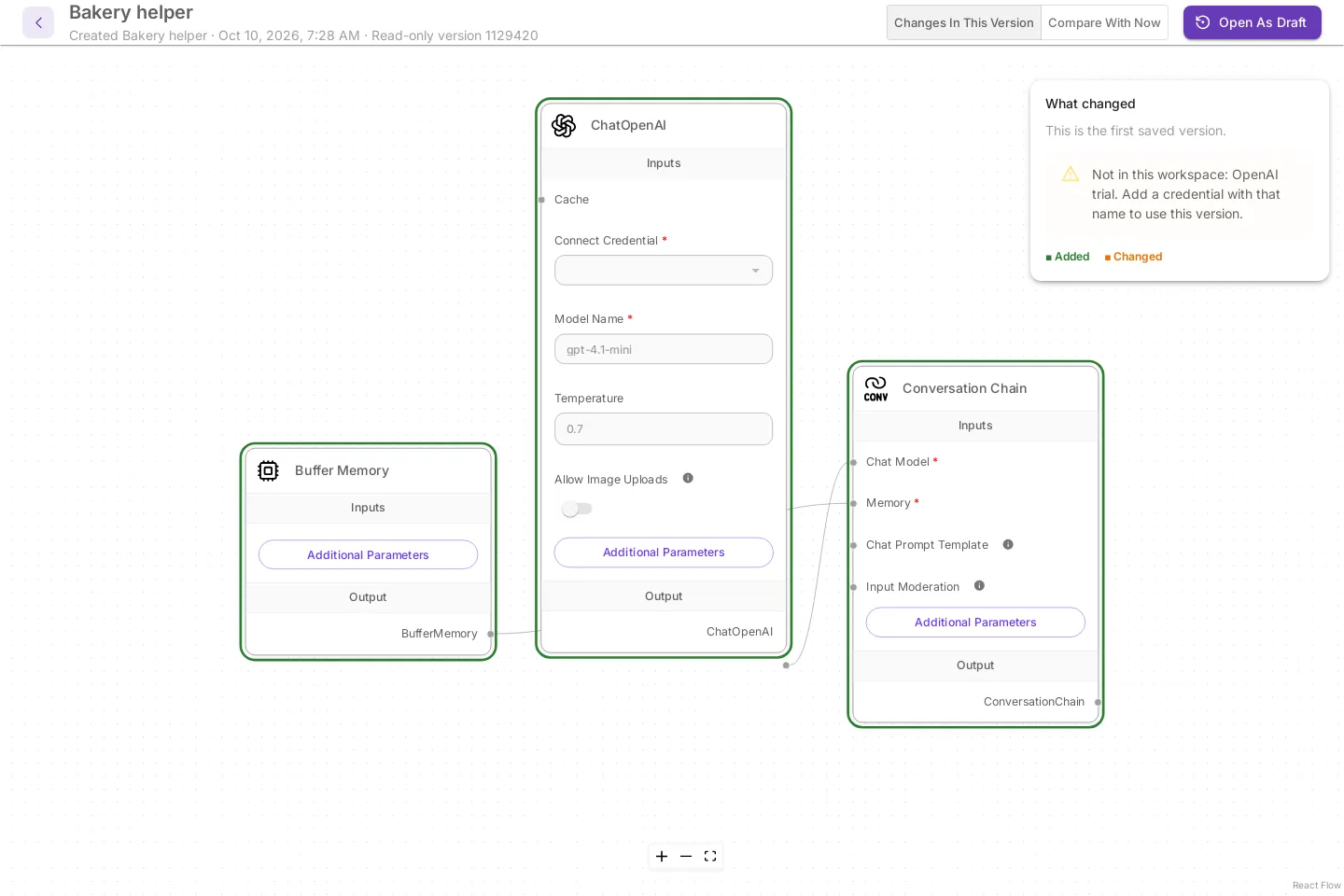
For the first version of a flow, the box says This is the first saved version.
Back to editing, the arrow at the top left, returns to the canvas.
Compare with now
Section titled “Compare with now”Select Compare With Now. The box is titled Different from now and lists how this version differs from the flow as it is saved now. A version that matches says Same as now.
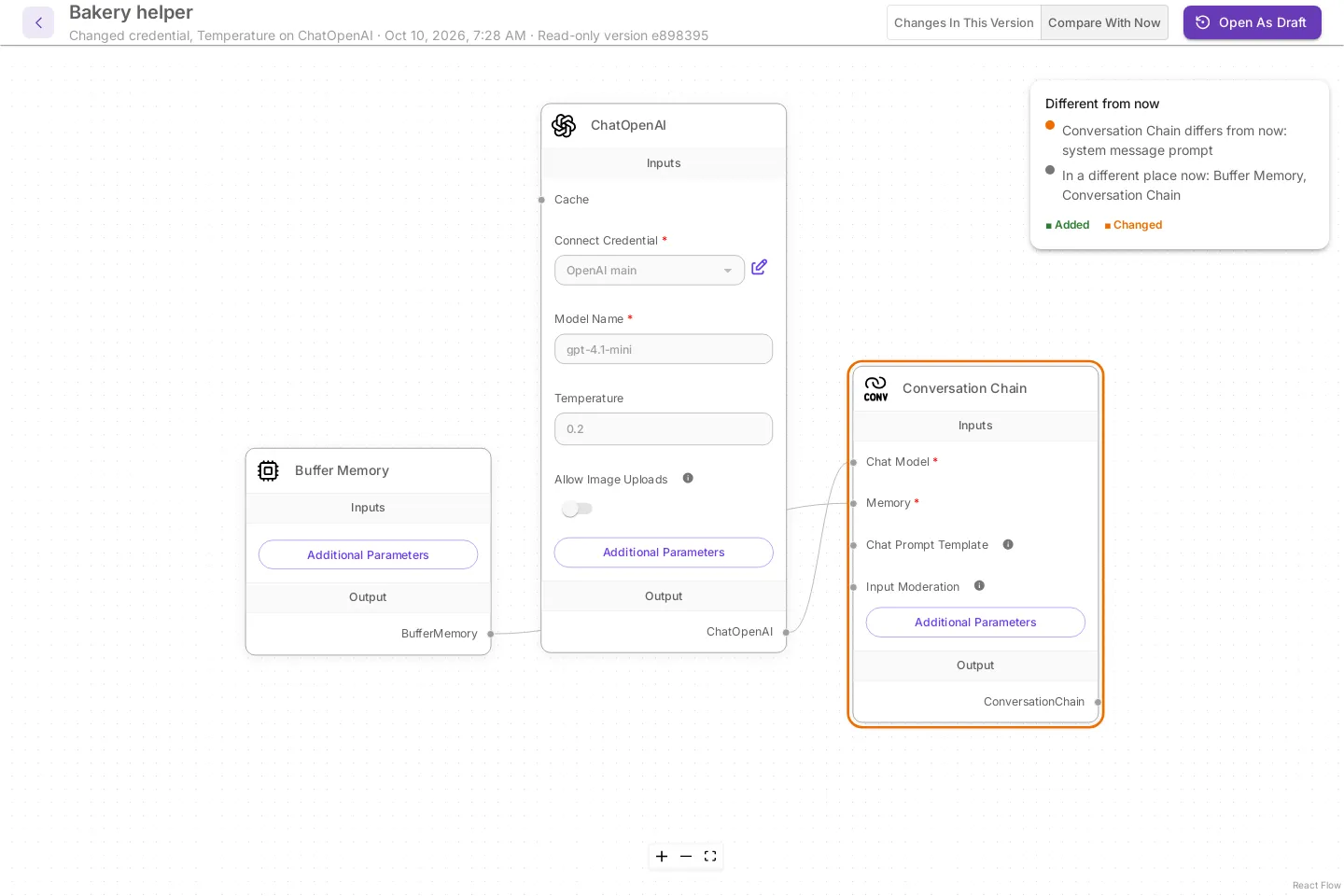
That is what a restore would bring back. Unsaved changes on the canvas are not part of the comparison.
On a narrow window the buttons move under the title and are labelled This Version, Now, and Restore.
Restore a version
Section titled “Restore a version”Restoring needs permission to edit that kind of flow. A user who cannot edit flows does not see the button. Nothing in history is erased either way.
Open a version as your draft
Section titled “Open a version as your draft”On a chatflow or agentflow with drafts on, which is the default, the button on the version page is Open As Draft. The version goes on the canvas as your draft, and Live does not change until you publish.
- Open the version.
- Select Open As Draft.
- Read the dialog and select Open As Draft.
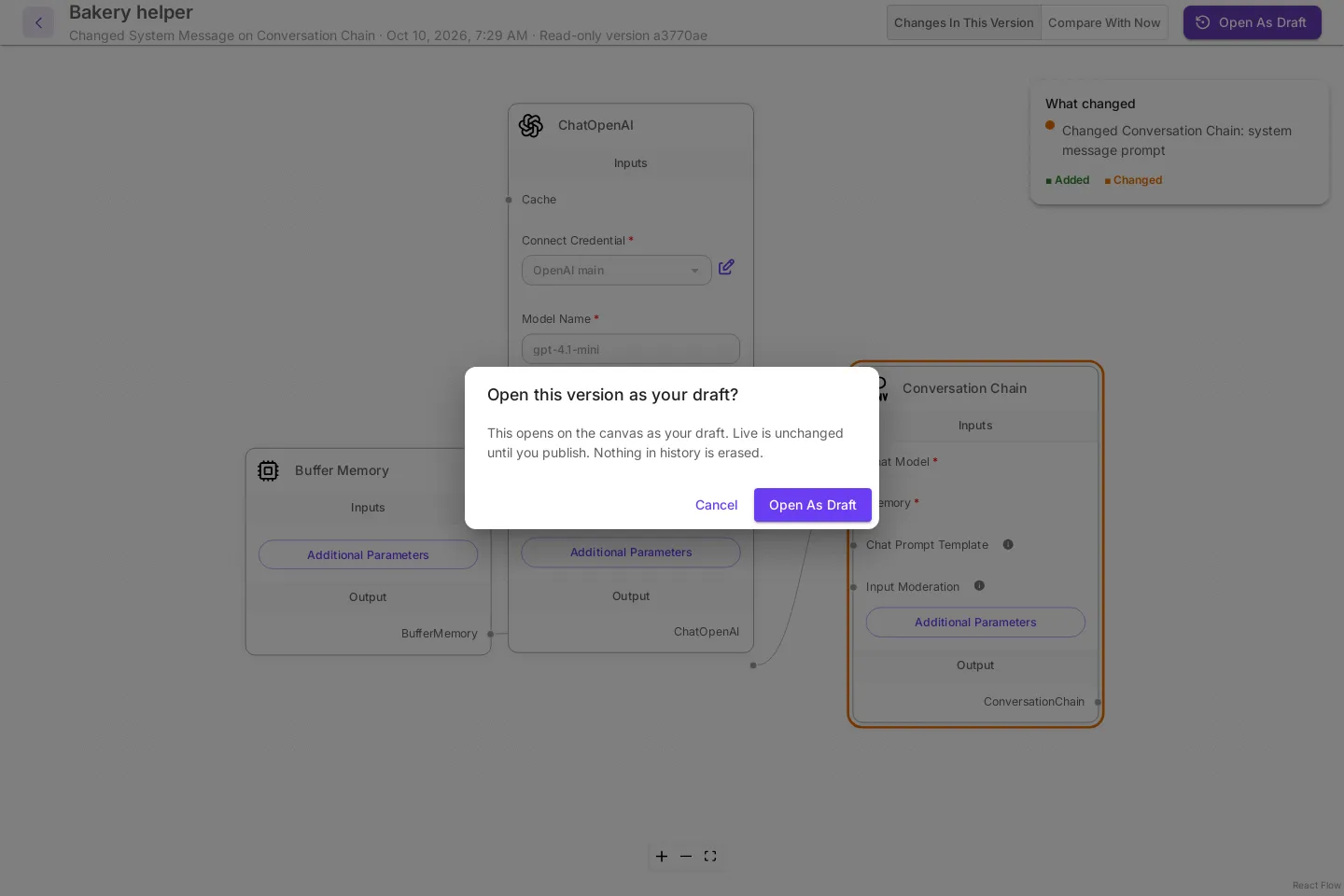
The canvas opens with that version as your draft, and the header says Draft, not live yet. Try it in the test chat, then select Publish to put it Live, or Discard draft to go back to Live. History records it when you publish, as Published: <what changed>.
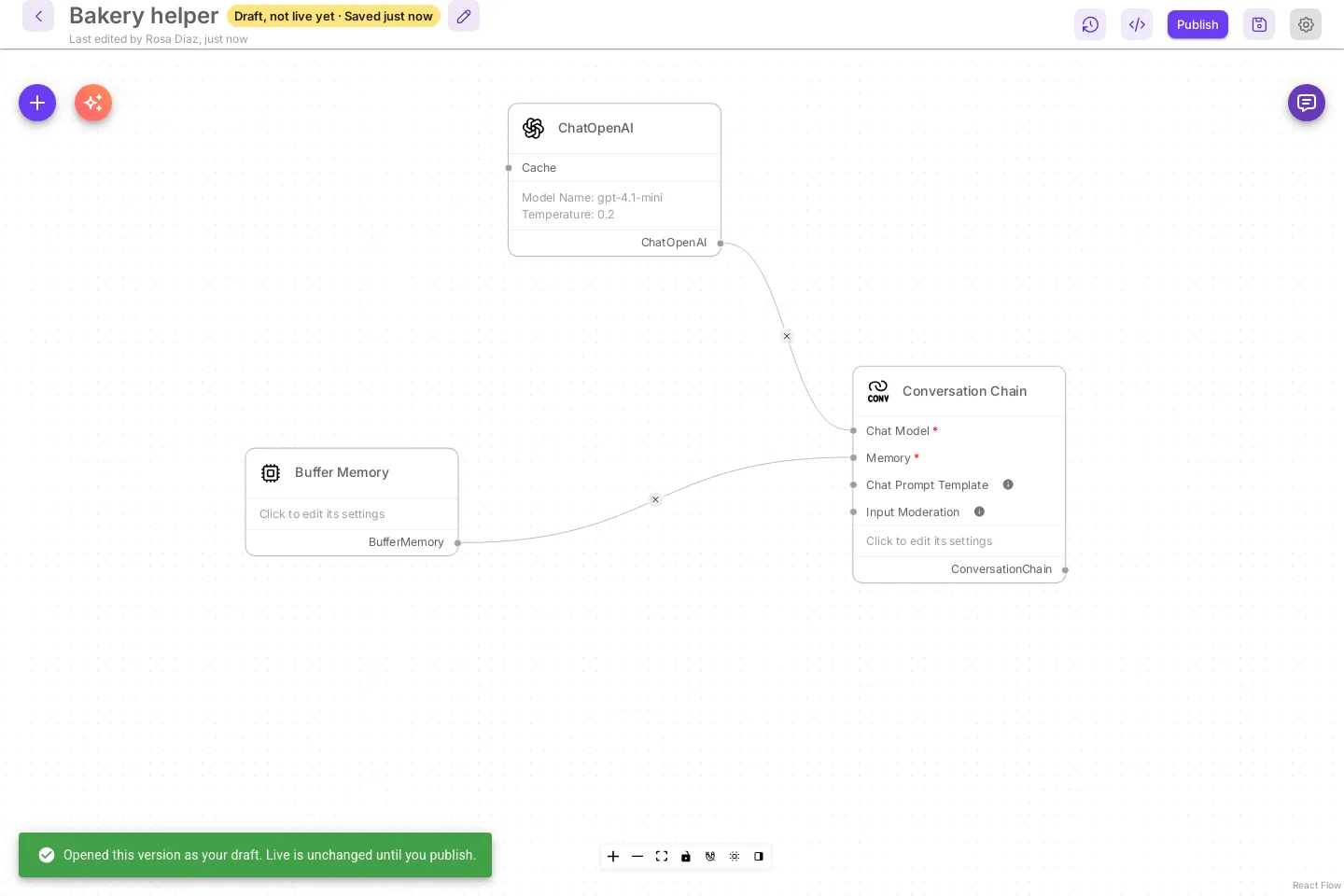
| Message | Meaning |
|---|---|
Opened this version as your draft. Live is unchanged until you publish. |
The version is your draft. Live is as it was. |
Opened this version as your draft. … Add these credentials before you publish: <names>. |
Some nodes have no credential. See below. |
This version is already live. There is nothing new to publish. |
The version matches Live, so there is no draft. |
To change Live at once instead, open Version history and select Roll back Live to this version on that version. See Drafts and Publish.
Restore straight to Live
Section titled “Restore straight to Live”Harnesses, pipelines, flows with Publish instantly on, and every flow on a server with drafts off restore straight to Live. The button is Restore This Version.
- Open the version.
- Select Restore This Version.
- Read the dialog and select Restore.
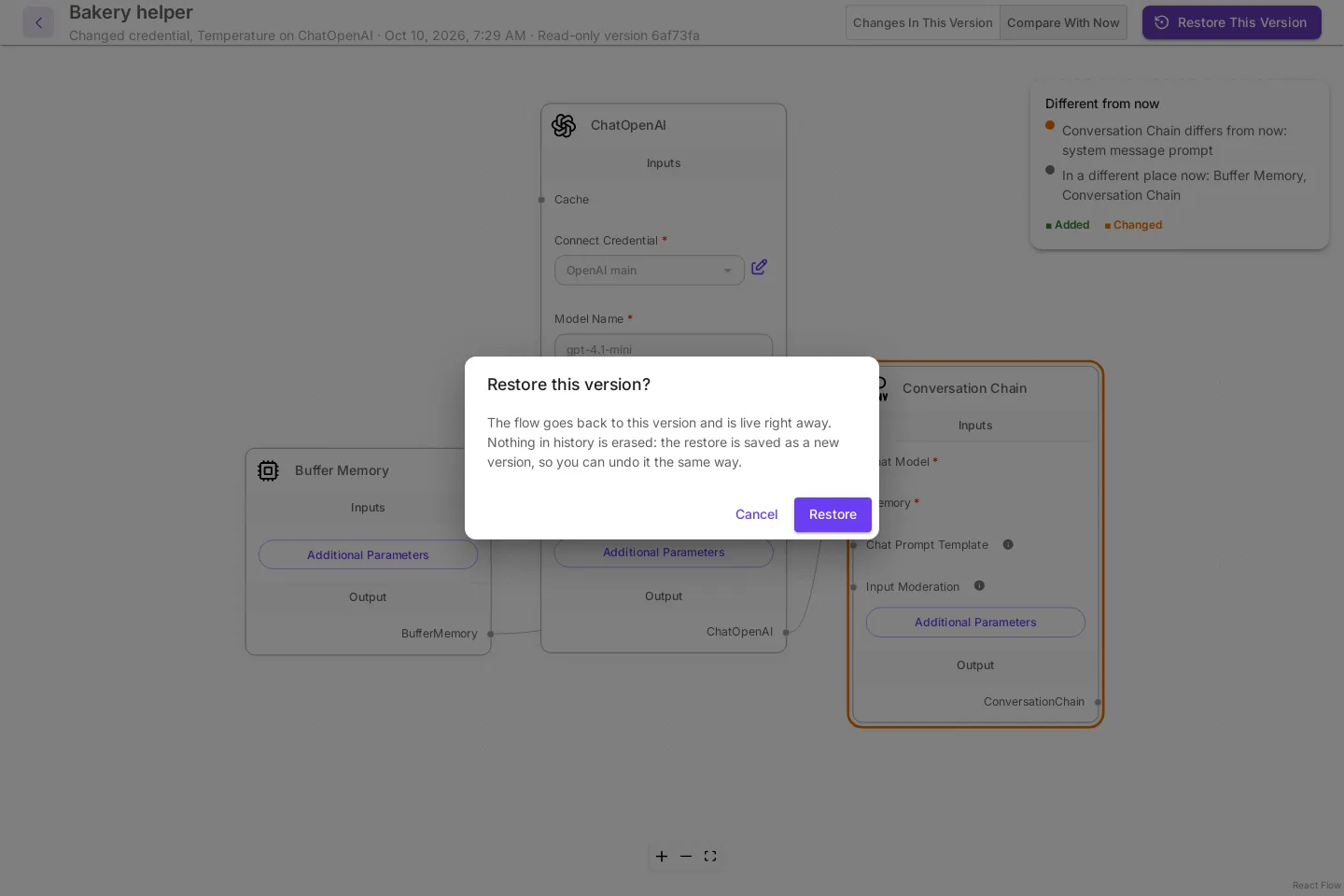
The flow goes back to that version and is live right away. That includes the canvas, the flow’s name, its type, and its category. The restore runs through the same save as the canvas, so harness and pipeline settings are updated the same way.
The restore is saved as a new version named Restored: <name of that version> (<version id>), edited by you. To undo a restore, open the version before it and restore that one.
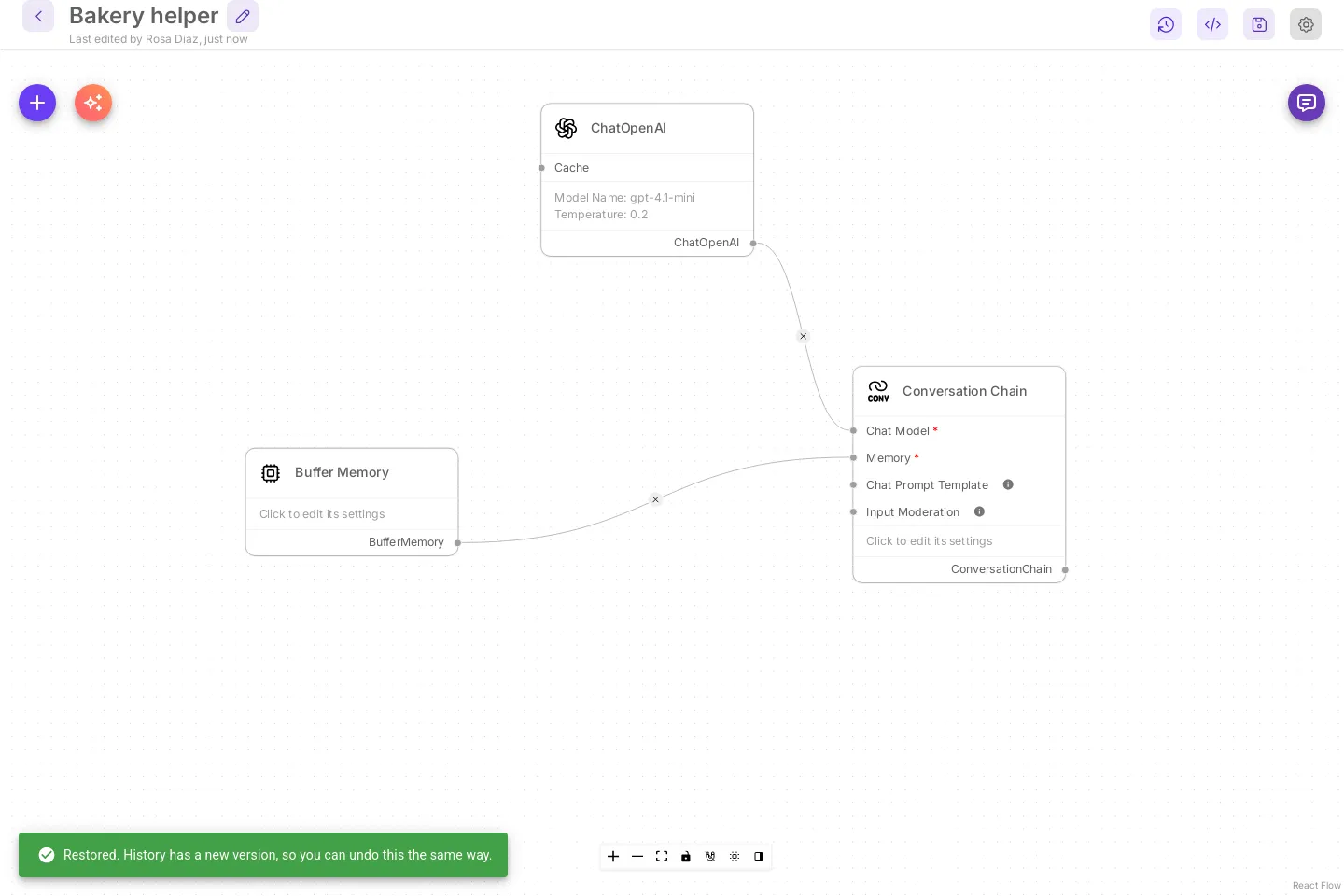
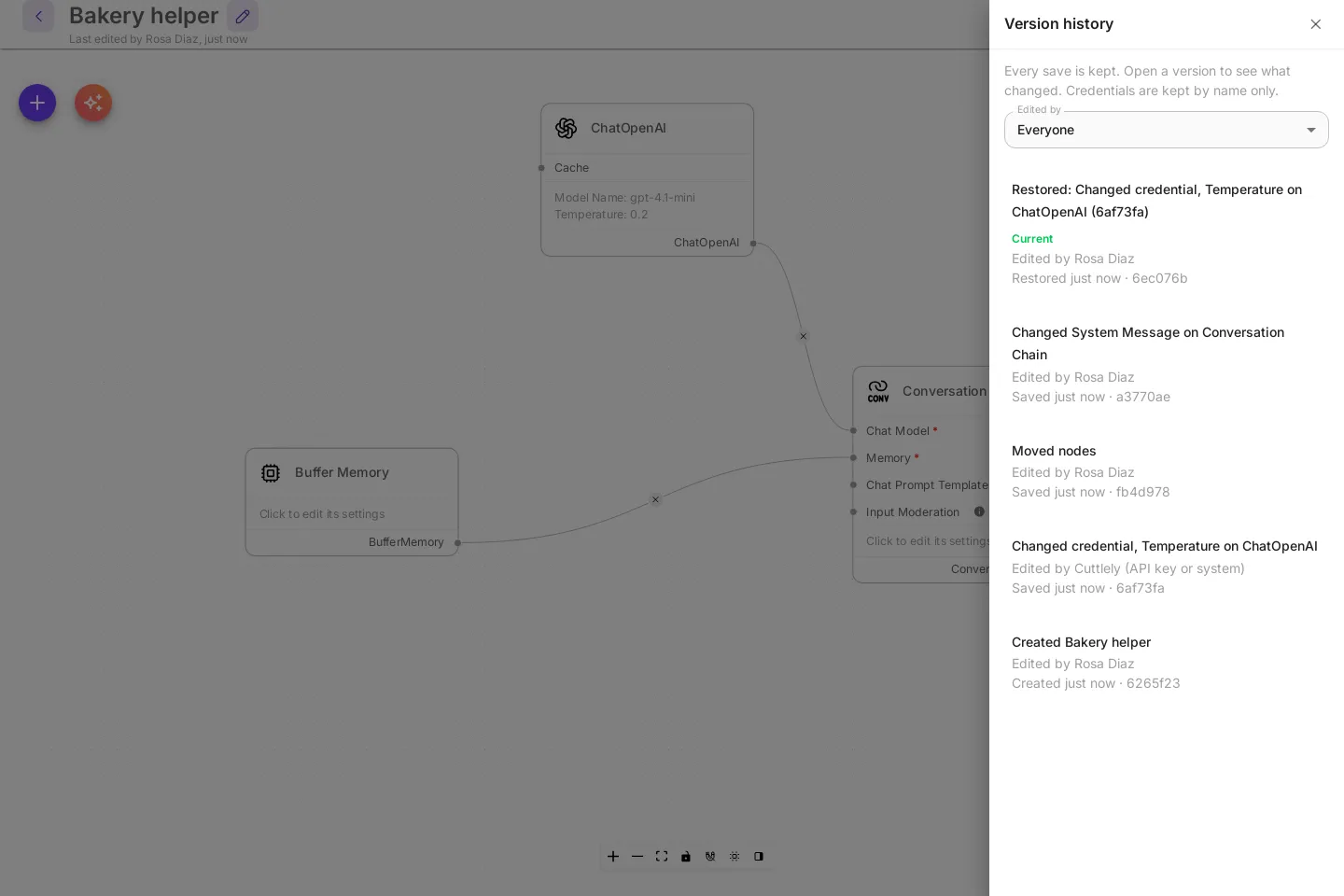
The message after a restore says what happened:
| Message | Meaning |
|---|---|
Restored. History has a new version, so you can undo this the same way. |
The flow is restored and the restore is in history. |
Restored. Add these credentials before running it: <names>. |
The flow is restored. Some nodes have no credential. See below. |
The flow already matches this version. |
Nothing was saved, because the flow already matches. |
Restored, but history could not record it. |
The flow is restored, but history could not write it. The reason follows. |
Who changed it
Section titled “Who changed it”Every version records who saved it.
- A change made while signed in is recorded with your display name.
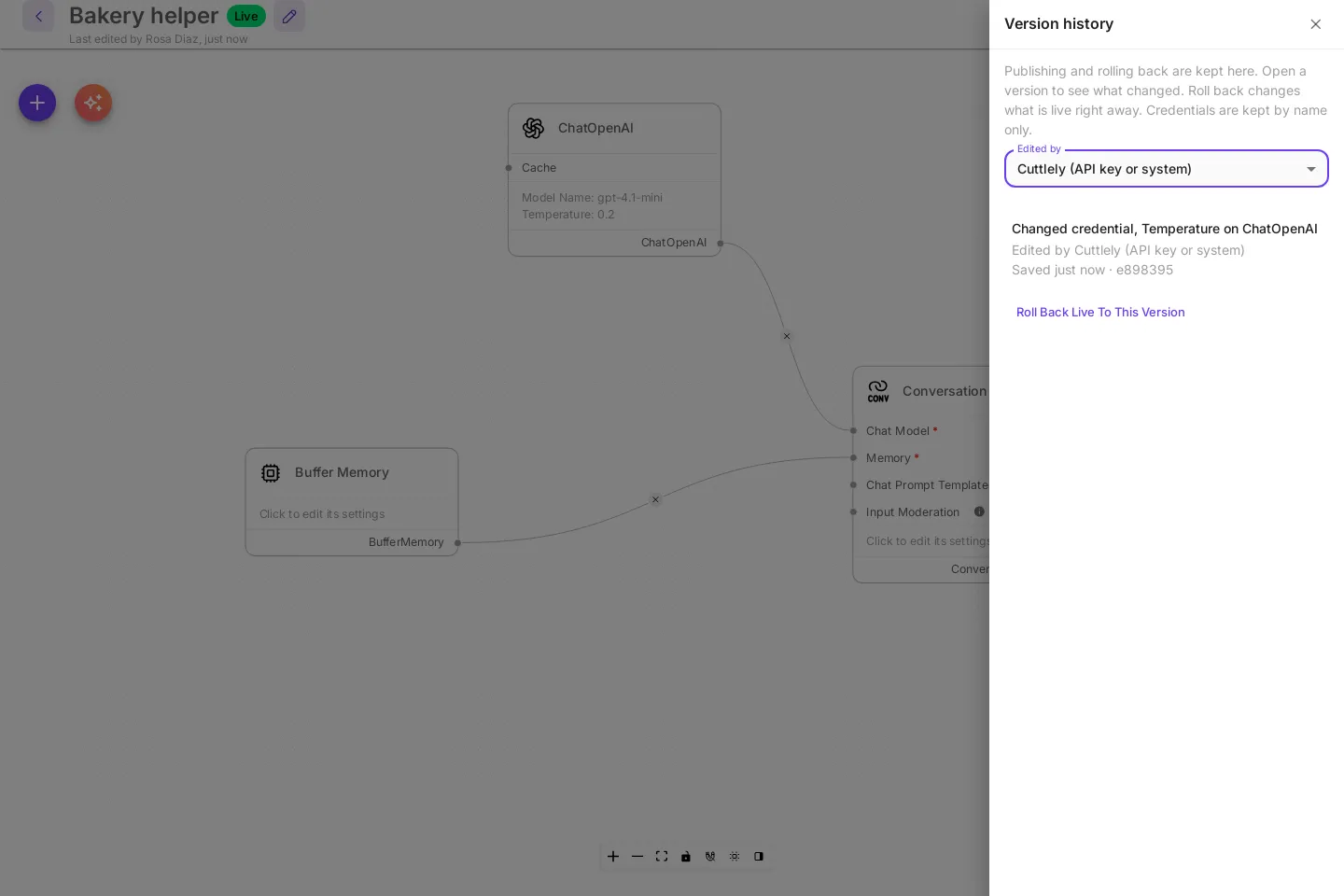
- A save through an API key, a pipeline created from a sample, or another system path is recorded as
Cuttlely (API key or system).
When more than one person has edited a flow, Edited by at the top of the panel filters the list to one person. Everyone shows the whole list.
Your email address is never written to history. Each version stores your display name and an address made from your user id, <user id>@users.versions.local. A display name that looks like an email address is stored as User and the first 8 characters of your user id.
After a save of the flow could not be added to history, the canvas header stops showing Last edited by, because the newest version may not be the latest edit. The warning in Version history and the missing header line can stay after later saves succeed. They clear when the server restarts.
Missing or duplicate credentials
Section titled “Missing or duplicate credentials”A version stores each credential by its name and type, such as OpenAI main, an OpenAI API credential. When you open or restore a version, Cuttlely selects the credential in your workspace with that name and type.
If no credential has that name and type, the What changed box warns you, for example Not in this workspace: OpenAI trial. Add a credential with that name to use this version. The restore dialog says those nodes come back with no credential selected. Restoring still works. Before you run the flow, add a credential with that name under Credentials, or select another credential on the node and save.
If several credentials in the workspace have that name and type, Cuttlely picks the one the flow uses now. If none of them is in use, it picks the oldest. The choice is the same every time. The What changed box and the restore dialog say which one was used, for example 2 credentials are named OpenAI main. This version uses the one the flow uses now. To use a different one, select it on the node after the restore and save.
What is stored, and what is not
Section titled “What is stored, and what is not”Each version stores the canvas:
- Every node and its settings, with long text such as prompts and instructions in their own files.
- The connections between nodes.
- Node positions on the canvas.
- The flow’s name, type and category.
- Each credential’s name and type.
These are never stored:
- Credential values are never stored. A credential is stored as its name and type only.
- Password, file, and folder fields are not stored.
- Known fields that hold a path on the server’s disk, such as a folder to load files from, are not stored. A web address, such as a model’s base URL, is kept.
- A setting whose key looks secret (
Authorization,apiKey,password,token, and similar) is stored as a marker. So is a value that looks like a key or token, such asBearer ...,sk-..., or a database URL with a password, inside headers, model options, or other structured settings.
When you open or restore a version, those fields come from the flow as it is now: each node gets the values the node with the same id has now. A node that is not in the flow now comes back with those fields empty. Fill them in before you run it.
Keys typed into text fields
Section titled “Keys typed into text fields”Before a version is written, Cuttlely checks the text you typed into prompts, instructions, headers, and every other text setting for values that look like secrets. Each one is replaced with [secret hidden] in the stored version. Your flow keeps what you typed. Only history changes.
It hides:
Bearer <token>- OpenAI keys (
sk-, includingsk-proj-) and xAI keys (xai-) - Slack tokens (
xoxb-,xoxp-,xoxa-) - GitHub tokens (
ghp_,github_pat_, and the othergh*_tokens) - AWS access key ids (
AKIA,ASIA) - Google API keys (
AIza) - PEM private key blocks
- The password in a web address, such as
https://user:password@example.com - A long, random-looking value right after a word such as key, token, secret, or password, also inside a name such as
OPENAI_API_KEY=orDB_PASSWORD=
Ordinary words, ids in a sentence, and web addresses without a password are kept. A key in another format, or a short one, may not be recognized, so keep keys in credentials.
Version history shows a note under that version, for example 1 secret-looking value was hidden from history. The What changed box and the restore dialog name the node and the setting. A restored version keeps [secret hidden] there, and the restore message says, for example, Replace [secret hidden] in Conversation Chain (System Message) before running it. Move the key into a credential, select that credential on the node, remove the placeholder from the setting, and save. Typing the key back into the setting works for running the flow, but the next save hides it again, so the note stays on each new version until the key is in a credential or gone from the setting.
Compare with now does not show a hidden value as a change. Restore still puts [secret hidden] back when your flow has a real value in that setting now.
As a backstop, a save is not added to history if a file still holds text in a few common key formats, for example a key in the flow’s name, which is not a text setting. The formats are an OpenAI (sk-) or xAI (xai-) key, a GitHub token, an AWS access key id, a Postgres URL with a password, or a private key. The save itself works. Version history shows why, for example Not saved to history: secret-shaped text in flow.json (sk). Move it to a credential. Remove the key and save again.
Chat history, uploaded files, runs, and the app database are not in version history.
Drafts and Publish
Section titled “Drafts and Publish”Drafts are on by default. A chatflow or agentflow canvas saves to a Draft. The prediction API, embeds, shared links, schedules and webhooks keep running Live until you Publish. The canvas test chat runs the draft, so you try the version you are editing. Harness and pipeline canvases still save straight to Live.
The canvas says Draft, not live yet and when that draft was saved, or Live when there is nothing waiting. Publish opens one dialog that lists what changed, in the same words as version history. Keep editing closes it. Discard draft throws the draft away and puts Live back on the canvas.
If Live changed after you started (for example through the API), the canvas and the dialog say so. Publishing then asks you to confirm, because it replaces those Live changes.
Version history marks a version Published when it was put Live by Publish or by Roll back, and marks the version people are served now as Live. Roll back Live to this version changes Live at once. In draft mode, Open as draft puts a version on the canvas without changing Live; see Open a version as your draft.
Publish instantly, in the flow’s configuration, makes every save live again, the way it worked before drafts. It stays off while a draft is still open: publish or discard that draft first.
After an upgrade from a release without drafts, each flow’s canvas stays Live as it was. Your next save on the canvas starts a draft. Scripts that update flows through PUT /api/v1/chatflows/:id keep writing Live; see Drafts API.
To turn drafts off for the whole server, set CUTTLELY_DRAFTS=off (false, 0, and no also work) and restart. The canvas then saves straight to Live, and Restore works as described above. See History settings.
Check recent questions before you publish
Section titled “Check recent questions before you publish”The Publish dialog can ask a few questions people really asked this flow again, once on Live and once on your draft, and show the two answers side by side. You see what your change does to real answers before anyone else does. The check is optional: Publish works with or without it, and a check never stops you from publishing.
- Select Publish on the canvas. Under Check recent questions, the dialog lists up to 10 recent questions, newest first, from the API, embeds, shared links and the canvas test chat. They are all ticked.
- Untick any you don’t want. To ask something else, type it in Add your own question and select Add.
- Read the note under the list, then select Run check.
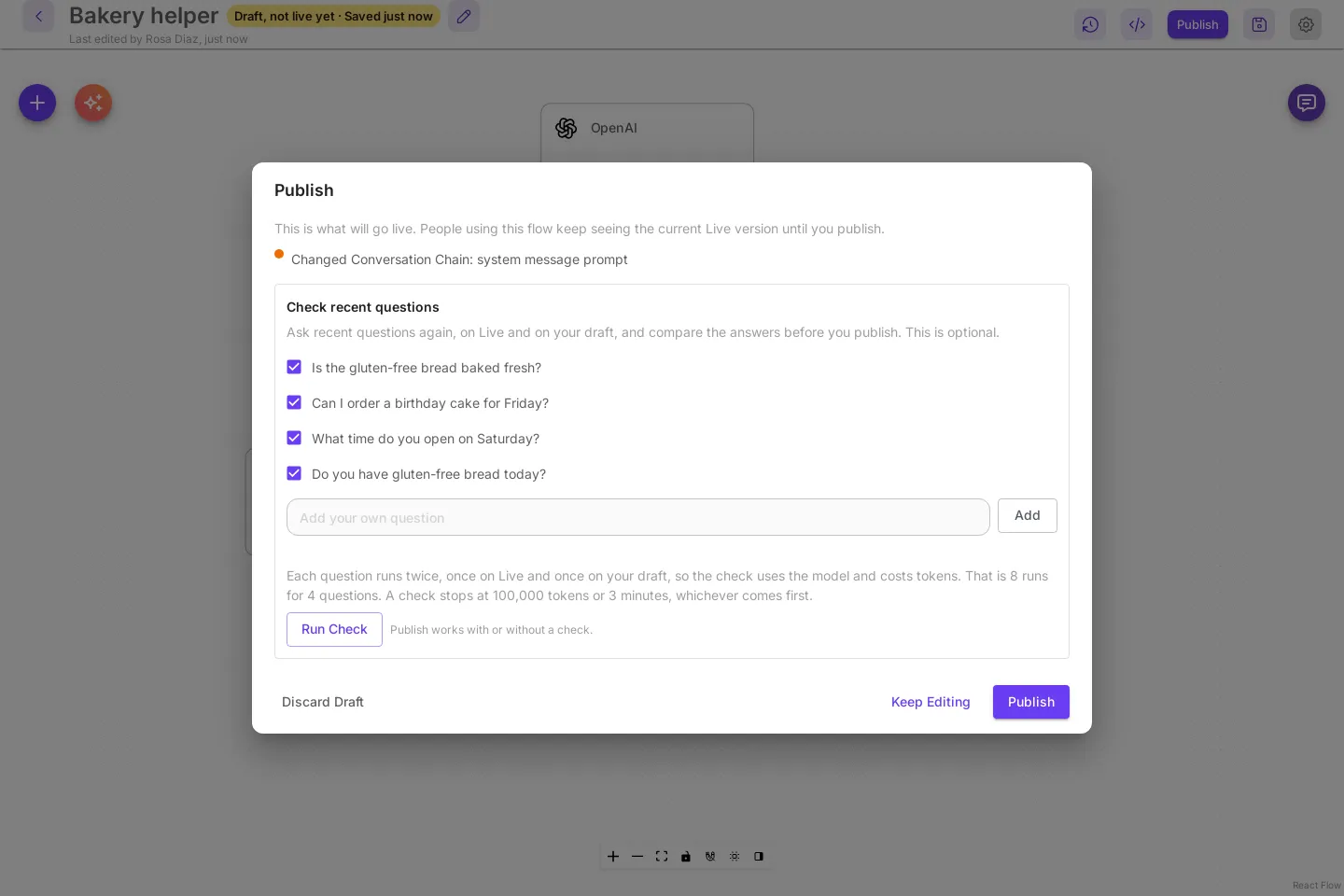
Each question runs twice, so a check uses the flow’s model and costs tokens on its account, like any other question. The note says how many runs your choice makes and where the server stops a check. While it runs, the dialog shows which question it is on, and Stop ends it early. Closing the dialog or publishing also stops it.
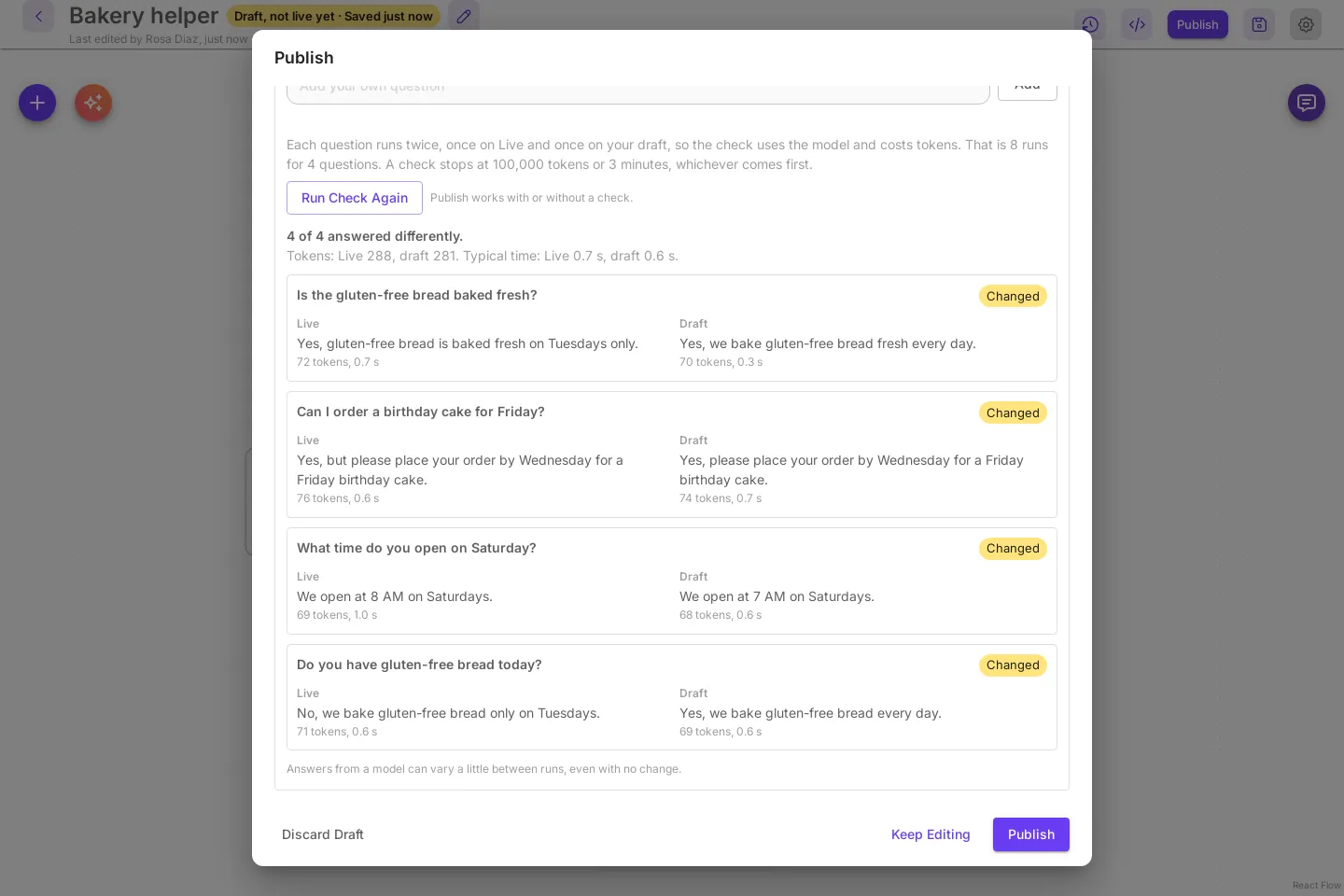
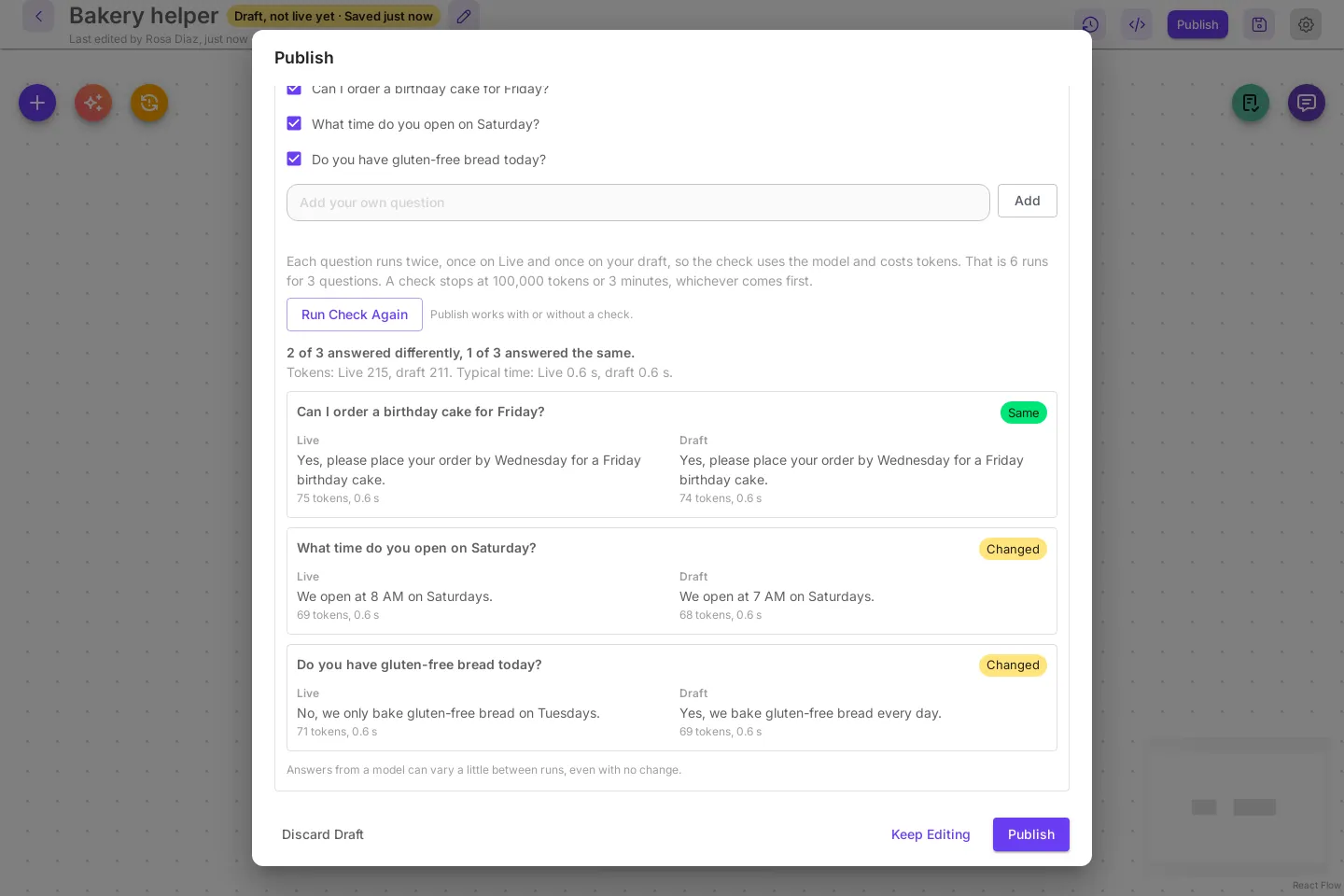
When it is done, the dialog says how many questions answered differently, the tokens each side used, and the typical time each side took. Each question shows the Live answer and the draft answer side by side, with the tokens and time under each, and a label:
| Label | Meaning |
|---|---|
Same |
Both answers have the same words, ignoring capitals and spacing. |
Changed |
The words differ. Read both: the meaning may still be the same. |
Error |
One side could not answer, for example because it took over a minute. |
A flow that was never published has nothing Live to compare with. The box says Live is empty until the first publish, each question runs once, on your draft, and the result counts the questions your draft answered, for example 3 of 3 answered on your draft. The flow’s starter questions that nobody asked yet come after the recent ones, marked (starter question), so a new flow with no recent questions still has something to check. A chatflow made with Build with AI starts this way: its first save is a draft and Live stays empty until you publish.
Answers from a model can vary a little between runs, even with no change, so Changed means “look at this one”, not “something broke”. Results belong to the draft they checked. When you change the draft, the old results are cleared the next time you open Publish; run the check again.
A check never touches Live or your draft, and it leaves no trace: the questions it asks do not show up in chat history, in the flow’s usage counts or in its memory, and each one starts with no memory of earlier turns. The results are kept for 30 minutes and are not written anywhere.
Flows that act for real
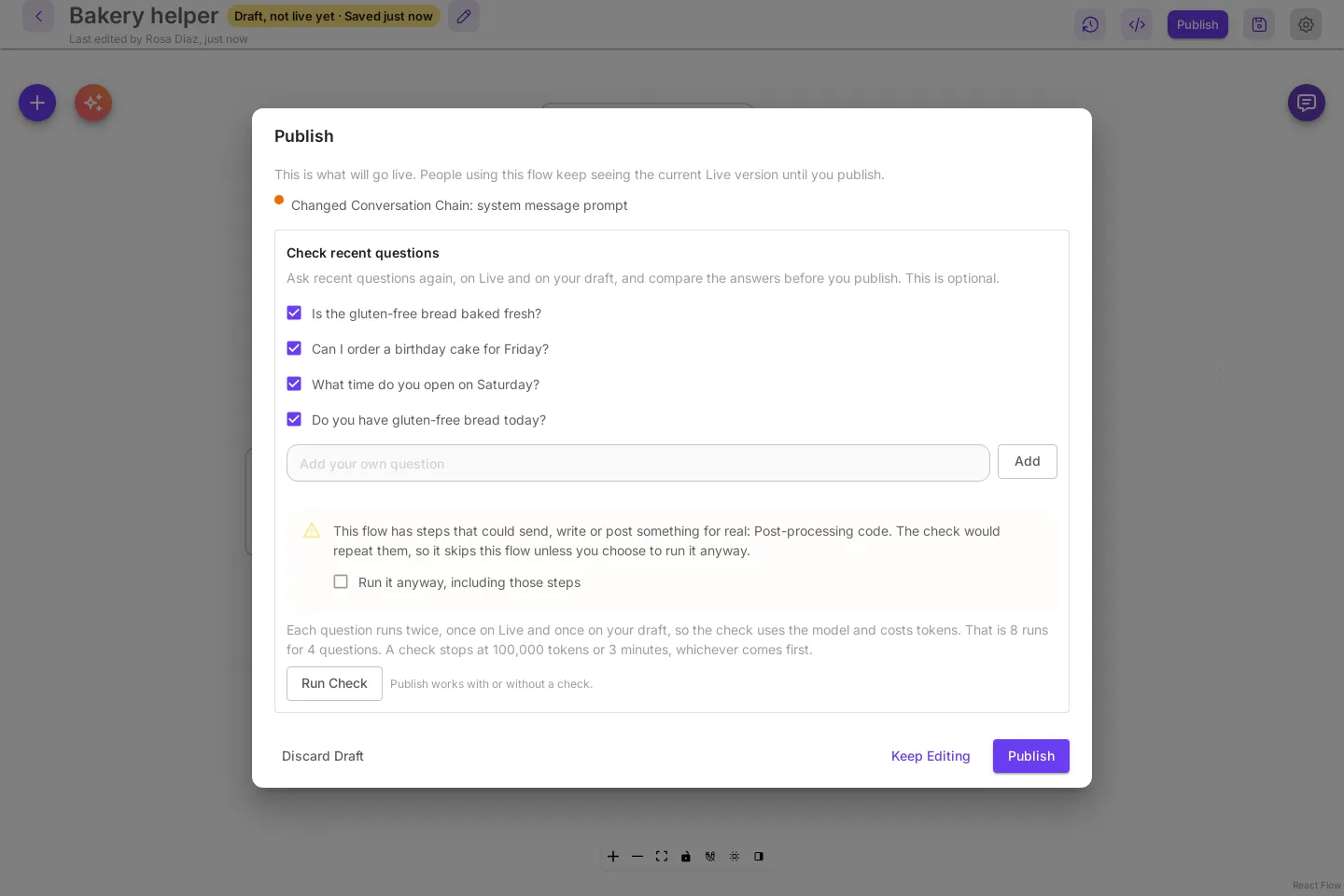
Section titled “Flows that act for real”Some steps do more than answer: they post to another service, write to a database, run your own code, or keep a conversation somewhere else. Asking the question again would repeat that action. When Live or the draft has such a step, the dialog names it and does not run the check unless you tick Run it anyway, including those steps. Tick it only if repeating those steps is safe, for example when they point at a test system. The full list of steps is in the Drafts API reference.
The check works on chatflows and on agentflows that start with a chat message. On an agentflow that starts with a form, a webhook or a schedule, the box says The check asks questions, so it works on agentflows that start with a chat message. Legacy multi-agent flows are not checked. On an agentflow a check also writes no run to Executions, and the tokens shown are the ones the model steps (LLM and Agent) report. An administrator can change the token and time limits with CUTTLELY_CHECK_MAX_TOKENS and CUTTLELY_CHECK_MAX_SECONDS; see Publish check limits.
Where the history lives
Section titled “Where the history lives”History is a Git repo in a versions folder in the Cuttlely data directory:
| Install | Folder |
|---|---|
| Docker | /var/cuttlely/versions on the data volume |
| Render | /var/cuttlely/versions on the disk |
scripts/start-cuttlely.sh |
.cuttlely/versions in the repo |
| Server started another way | ~/.cuttlely/versions |
CUTTLELY_VERSIONS_DIR puts it somewhere else. CUTTLELY_DATA_DIR moves it with the rest of the data. See History settings.
The repo has one folder per flow under flows/. You can read it with ordinary Git, for example git log in that folder. The file layout is in Version files. Do not edit the repo while Cuttlely is running.
The repo stays on the server unless the owner connects GitHub. Then every new version is also copied there: see Keep a copy in GitHub. Cuttlely uses its own Git settings: it does not read your global Git config or Git credentials, and its commits skip hooks. The server needs git on its path. The Docker image includes it.
Back it up with the rest of the data directory. docker compose down -v deletes the Docker volume, and the history with it.
Deleting a flow adds a last version named Deleted <flow name>. The deleted flow’s versions stay in the repo, but the app has no page for them.
Keep a copy in GitHub
Section titled “Keep a copy in GitHub”History always stays on the server. The owner can also connect a GitHub repository, so every version is copied there a few seconds after it is saved. That gives you an off-server copy you can browse on GitHub.
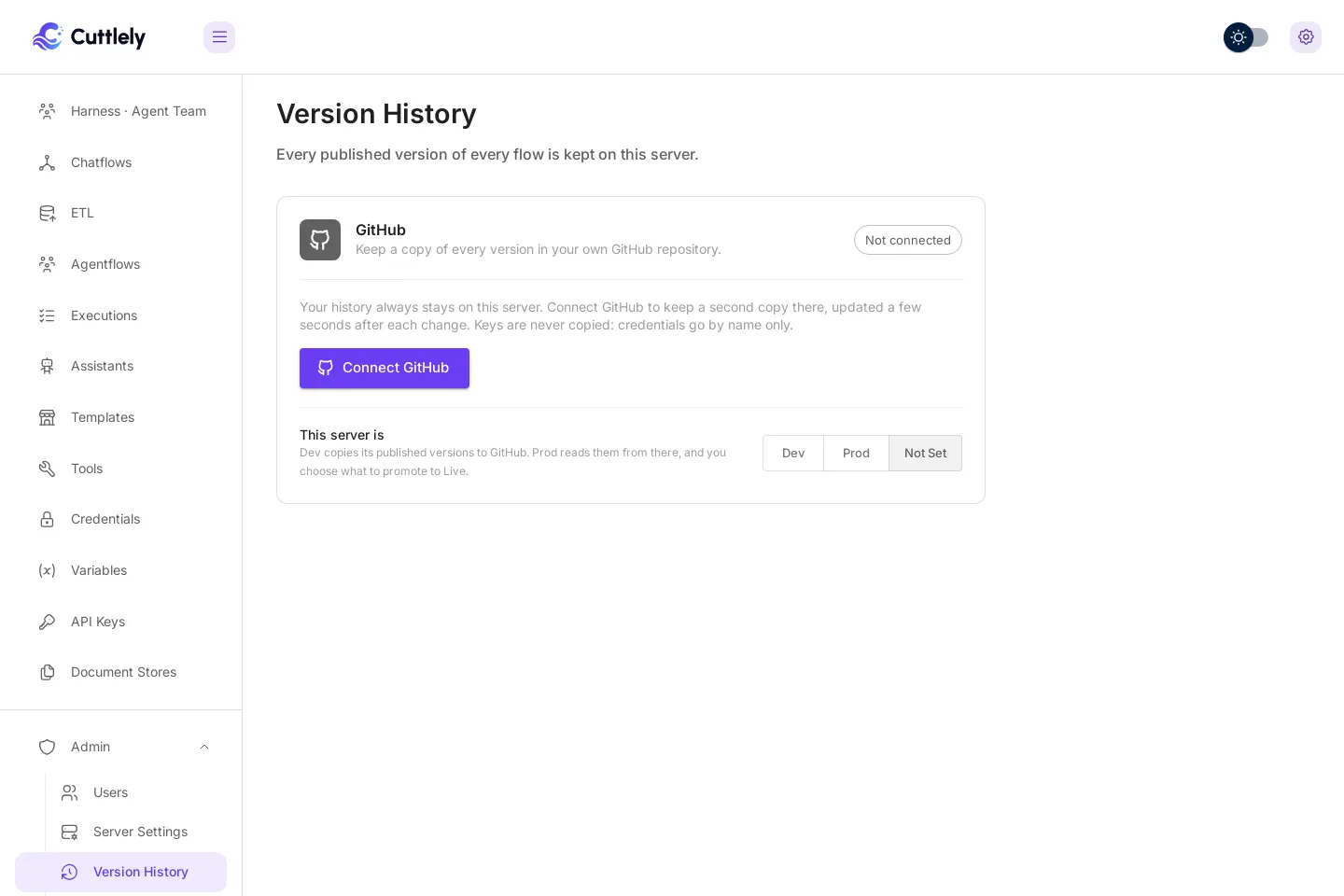
Open Admin, then Version History. Only the owner (Super User) sees this page, because the connection is for the whole server.
Right after setup
Section titled “Right after setup”Setup does not stop at a GitHub page: after Sign Up you land in Cuttlely, so a new owner can try a flow first. When you have flows worth keeping, open Admin, then Version History, and connect GitHub there. The same card also opens on its own at /setup/github.
Which GitHub token to use
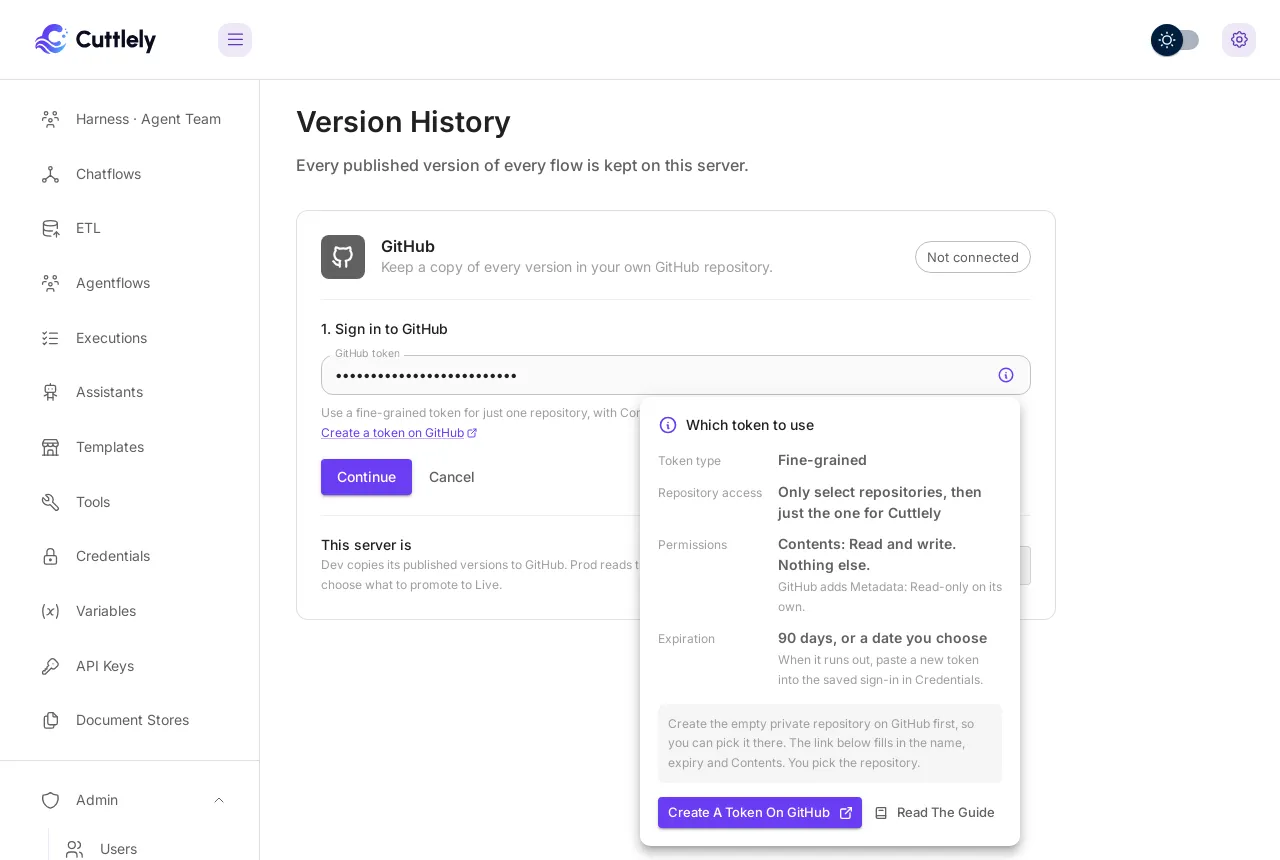
Section titled “Which GitHub token to use”The card asks for a GitHub token once. Make it a fine-grained token that reaches only the one repository you copy to, and only that repository’s contents. Select the i at the end of the GitHub token box to see the same list in the card.
-
Create an empty private repository on GitHub first, without a README or license, for example
cuttlely-flows. A token can only be limited to a repository that already exists. -
Select Create a token on GitHub in the card. It opens GitHub’s New fine-grained personal access token page with a name, a 90-day expiry and Contents already filled in.
-
Check these on GitHub’s page:
On GitHub’s page Pick Repository access Only select repositories, then just the one repository Permissions Contents: Read and write. Nothing else. GitHub adds Metadata: Read-only on its own Expiration A set date. 90 days is filled in. When it runs out, the card says GitHub did not accept the token, and you paste a new one in -
Select Generate token, copy it, and paste it into the card.
That is all Cuttlely needs. It uses the token to read your account name and the repositories the token can reach, to check the repository you pick, and to copy new versions into it. It never opens pull requests, never changes the repository’s settings, issues or workflows, and never changes any other repository. A Prod server only reads, so its token needs Contents: Read-only; the card’s link fills that in on a Prod server.
Make a new private repository in the card is the one thing this token cannot do. GitHub only lets a fine-grained token create repositories when it can reach all of your repositories and has Administration set to Read and write, which is far more than Cuttlely needs. Create the repository on GitHub yourself instead. A classic token with the repo scope also works, but it can reach every repository you can, so prefer the fine-grained one.
Connect
Section titled “Connect”-
Select Connect GitHub.
-
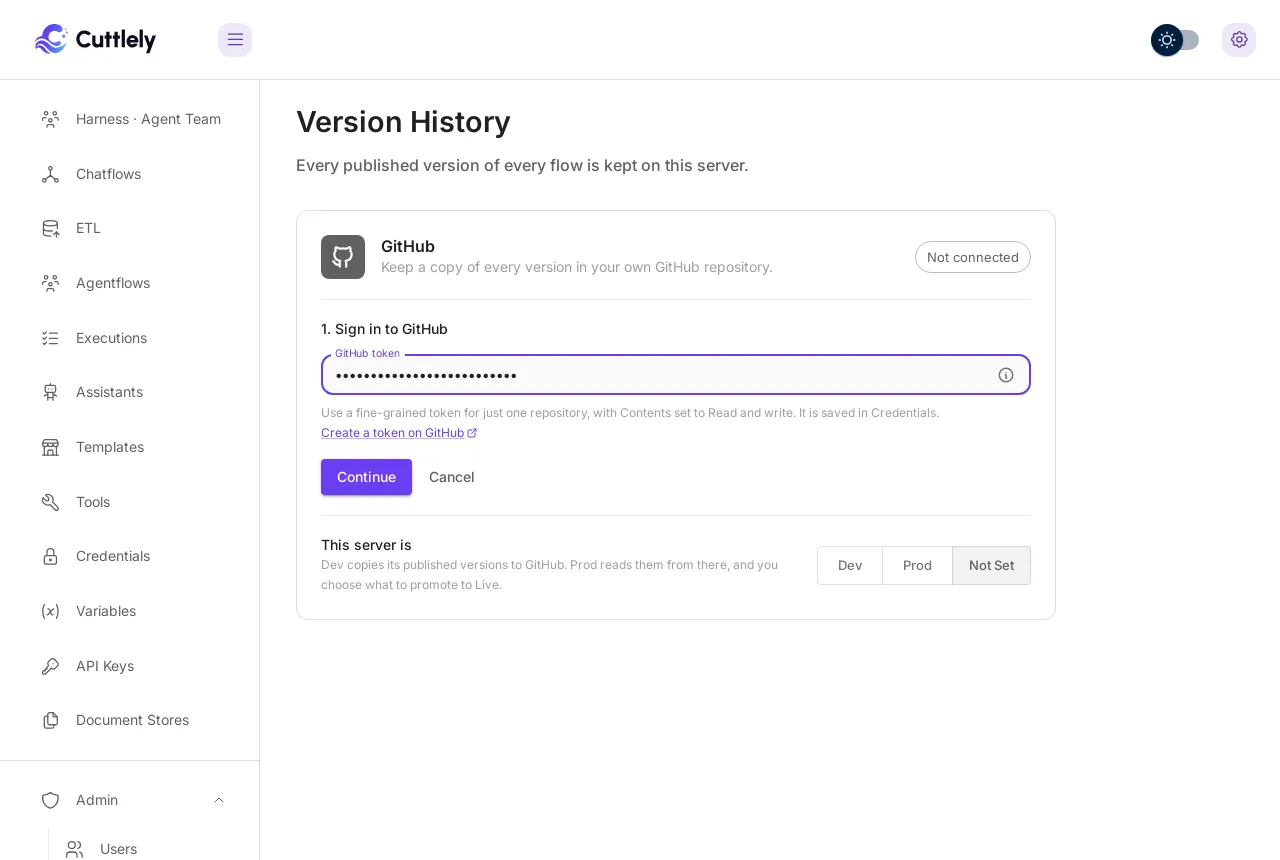
Paste a GitHub token: a fine-grained token for just that one repository, with Contents set to Read and write (see Which GitHub token to use). Create a token on GitHub under the box opens GitHub’s token page already filled in, and the i in the box shows what to pick. If this workspace already has a GitHub sign-in in Credentials, pick it from the list instead.
-
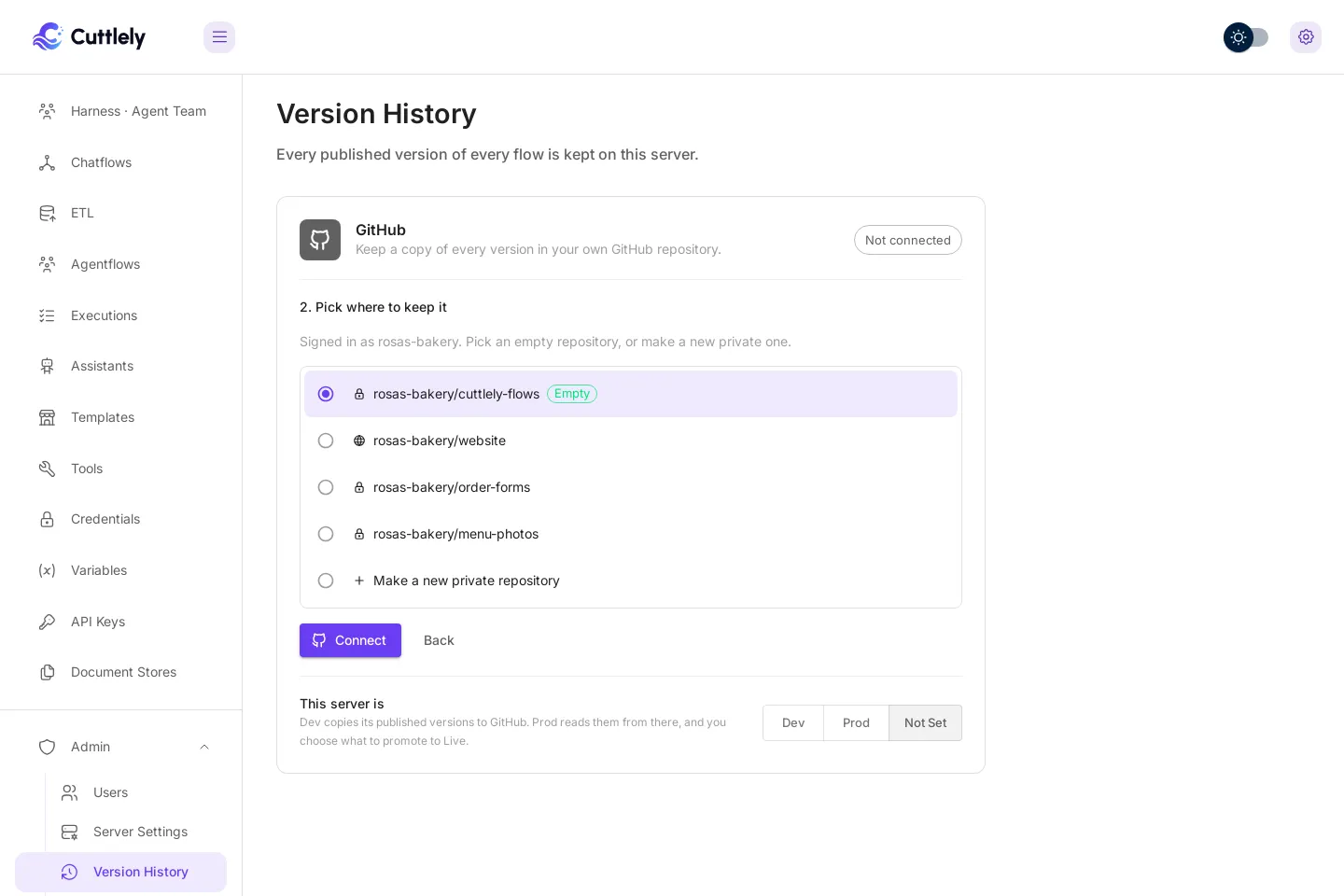
Select Continue. Cuttlely lists the repositories the token can write to. Empty ones are marked Empty and listed first. A lock means private.
-
Pick an empty repository, or select Make a new private repository and give it a name (
cuttlely-flowsis filled in for you).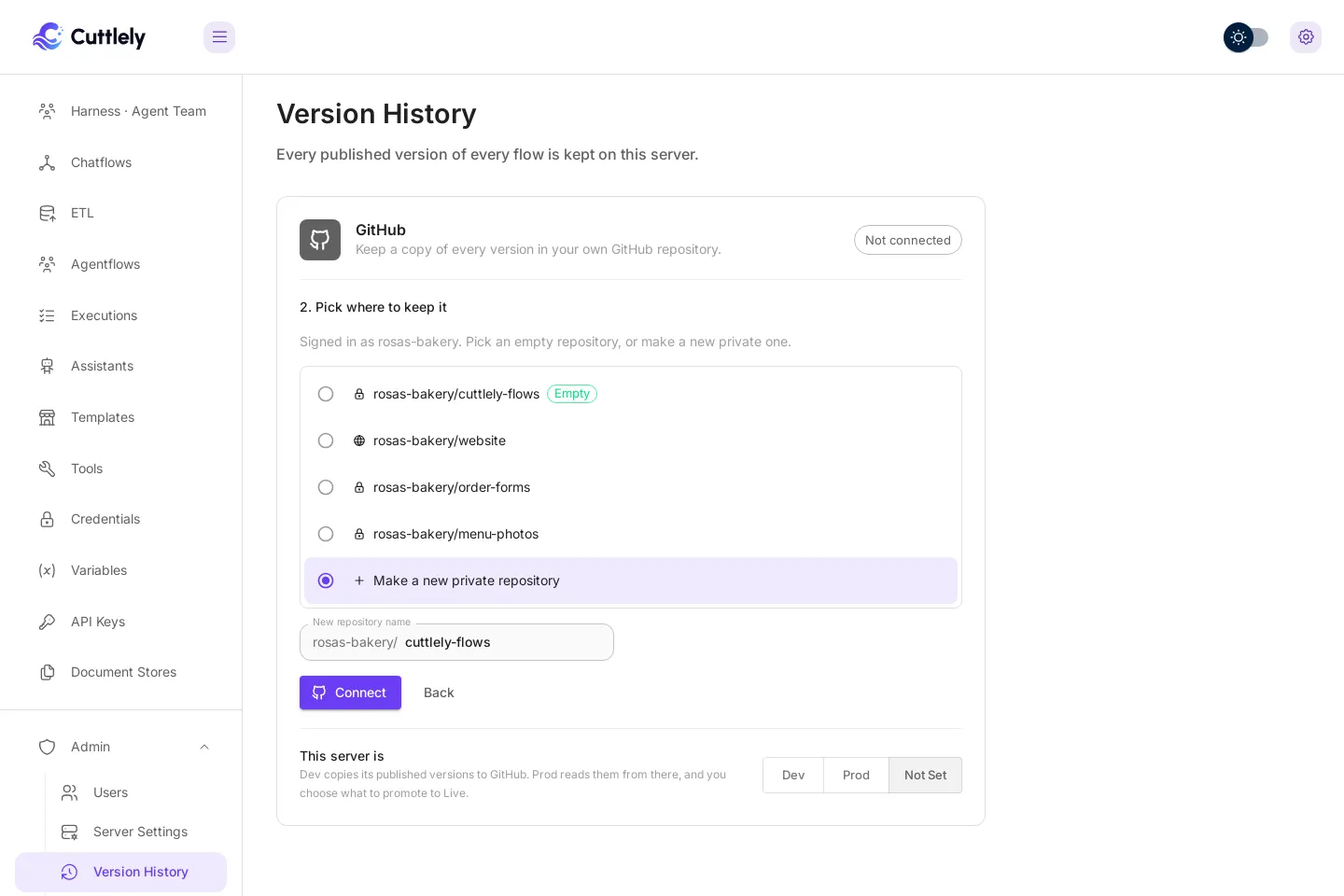
A token made for one repository cannot create repositories (see Which GitHub token to use). If Cuttlely says so, create an empty private repository on GitHub, give the token access to it, and pick it from the list.
-
Select Connect. Cuttlely checks the repository, saves the token, and copies every version so far. A check mark plays when the copy is done.
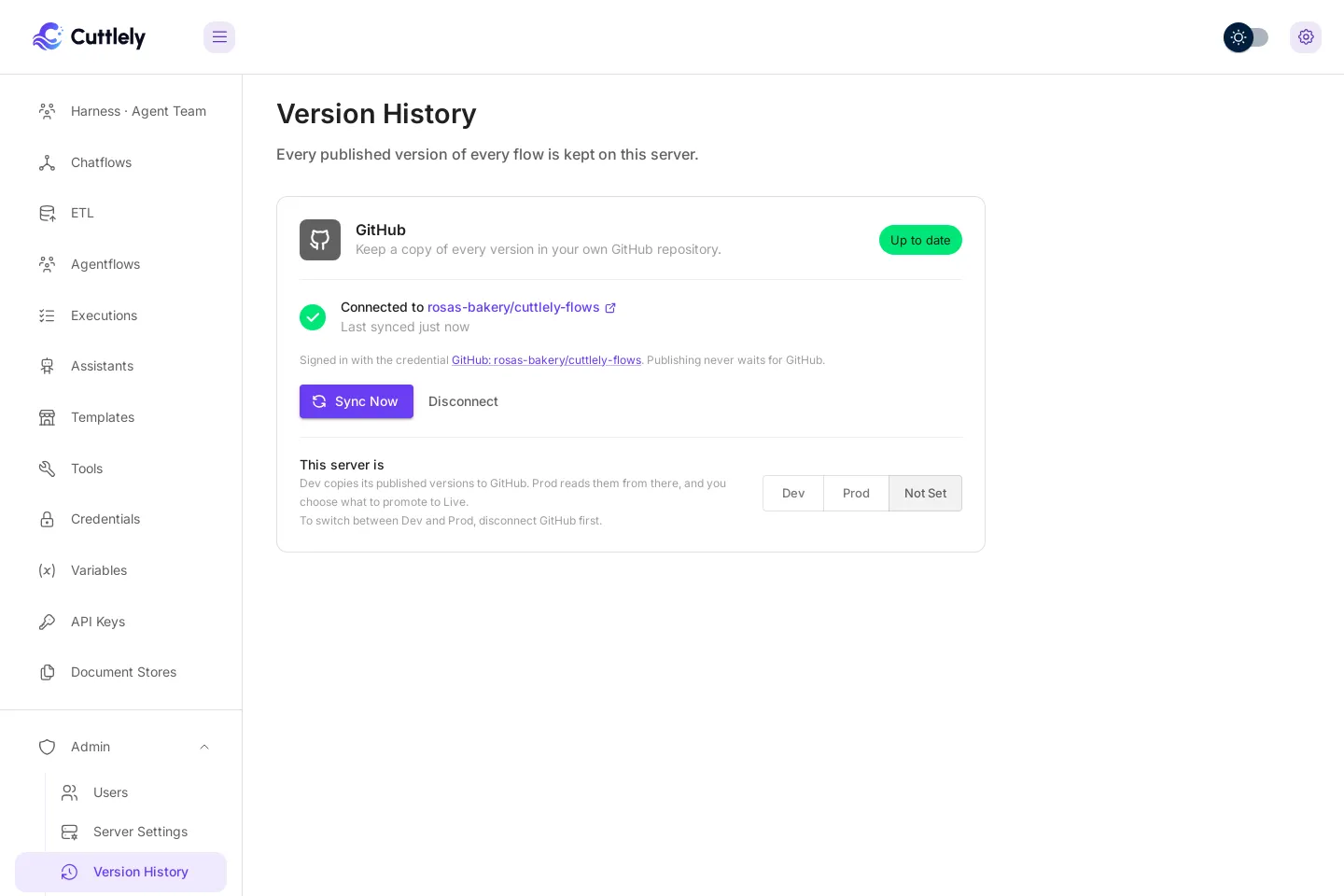
Pick a repository that is empty or that only this server writes to. Cuttlely refuses a repository that already has other content, so nothing there is overwritten.
What gets copied
Section titled “What gets copied”The same files as the history on the server: one folder per flow under flows/ (see Version files). Credentials go by name only, never their values, and the secret fields described in What is stored, and what is not are never in history, so they are never copied. Each version is checked again for key-shaped text before it leaves the server.
A pasted token is saved as a new Github API credential on the Credentials page, encrypted like every other key, and named after the repository, for example GitHub: rosas-bakery/cuttlely-flows. A sign-in you picked from the list keeps its own name. The card names the credential it uses. The token is not written to the history, the copy, or the logs. To use a new token, edit that credential. The next copy uses it.
Status
Section titled “Status”The chip on the card says how the copy is doing:
| Chip | What it means |
|---|---|
| Up to date | Every version is on GitHub. The line under the repository says when it last synced. |
| Syncing soon | A new version was just saved and is copied in a few seconds. |
| Syncing | A copy is going now. |
| Retrying | GitHub could not be reached, did not accept the token, or did not take the copy. Cuttlely tries again on its own. |
| Needs attention | Copying stopped until you fix something. The card says what, in plain words. |
Publishing never waits for GitHub. If GitHub is down or the server is offline, saves and Publish work as usual, the card shows Retrying with when it tries next, and the versions saved meanwhile are copied once GitHub answers. Try again copies now instead of waiting.
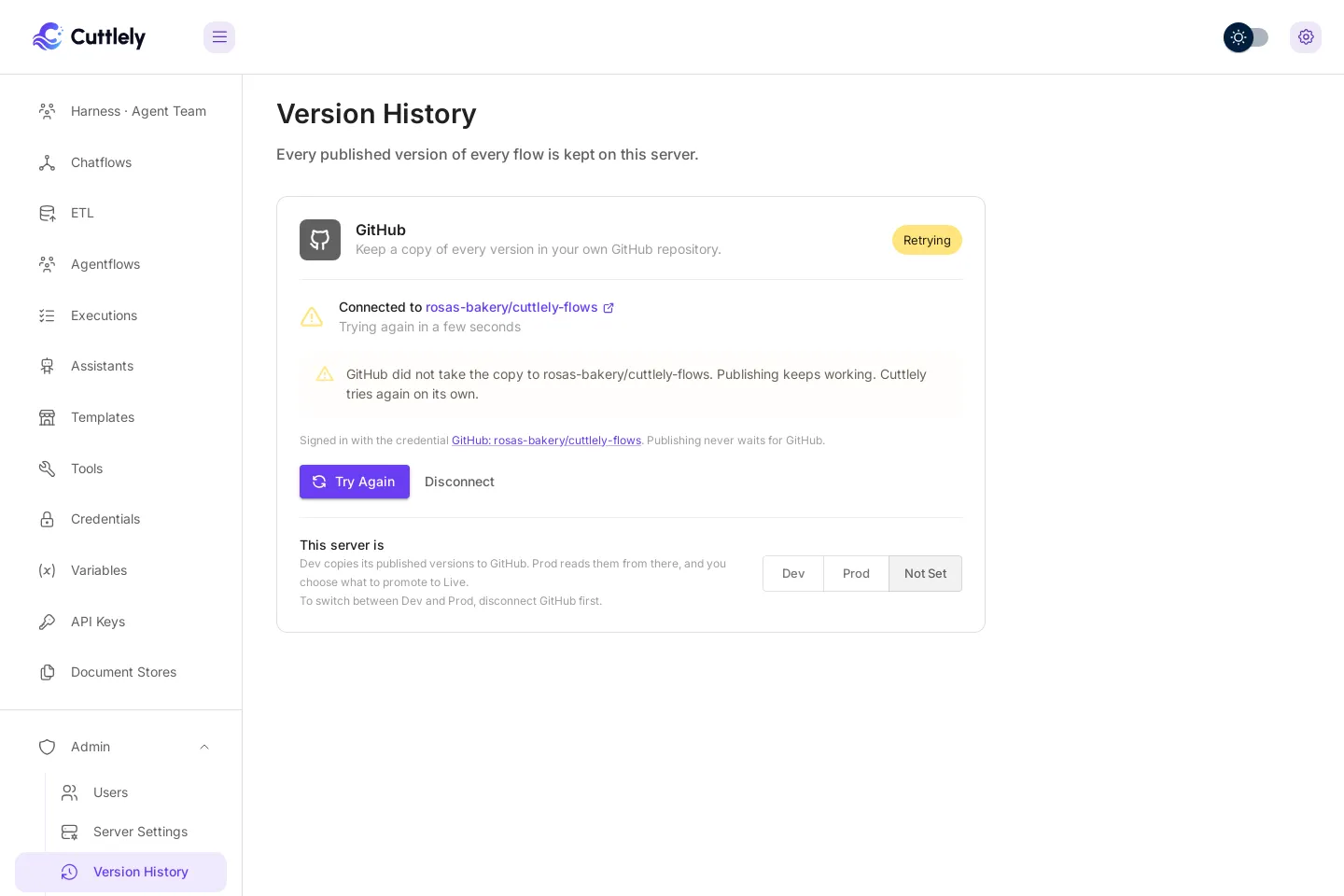
If GitHub stops accepting the token, for example because it expired or was revoked, the card keeps showing Retrying and the message says GitHub did not accept it. Put a new token in that credential, then select Try again.
Copying stops with Needs attention when the GitHub copy has changes this server does not have, when a protection rule on GitHub refuses it, when a version has key-shaped text, or when the GitHub sign-in credential was deleted or has no token. Cuttlely never overwrites what is on GitHub. Fix the cause, then select Try again. If the credential was deleted, a new one is not picked up on its own: select Disconnect, then connect again with a new token or another saved sign-in.
Sync now copies right away. Disconnect stops copying. It keeps the history on the server, the copy on GitHub, and the saved GitHub sign-in, so connecting again later needs no new token.
Label this server Dev or Prod
Section titled “Label this server Dev or Prod”At the bottom of the card, This server is labels the server Dev or Prod. A Dev server, or one that is not set, copies its versions to GitHub as described above. A Prod server only reads the repository, to bring in what Dev published: see Move a flow from Dev to Prod. To switch a connected server between Dev and Prod, disconnect GitHub first.
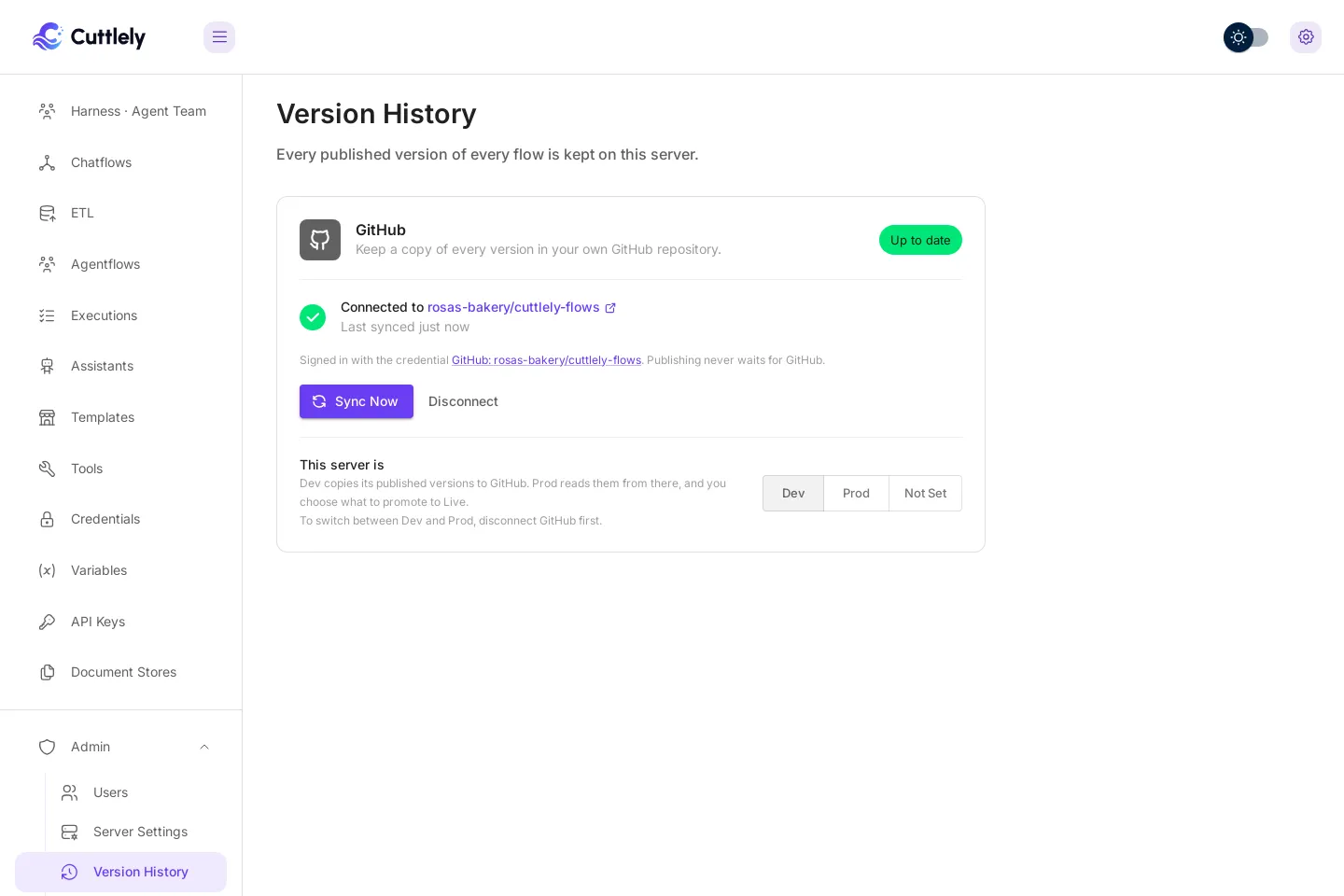
The routes behind this card are in the History API.
Move a flow from Dev to Prod
Section titled “Move a flow from Dev to Prod”Build and try flows on a Dev server, then move the ones you are happy with to a Prod server. The two servers never talk to each other. They share one GitHub repository: Dev copies each version it publishes there, and Prod only reads it. Nothing goes Live on Prod until the owner of Prod looks at it and selects Promote to Live.
Set up both servers
Section titled “Set up both servers”Do this once, as the owner, on each server:
- On the Dev server, open Admin, then Version History, set This server is to Dev, and connect GitHub to an empty repository, as in Keep a copy in GitHub.
- On the Prod server, set This server is to Prod, then connect GitHub to the same repository. Prod lists the repositories the token can read. A token with Contents set to Read-only is enough for Prod.
On Prod the card says it gets new versions from Dev. It looks every few minutes; Look now looks right away. When something is waiting, the card says how many flows have a new version, with a Review button.
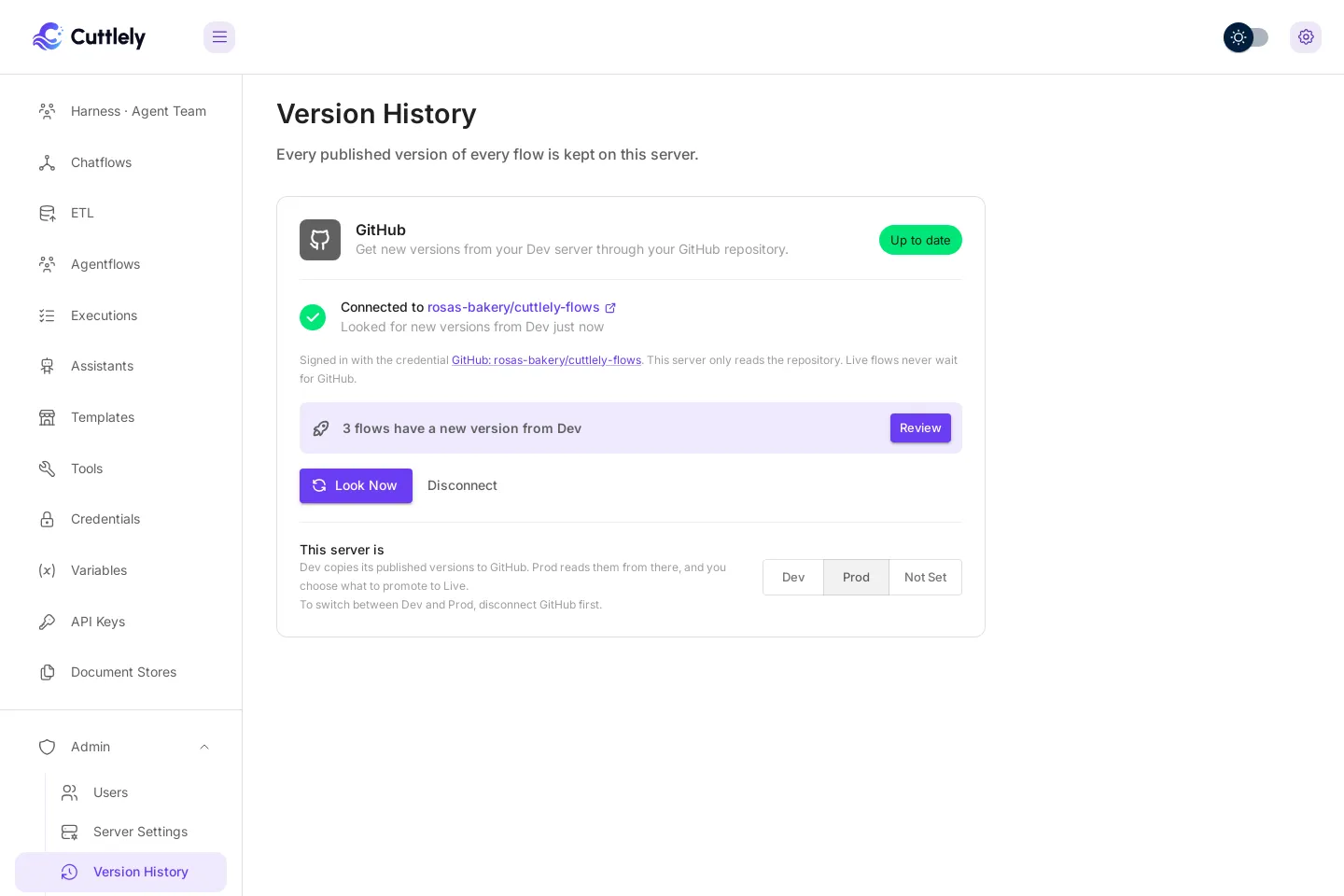
To switch a server between Dev and Prod, disconnect GitHub first.
See what is new
Section titled “See what is new”The Chatflows and Agentflows lists on Prod show the same news above the flows, one line per flow: New flow from Dev for a flow Prod does not have yet, and New version available from Dev for one it has. Only the owner sees it.
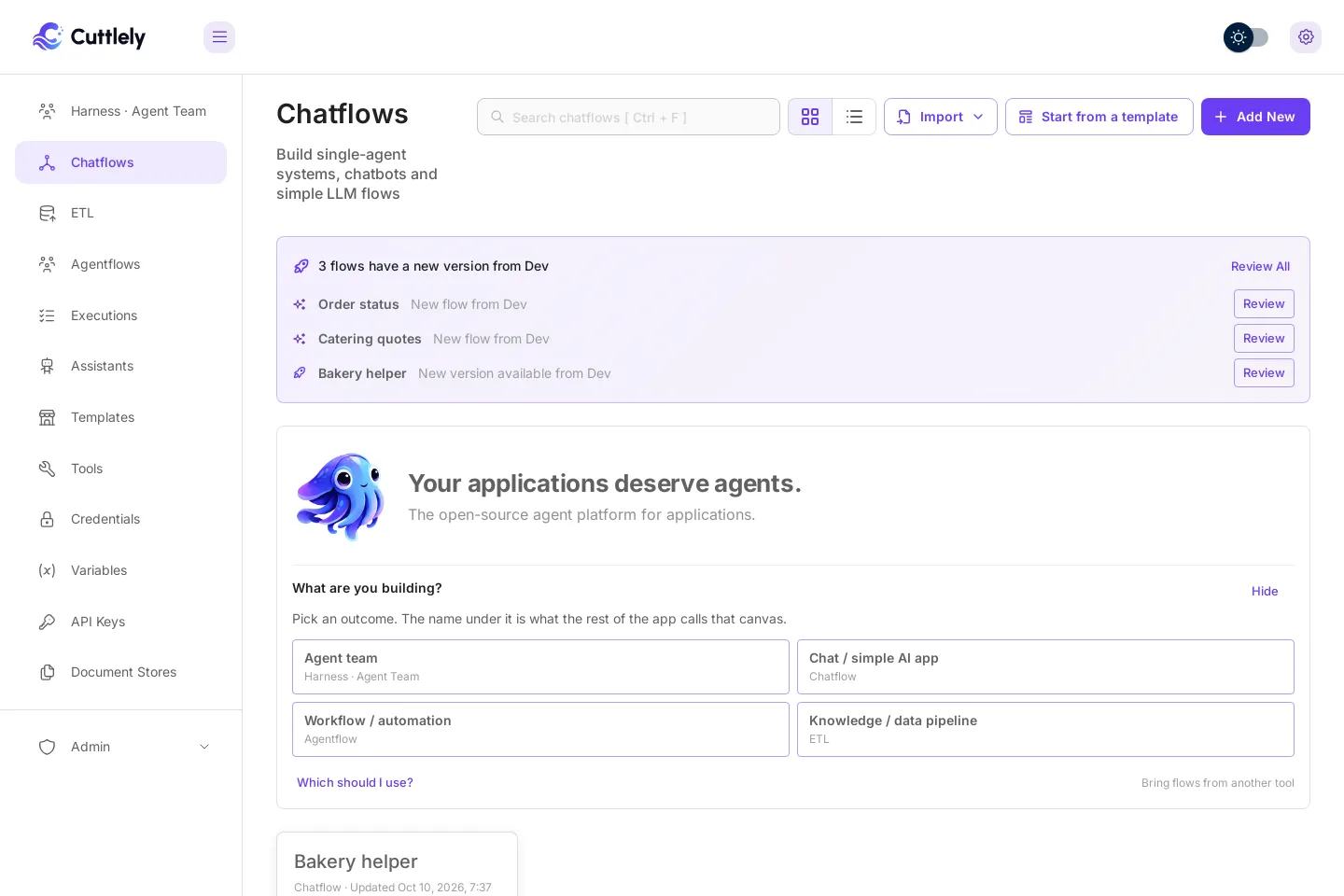
Review all opens the From Dev page with every flow that has something new.
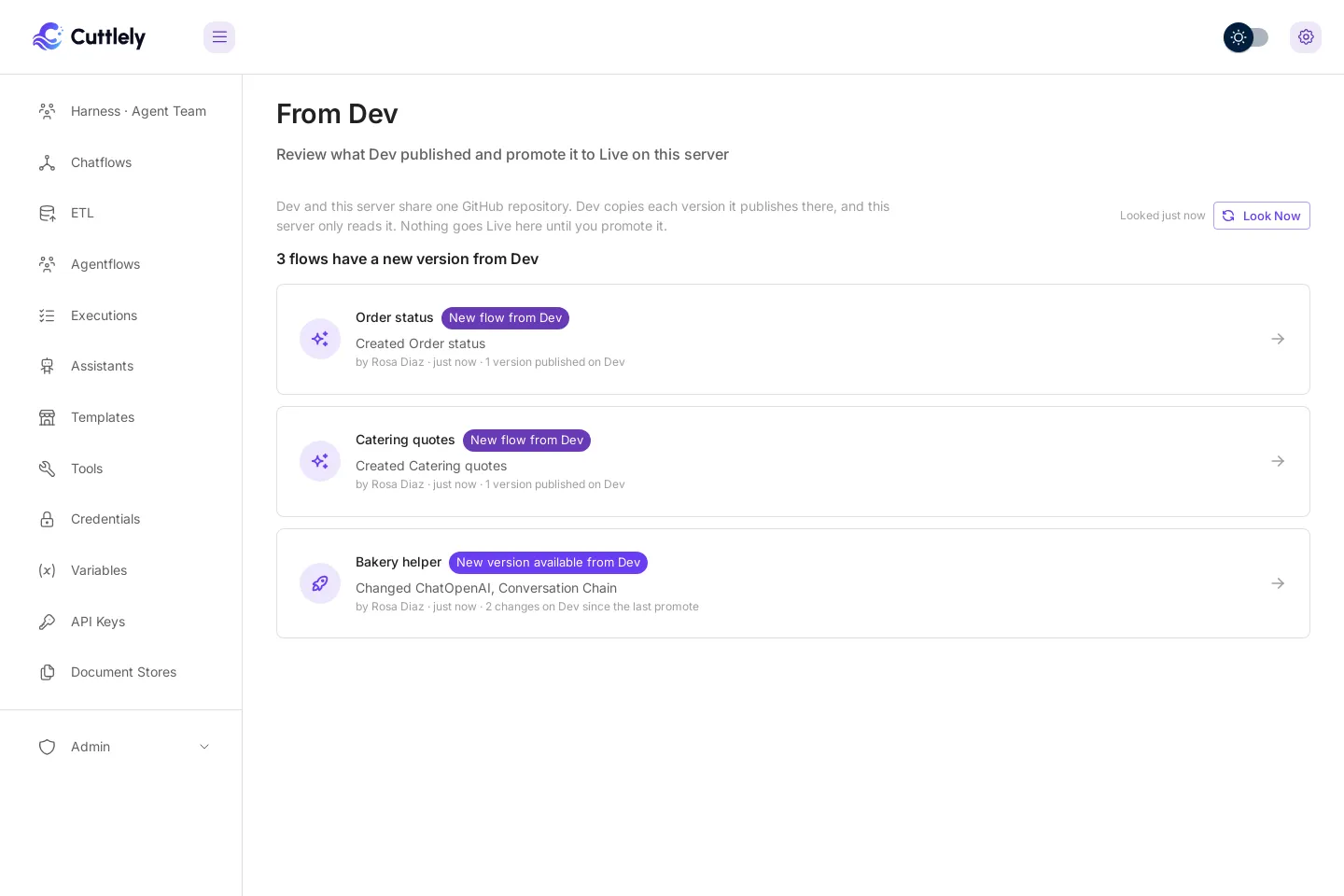
Review and promote
Section titled “Review and promote”Select a flow to open its review page:
- What changes on this server compares the version from Dev with what is Live on Prod now.
- What changed on Dev lists the versions Dev published since the last promote, newest first.
- Credentials says whether Prod has every credential the flow uses. See Credentials stay on each server.
- Check recent questions runs the questions Prod’s users asked lately on Live and on the version from Dev, side by side, the same way as Check recent questions before you publish. It is optional.
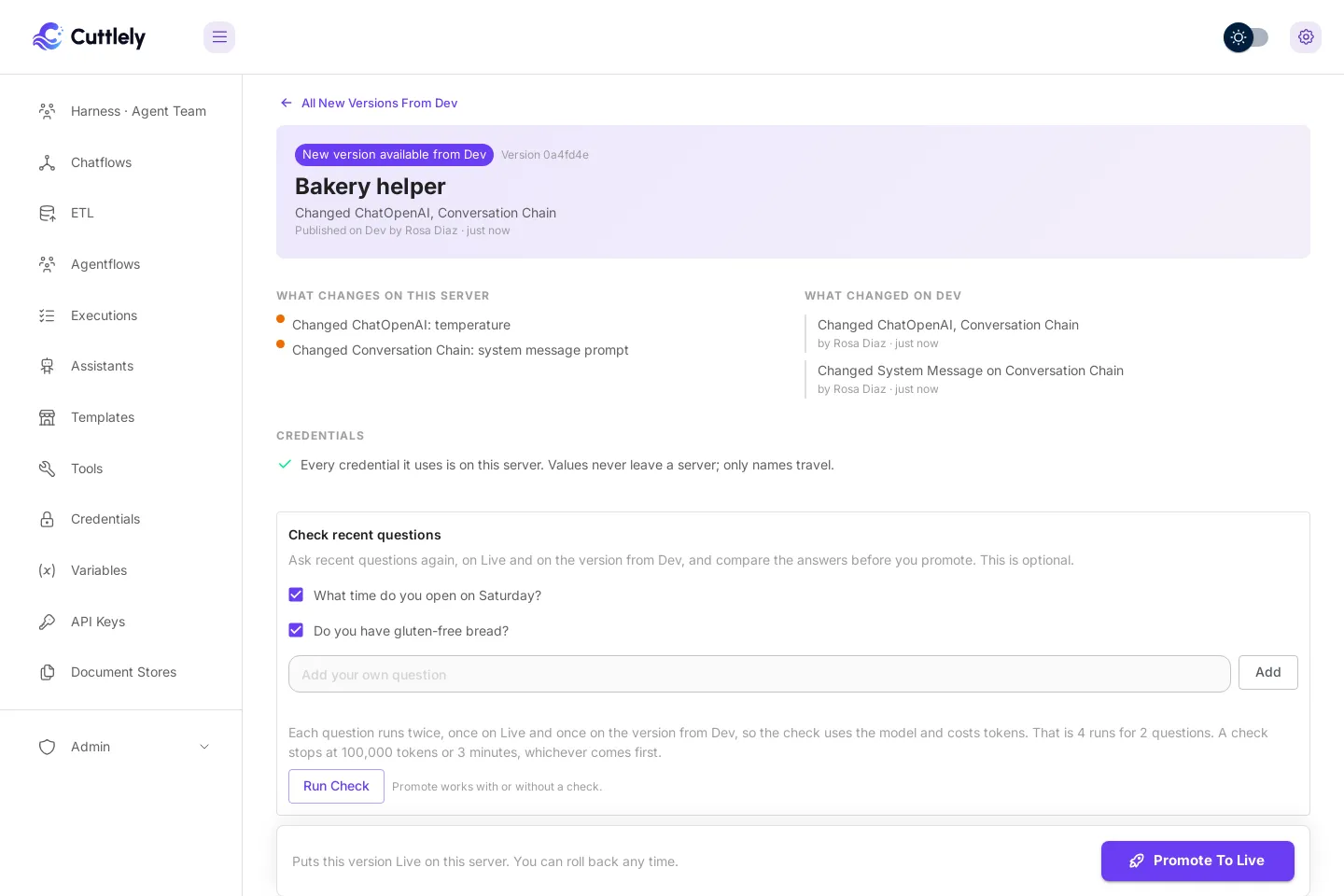
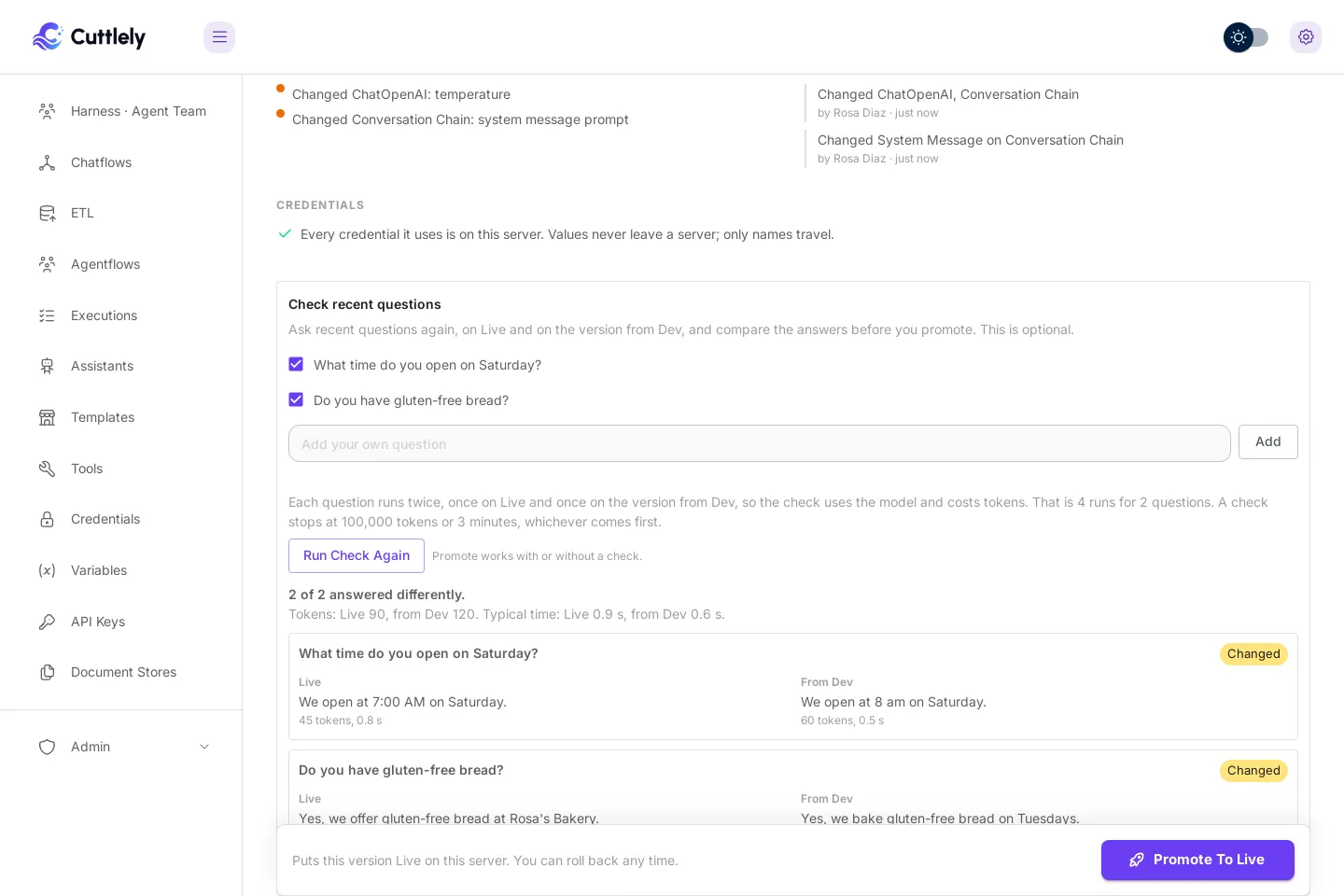
When it looks right, select Promote to Live. The version from Dev is Live on Prod right away, and Prod’s version history shows it as Promoted from Dev.
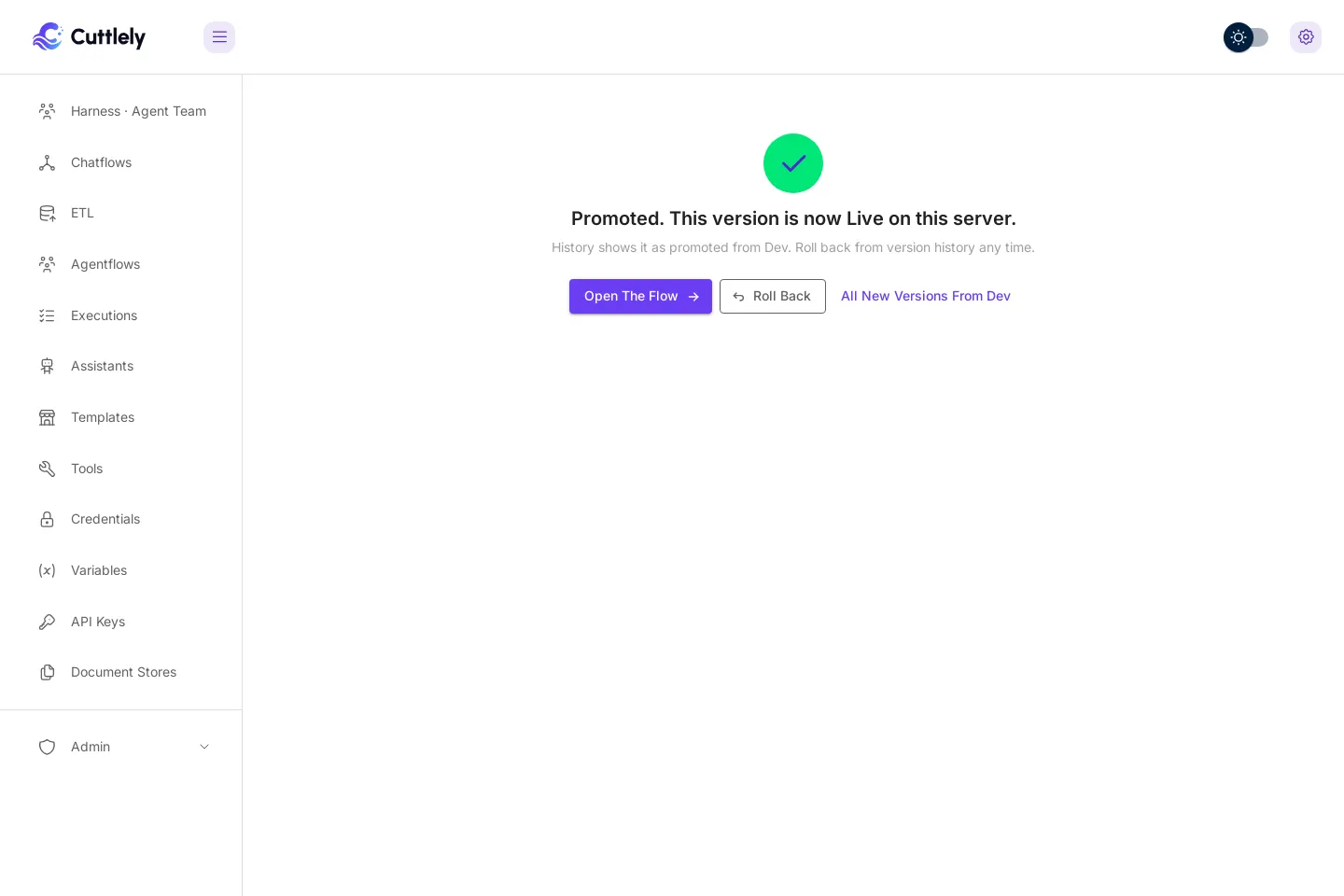
Roll back puts the previous Live version back in one step, the same as Roll back live to this version in version history. Rolling back does not offer the same version from Dev again; the next version Dev publishes shows up as usual.
A new flow is created on Prod with the same name, Live, and the check is not offered for it because there is nothing Live to compare with.
Credentials stay on each server
Section titled “Credentials stay on each server”Each server uses its own Credentials. The files Dev copies carry only each credential’s name and type, never its value. On promote, Prod uses its own credential with the same name and type.
If Prod does not have one, Promote to Live waits and the page lists exactly which credentials to add, with a link to Credentials. Add each one on Prod with the same name and type (and Prod’s own key), then come back and promote.
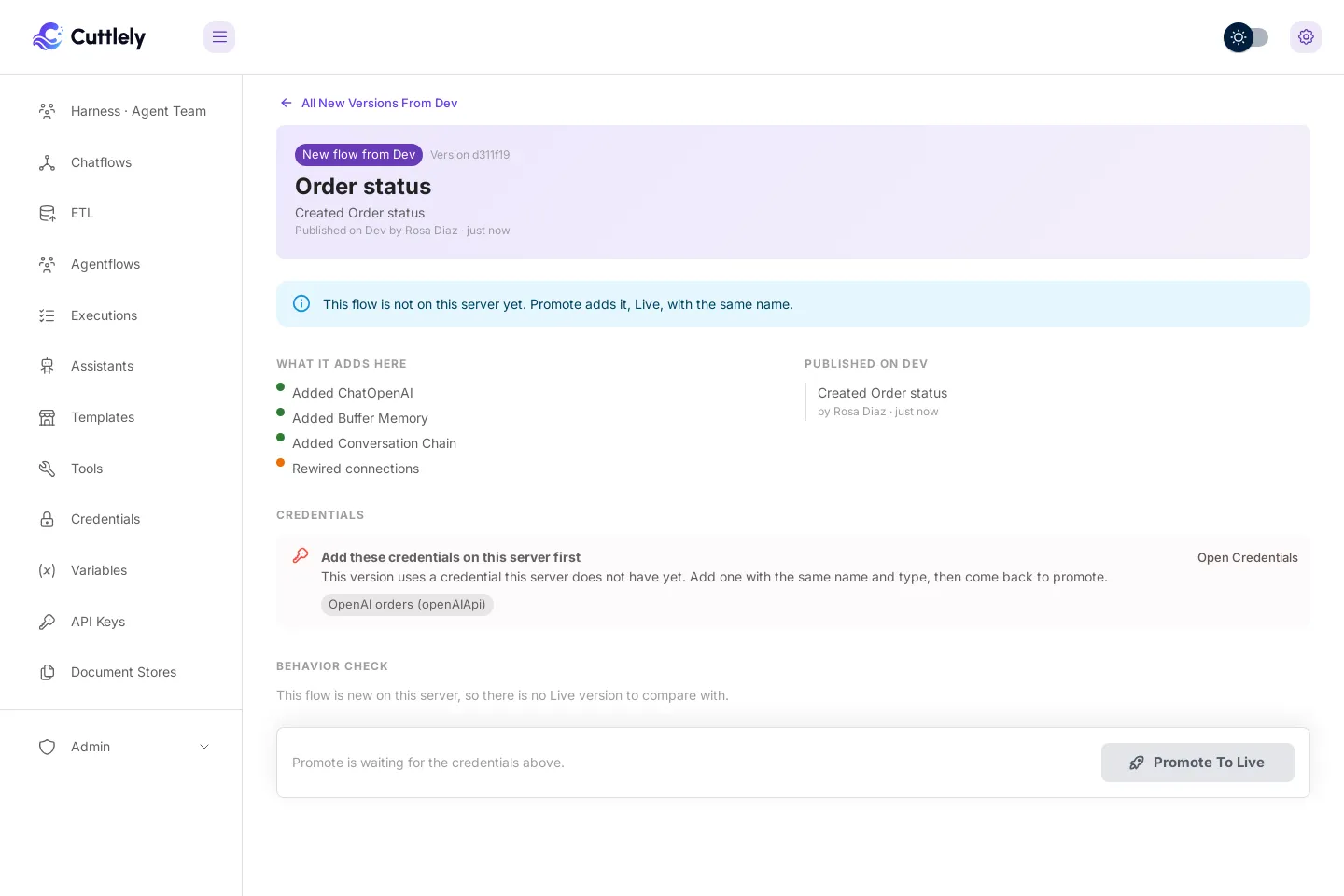
If Prod has more than one credential with that name and type, the page says which one Promote uses: the one the flow uses on Prod now, or else the oldest.
Prod’s own changes are safe
Section titled “Prod’s own changes are safe”- Prod never writes to the repository and never puts anything Live by itself. Only Promote to Live does.
- If someone has unpublished changes to the flow on Prod, the review page says so. Promote keeps those changes as they are, and Publish on that flow then asks before it replaces the newly promoted version.
- If Dev publishes again while you are reviewing, Promote stops and asks you to look at the newer version first.
Only the owner (Super User) of Prod sees the From Dev page and can promote. The routes are in the History API.
Turn history off
Section titled “Turn history off”Set CUTTLELY_VERSIONS=off in the server environment and restart. false, 0, and no also work. Any other value, or no value, leaves history on.
With history off, saves are not recorded, the Version history button and Last edited by do not show, and the history routes return no versions. The repo on disk is left as it is. Remove the setting and restart to turn history back on. Saves made while it was off are not in history. The next save records the flow as it is then.
In Docker, add CUTTLELY_VERSIONS=off to .env next to docker-compose.yml, then run docker compose up -d. On Render, add it in the Dashboard. All settings are in History settings.