

From source
Use this guide to run Cuttlely from a Git checkout. You build it yourself and start it with one script. It’s the way to work on Cuttlely itself, or to run it on a machine without Docker. For a ready-made install, use Docker. For a hosted install, use Render.
When you finish, Cuttlely runs at http://localhost:43117, with the agent runtime beside it for harness specialists. The app database is SQLite, and you have one local account to sign in with. A database you already run can replace SQLite. See Use Postgres.
Before you start
Section titled “Before you start”| Tool | Version | Check |
|---|---|---|
| Node.js | 24 (.nvmrc is v24.15.0) |
node -v |
| pnpm | 10.33.4, pinned by packageManager in package.json |
pnpm -v |
| uv | any recent version, from docs.astral.sh/uv | uv --version |
| Git | any. The server also needs git for Version history |
git --version |
With Corepack on (corepack enable), pnpm runs the pinned version for you. uv downloads the Python that the agent runtime needs, so you don’t install Python yourself.
Install and build
Section titled “Install and build”-
Get the code:
Terminal window git clone https://github.com/cuttlely/cuttlely.gitcd cuttlely -
Install the dependencies:
Terminal window pnpm installIt ends with
Done in ... using pnpm v10.33.4. A box that saysIgnored build scripts: ...is expected. The build and the server don’t need those scripts. -
Build every package:
Terminal window pnpm buildIt ends with
Tasks: 6 successful, 6 total. On an 8-core machine a first build took about 75 seconds. -
Set up the agent runtime, the Python process that runs harness specialists:
Terminal window bash scripts/setup-hermes.shIt creates
hermes/.venvwith Python 3.14, downloaded by uv if it’s missing, and ends withHermes Python ready: .../hermes/.venv/bin/python (Python 3.14, mcp extra). To use Python 3.11 to 3.13 instead, pass the version:bash scripts/setup-hermes.sh 3.12.
Start Cuttlely
Section titled “Start Cuttlely”CUTTLELY_LOCAL_ADMIN=true bash scripts/start-cuttlely.shCUTTLELY_LOCAL_ADMIN=true turns on the local account and its password form. Leave the terminal open. The server runs in the foreground, and Ctrl+C stops the server and the agent runtime together.
The script starts the server, waits for the harness gateway, and then starts the agent runtime. A good start looks like this:
Cuttlely node: .../node-versions/v24.15.0/installation/bin/node (v24.15.0)Hermes Python: .../cuttlely/hermes/.venv/bin/pythonWaiting for the harness gateway on 127.0.0.1:43118.[INFO]: Starting Cuttlely...Harness gateway is answering on 127.0.0.1:43118.Harness queue: inline[INFO]: 📦 [server]: Data Source initialized successfully[INFO]: 🔄 [server]: Database migrations completed successfully...[INFO]: 🎉 [server]: All initialization steps completed successfully![INFO]: ⚡️ [server]: Cuttlely Server is listening at :43117The first start takes about 20 seconds. To check it from another terminal:
curl -fsS http://127.0.0.1:43117/api/v1/pingIt prints pong. The X-Cuttlely-Hermes response header is up once the agent runtime is running. See Agent runtime health.
| Port | What listens | Change it with |
|---|---|---|
43117 |
The app and its API | PORT |
43118 |
The harness gateway, on 127.0.0.1 only |
CUTTLELY_HARNESS_GATEWAY_PORT |
8642 |
Agent runtime, on 127.0.0.1 only |
HERMES_API_PORT |
To run a second copy on the same machine, give it its own data as well as its own ports: set PORT, CUTTLELY_HARNESS_GATEWAY_PORT, and HERMES_API_PORT to free ports, and DATABASE_PATH, SECRETKEY_PATH, BLOB_STORAGE_PATH, and CUTTLELY_DATA_DIR to new folders. Two servers on the same data would both run its schedules.
Create your account
Section titled “Create your account”A new install has no users. With CUTTLELY_LOCAL_ADMIN=true, there are two ways to create the first account. Both make the same account, the owner (Super User).
In the browser
Section titled “In the browser”- Open http://localhost:43117 on the machine where Cuttlely runs. The app opens Setup Account.
- Fill in Administrator Name, Administrator Email, Password, and Confirm Password. The password needs 8 to 128 characters, with a lowercase letter, an uppercase letter, a digit, and a special character.
- Select Sign Up.
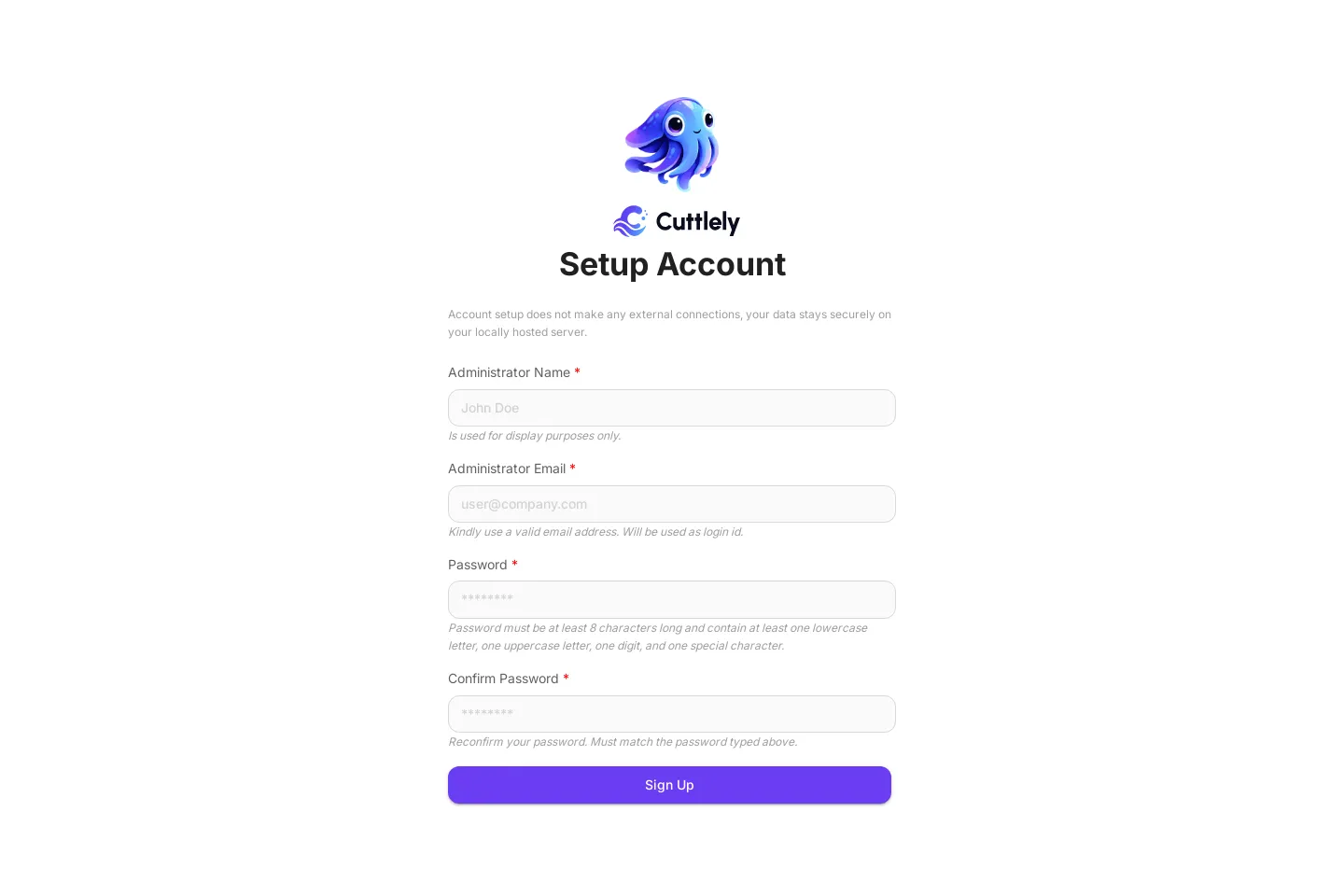
You are signed in, and the app opens Chatflows.
Setup Account works only from the machine where Cuttlely runs, and only while there are no users. From anywhere else, or once the account exists, Sign Up fails with Error in registering account: Not Found.
In a terminal
Section titled “In a terminal”From the repository root, in a second terminal:
CUTTLELY_LOCAL_ADMIN=true pnpm user --email you@example.comType the password at the Password: prompt. It isn’t shown. The command ends with:
[INFO]: Super User created for you@example.com.While the server is running, the command also prints [harness] gateway on 127.0.0.1:43118 failed: listen EADDRINUSE. The server already holds that port, and the account is still created.
Then open http://localhost:43117. The app opens Sign In. Type the email and password and select Sign in.
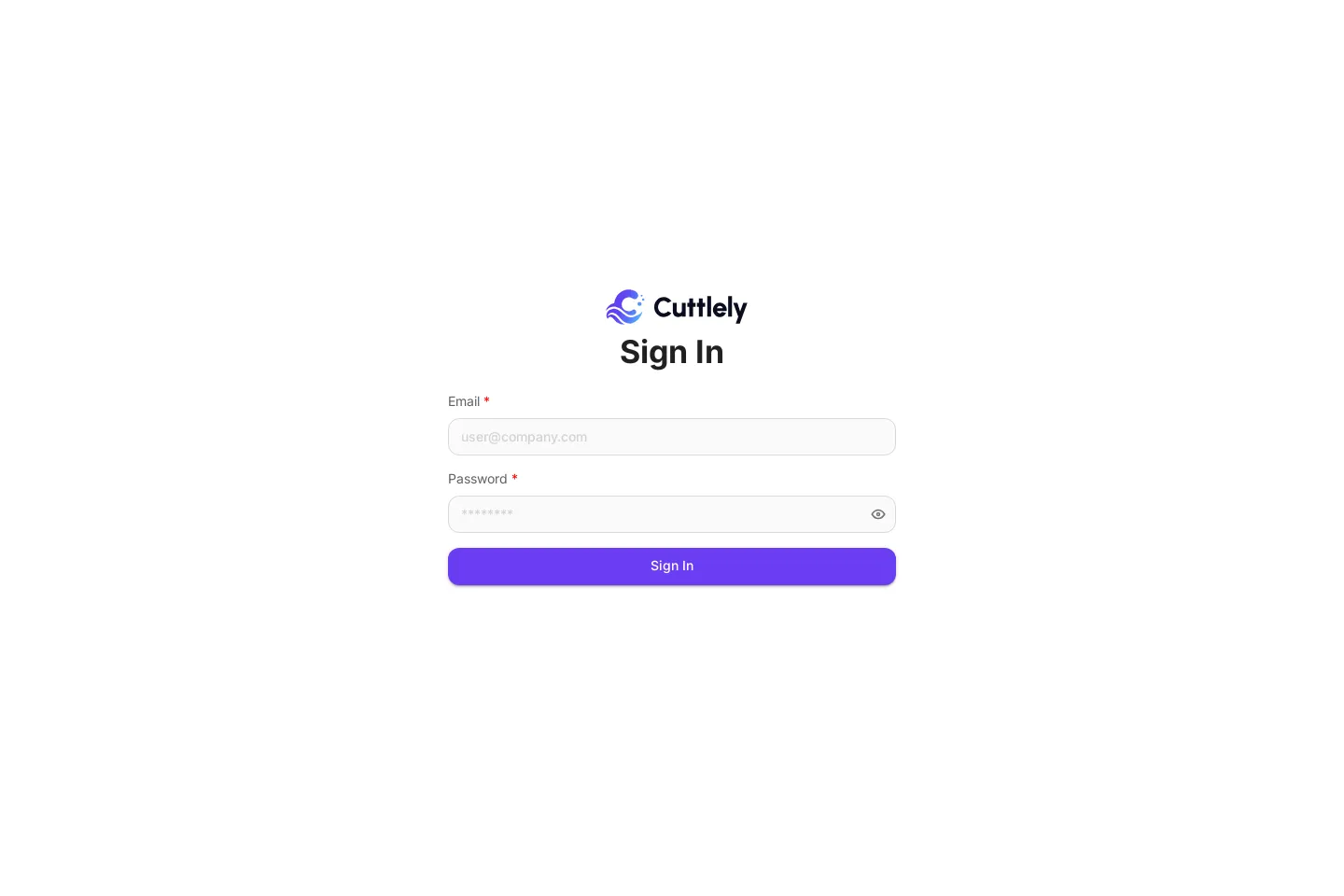
More about the account, a lost password, and WorkOS for a team: Sign in.
The first page
Section titled “The first page”After sign-in the app opens Chatflows. The sidebar lists everything else, from Harness · Agent Team to Document Stores, plus Admin for users and teams. Your name and Logout are under the gear at the top right.
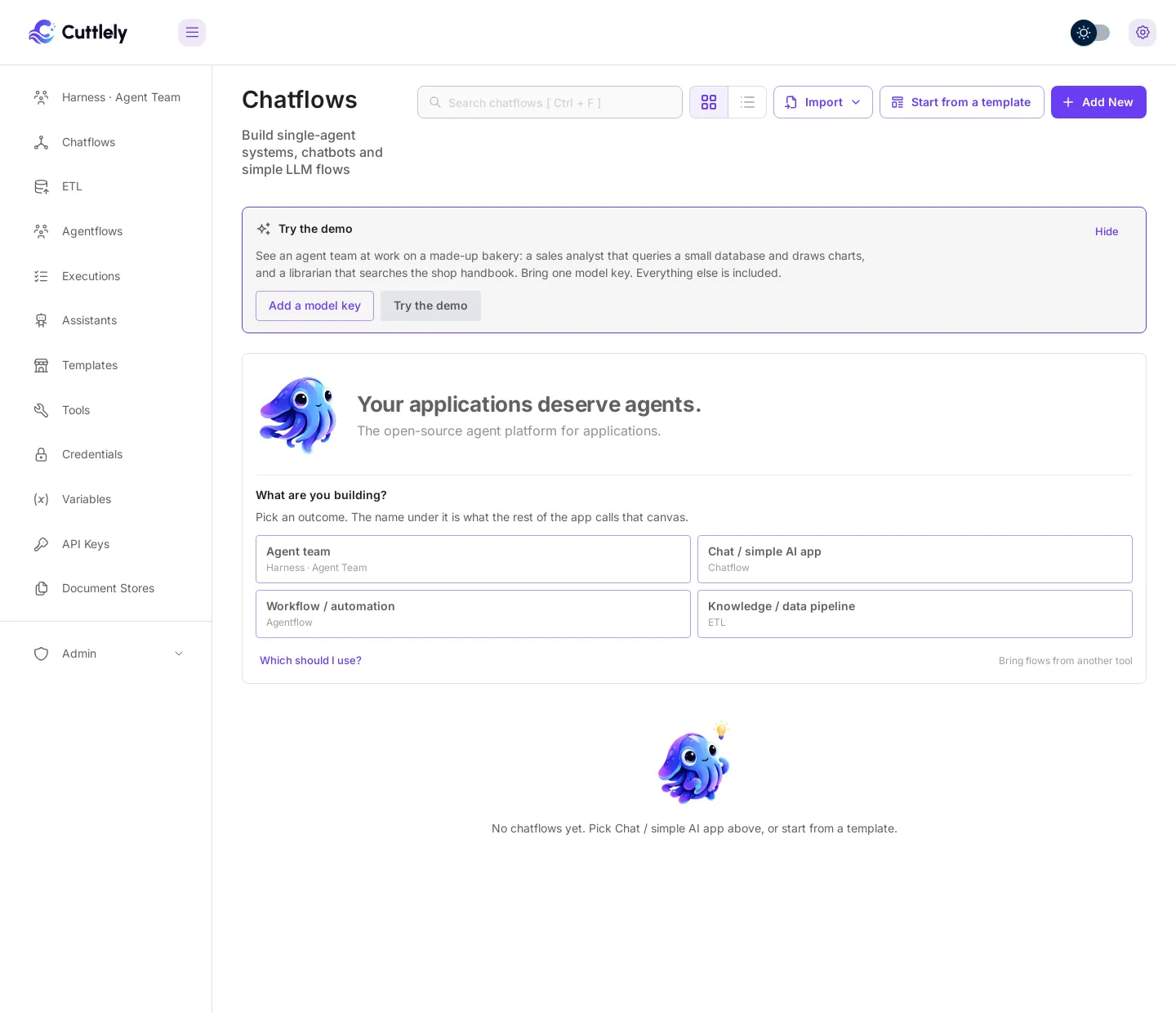
Next steps: save a model key under Credentials, then build an agent team or an ETL pipeline.
Where your data lives
Section titled “Where your data lives”| What | Where | Set with |
|---|---|---|
App database, database.sqlite |
~/.cuttlely |
DATABASE_PATH |
encryption.key and the sign-in secrets |
~/.cuttlely |
SECRETKEY_PATH |
| Uploaded files | ~/.cuttlely/storage |
BLOB_STORAGE_PATH |
| Harness records, agent runtime home, ETL files, version history | <checkout>/.cuttlely |
CUTTLELY_DATA_DIR |
| Version history, a Git repository | <checkout>/.cuttlely/versions |
CUTTLELY_DATA_DIR |
| ETL runs, local vector stores, and uploads | <checkout>/.cuttlely/etl |
CUTTLELY_ETL_DIR |
scripts/start-cuttlely.sh sets CUTTLELY_DATA_DIR to <checkout>/.cuttlely unless you set it. The app database and the key stay in ~/.cuttlely unless you set DATABASE_PATH and SECRETKEY_PATH. Docker and Render put all of it under /var/cuttlely.
Keep encryption.key with the database. Stored credentials can’t be read without it.
CUTTLELY_VERSIONS=off turns version history off. CUTTLELY_DRAFTS=off turns drafts off, so the canvas saves straight to Live. See Version history and History settings.
Keep your settings in a file
Section titled “Keep your settings in a file”Copy packages/server/.env.example to packages/server/.env and set values there. The server and pnpm user both read that file, and a value in it wins over the same variable in your shell. .env is gitignored.
The example file starts with an active PORT=3000. Delete that line, or the app listens on 3000 instead of 43117 and the script still waits for 43117. scripts/start-cuttlely.sh reads PORT, CUTTLELY_DATA_DIR, CUTTLELY_HARNESS_GATEWAY_PORT, and HERMES_API_PORT from the shell before the server reads the file. Keep those four out of the file and set them in the shell, so the script and the server agree.
Use Postgres
Section titled “Use Postgres”SQLite is the default. Use Postgres when you already run a Postgres server. Cuttlely does not read DATABASE_URL. Set these:
DATABASE_TYPE=postgresDATABASE_HOST=127.0.0.1DATABASE_PORT=5432DATABASE_NAME=CuttlelyDATABASE_USER=your-userDATABASE_PASSWORD=your-passwordDATABASE_PORT defaults to 5432 when it’s unset. Set DATABASE_SSL=true when the server requires TLS. Docker Compose does not start Postgres and stays on SQLite. See Docker. The Render Blueprint fills these variables for you. See Render.
The analyst database
Section titled “The analyst database”CUTTLELY_ANALYST=auto gives the harness analyst its own database:
- On SQLite, Cuttlely creates
analyst-<tag>.dbnext todatabase.sqlitefor each workspace, and the analyst tool opens only that workspace’s file.<tag>comes from the workspace id. - On Postgres, Cuttlely creates a schema and a login for each workspace (
analyst_<tag>andanalyst_reader_<tag>). The login can use that schema and can’t read the app’s tables. The app’s login must be allowed to create roles. If it isn’t, analyst mode stops and tells you to set a separate database. It doesn’t fall back to the app’s login. - A store made before each workspace had its own (
analyst.db, or schemaanalyst) stays with the first workspace whose analyst runs. See Workspaces.
CUTTLELY_POSTGRES_URL is a different setting, only for the PostgreSQL MCP tool. Leave it unset unless that tool should query a database other than the one in DATABASE_*. The tool refuses a URL that points at the app database. A Postgres URL credential selected on the node wins over both the variable and CUTTLELY_ANALYST. The canvas steps and the errors are in Analyst mode.
Other ways to start
Section titled “Other ways to start”pnpm startstarts the server alone, without the agent runtime, so harness specialists don’t run. It uses port3000whenPORTis unset. Usescripts/start-cuttlely.shfor the full product.pnpm devruns the packages in watch mode while you change code. See CONTRIBUTING.md.
Update to a newer version
Section titled “Update to a newer version”Stop the server with Ctrl+C, then:
git pullpnpm installpnpm buildCUTTLELY_LOCAL_ADMIN=true bash scripts/start-cuttlely.shRun bash scripts/setup-hermes.sh again when hermes/ changed. Database migrations run on start, and your data stays where it was.
Troubleshooting
Section titled “Troubleshooting”| You see | What to do |
|---|---|
Cuttlely is not ready to start. Missing: and a list |
Run pnpm install && pnpm build from the repository root, then start again. |
Hermes Python not found or Hermes Python ... cannot import the vendored Hermes runtime |
Run bash scripts/setup-hermes.sh, or set HERMES_PYTHON to a Python that can import Hermes. |
Hermes needs Python 3.11 to 3.14 |
Pass a supported version: bash scripts/setup-hermes.sh 3.12. |
uv is required. |
Install uv, then run setup-hermes.sh again. |
listen EADDRINUSE on 43117 when the server starts |
Another server holds the port. Stop it, or set PORT, CUTTLELY_HARNESS_GATEWAY_PORT, and HERMES_API_PORT to free ports. |
Harness gateway on 127.0.0.1:43118 did not answer within 180s. Hermes will not start. |
The app is up without the agent runtime. Check the log above it for the server error, fix it, and start again. |
Sign In says Sign-in is not configured. |
CUTTLELY_LOCAL_ADMIN isn’t true. Stop the server and start it with CUTTLELY_LOCAL_ADMIN=true. |
Refusing to create a user while the local admin flag is off. |
Run pnpm user with CUTTLELY_LOCAL_ADMIN=true. |
| Stored credentials stop working | The server is using a different encryption.key. Point SECRETKEY_PATH at the folder that holds the original key. |